Block YouTube Incognito
Block YouTube Incognito mode on Android devices with BlockP. Prevent private browsing bypasses that defeat parental controls. Works even in Incognito mode.
Get Started with BlockPParents are increasingly looking for ways to block YouTube Incognito because it is such a too-easy-to-use loophole.
Parents who monitor their child’s internet use often have the moment where they come across a mystery. Their child is using up a lot of data, but their YouTube history is suspiciously clean. So, there are hours of activity that show up nowhere.
There is no way to monitor incognito mode history on accountability apps, and the child can easily bypass network-level restrictions by switching from WiFi to mobile data.
That’s why BlockP gives a dedicated feature to block YouTube Incognito to provide device-level digital protection from such easy loopholes.
Why Block YouTube Incognito Mode?
- Incognito mode makes a child’s YouTube history invisible to the parent. YouTube's Incognito mode also prevents the video history from showing up in accountability apps. So, the parents can not go to YouTube history and ensure that their child is not exposed to unwanted content.
- When you activate incognito mode, it stops adding videos to recommendations - a major red flag that parents often notice. Because when an unwanted video shows up in recommendations, it means that someone has watched something related to it.
- Most parental-control tools like Google’s Family Link can only track activity and accounts that they know about. But with YouTube Incognito mode, the session never gets logged in - so, there is nothing for these tools to find.
- YouTube is the most commonly used social media platform when it comes to teenagers in the US. Almost nine in ten teenagers admit that they use YouTube. So, when an app is so popular and so commonly used, even a small privacy loophole like incognitomode can be easily abused.
How to Block YouTube Incognito on Android with BlockP
Here is how to block YouTube incognito on your Android phone with BlockP:
Step 1: Install BlockP
Download the BlockP app from the Google Play Store and install it on your Android phone.
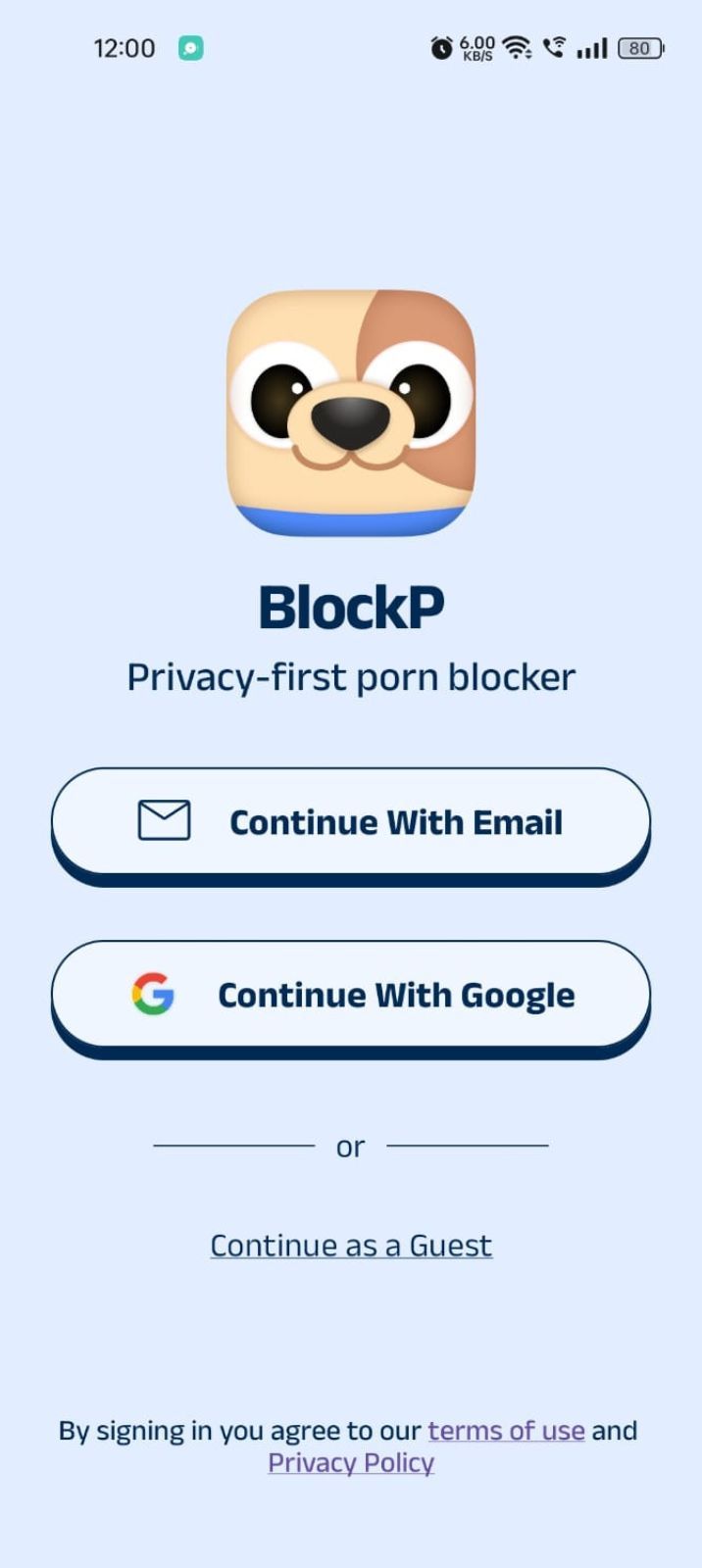
Step 2: Sign Up on BlockP
- Open the BlockP app.
- Sign up using Email or Google.
- Or tap Continue as a Guest to get started without creating an account.
Step 3: Give Necessary Permissions
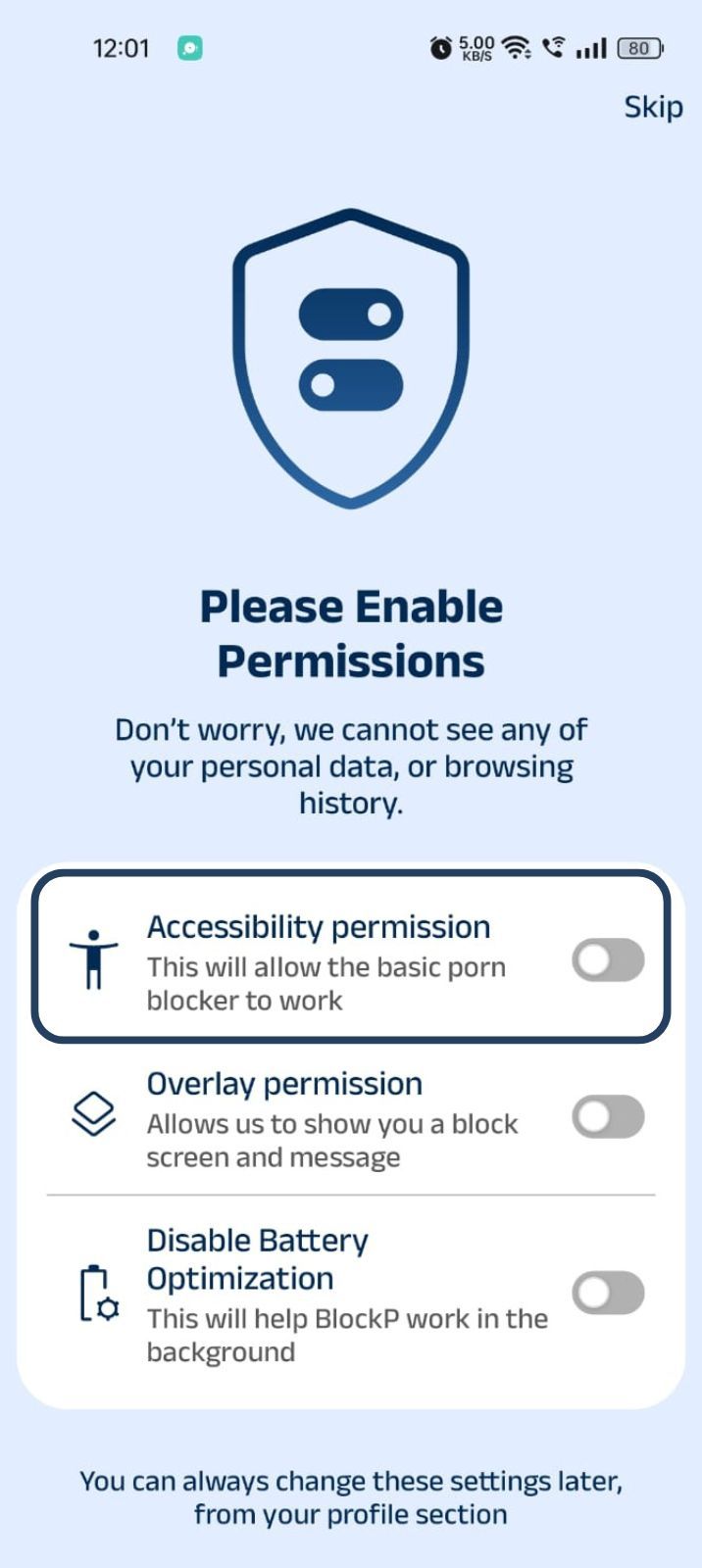
1. Accessibility - Lets the Android adult content blocker see what you are watching on your screen. Here is how to let BlockP use it:
- Click on the Accessibility permission toggle.
- Then click on "Let BlockP Access Accessibility Services"
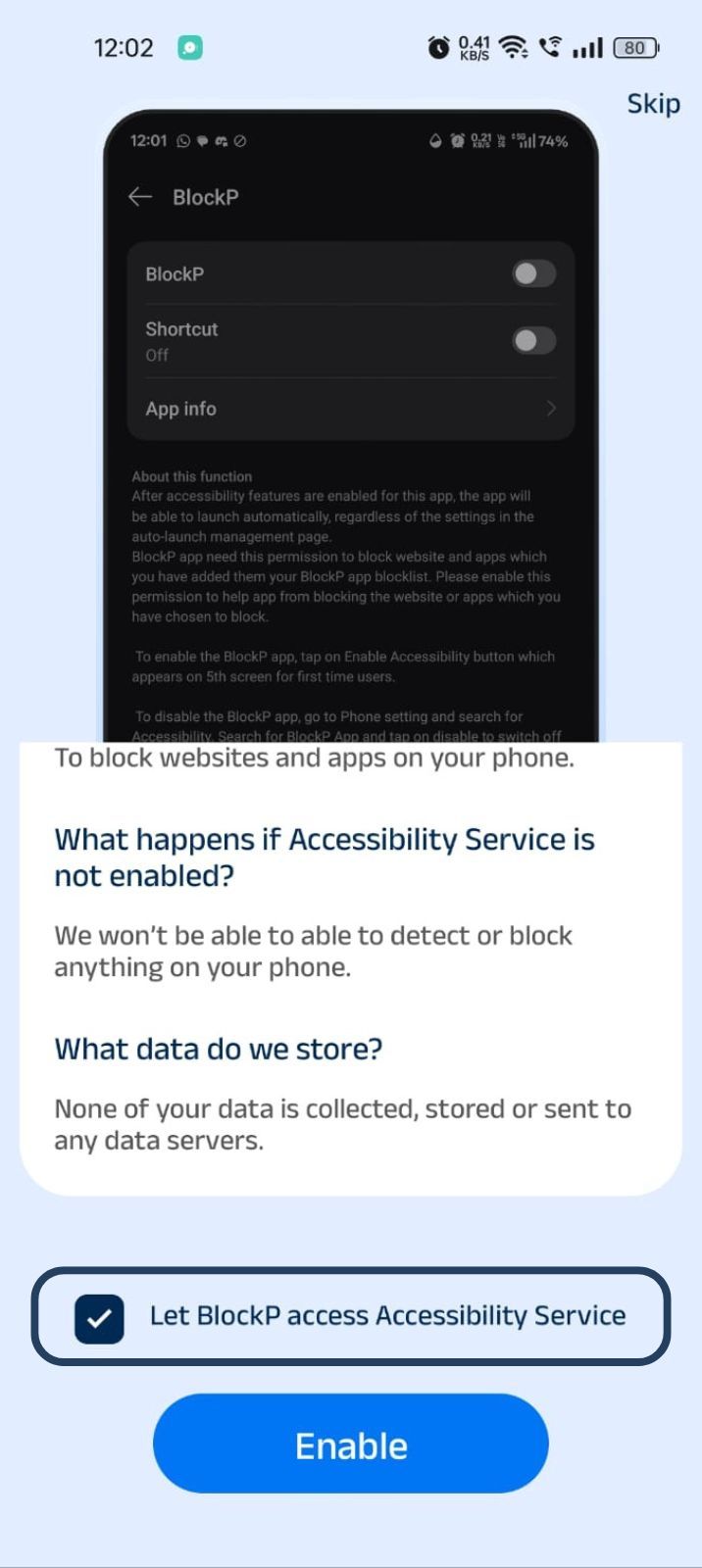
- Next, click on the Enable button
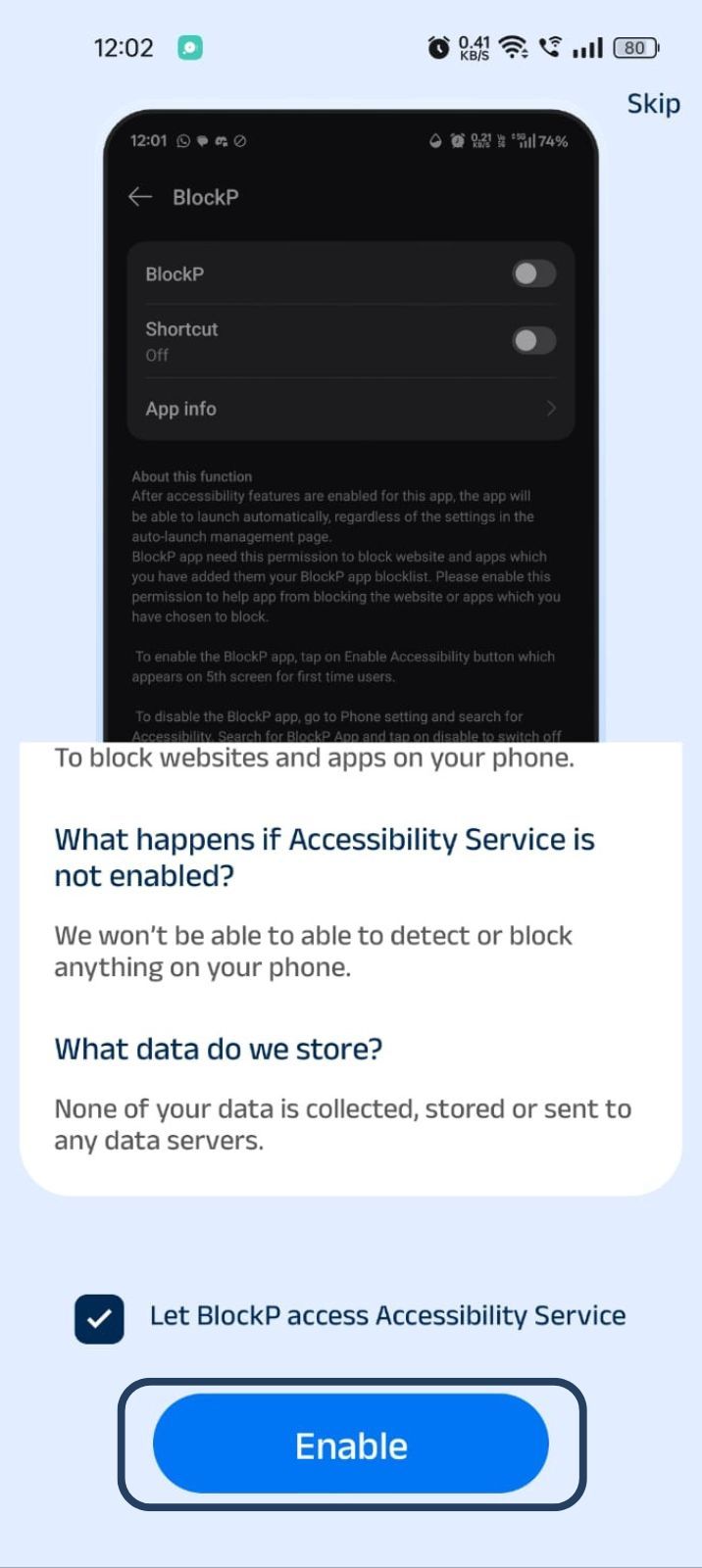
- Next, click on the downloaded apps button.
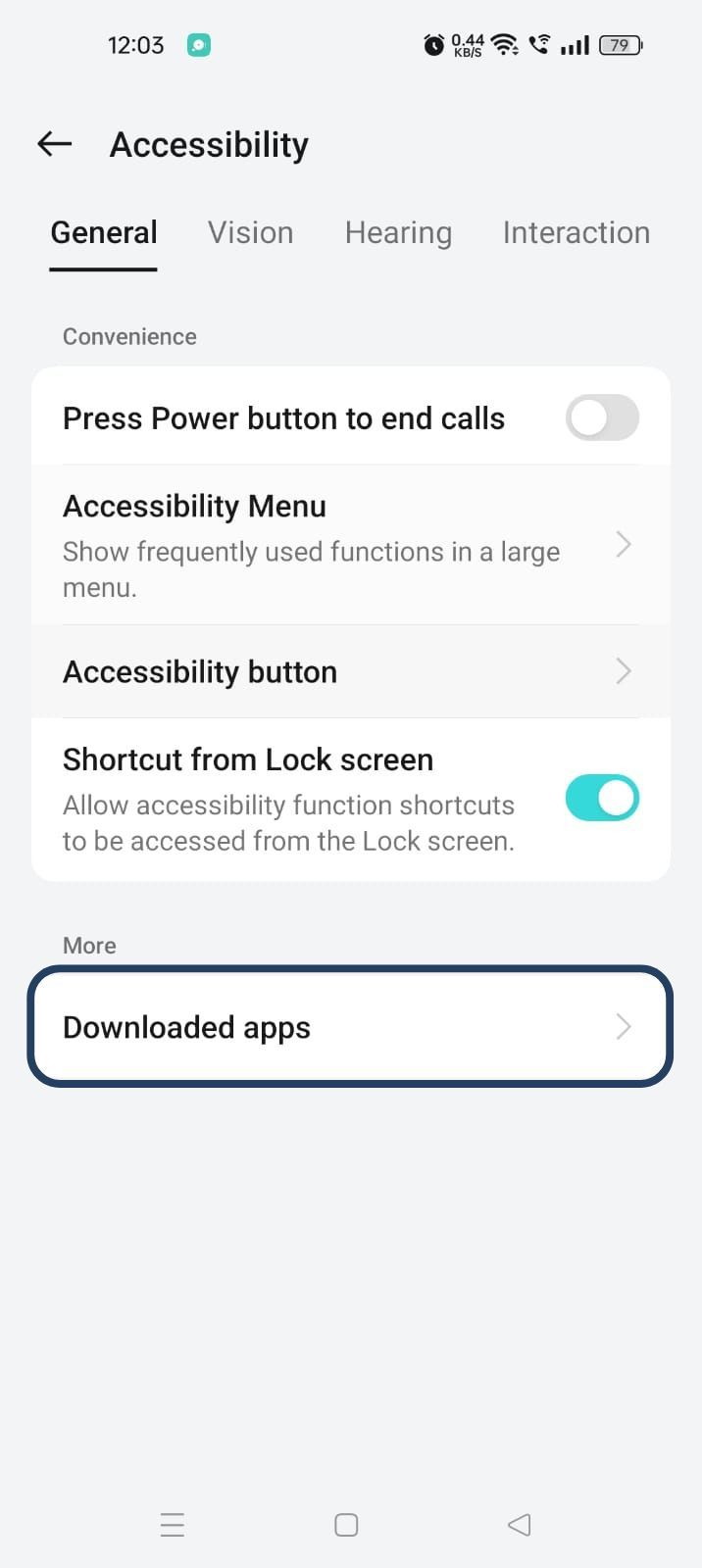
- Now, you will find Blockp - click on BlockP.
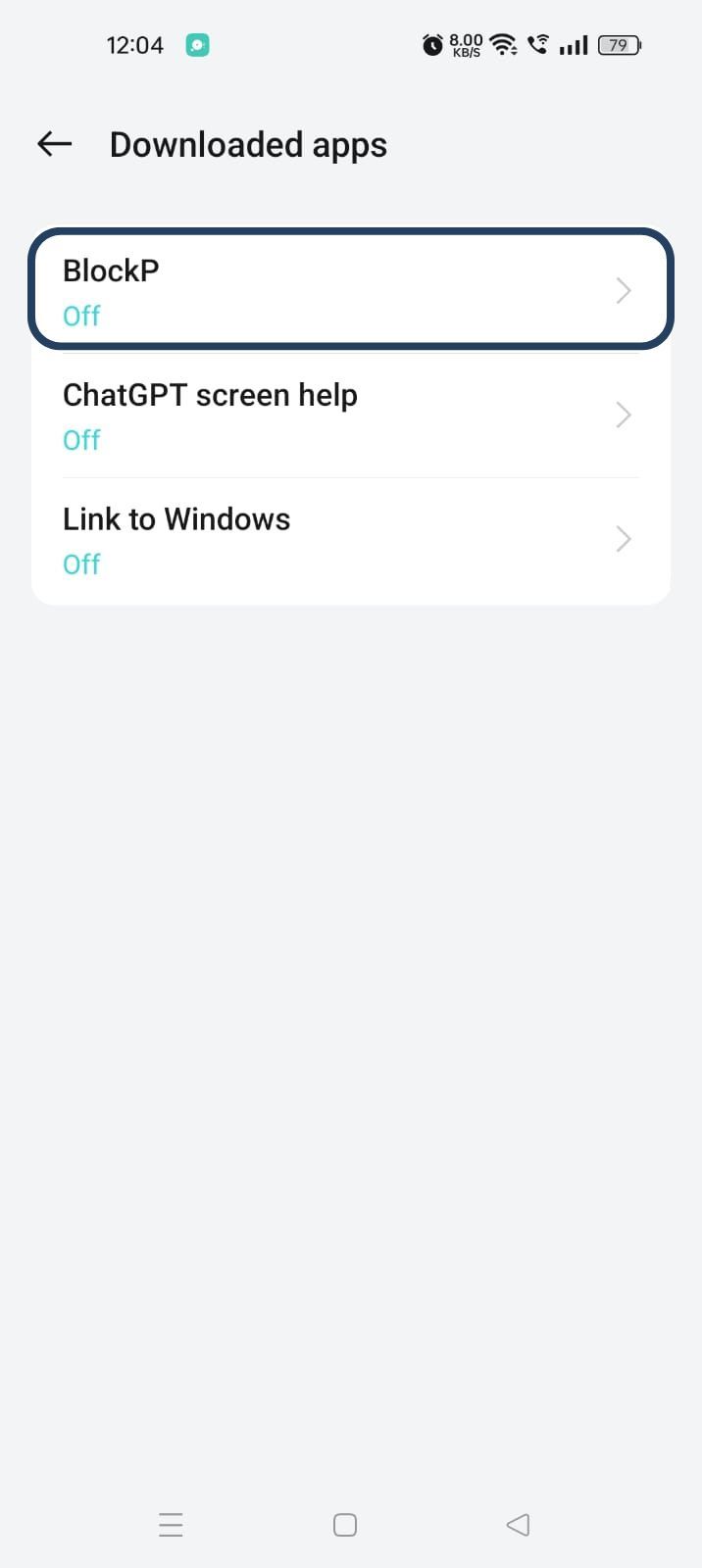
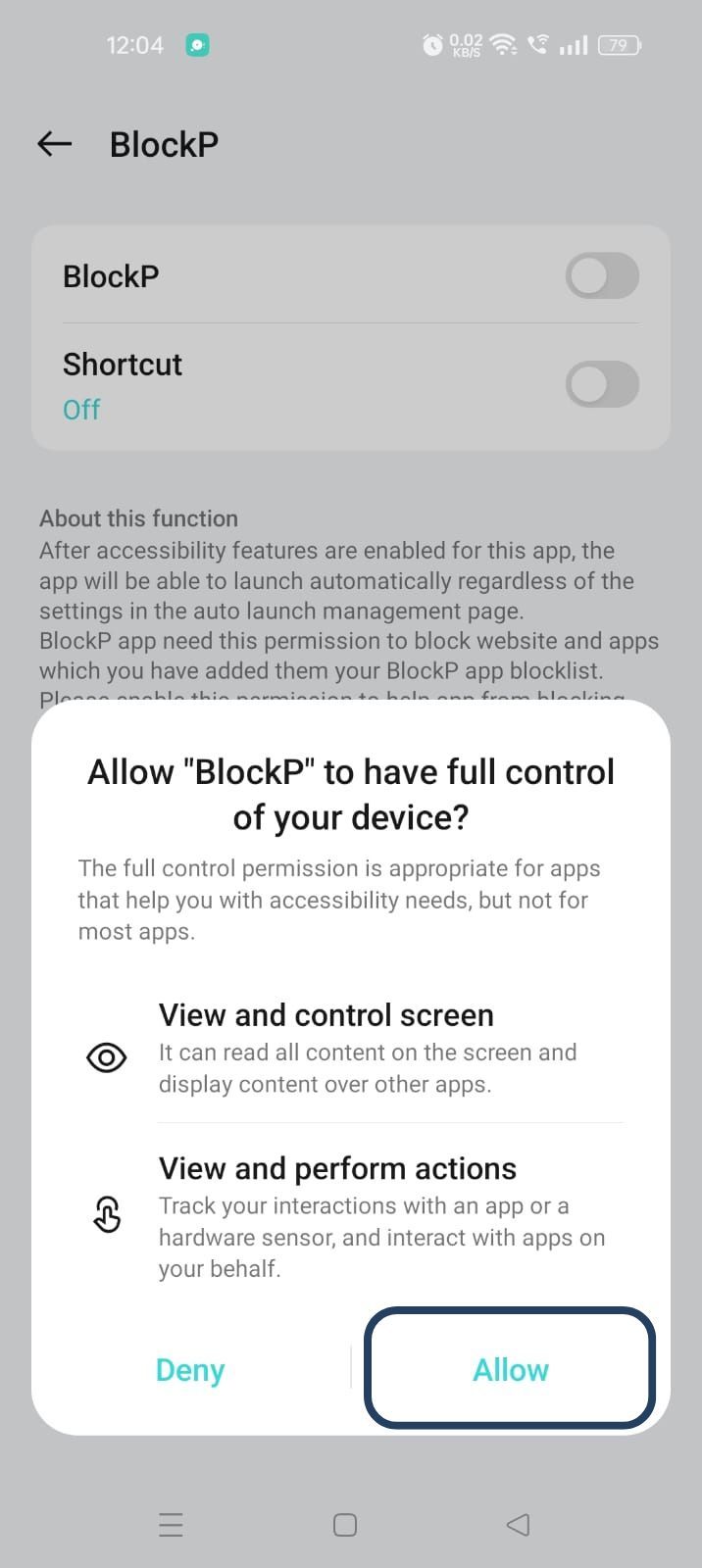
- The new screen will show a toggle in front of BlockP - enable the toggle and then click on the Allow button to complete the accessibility permission.
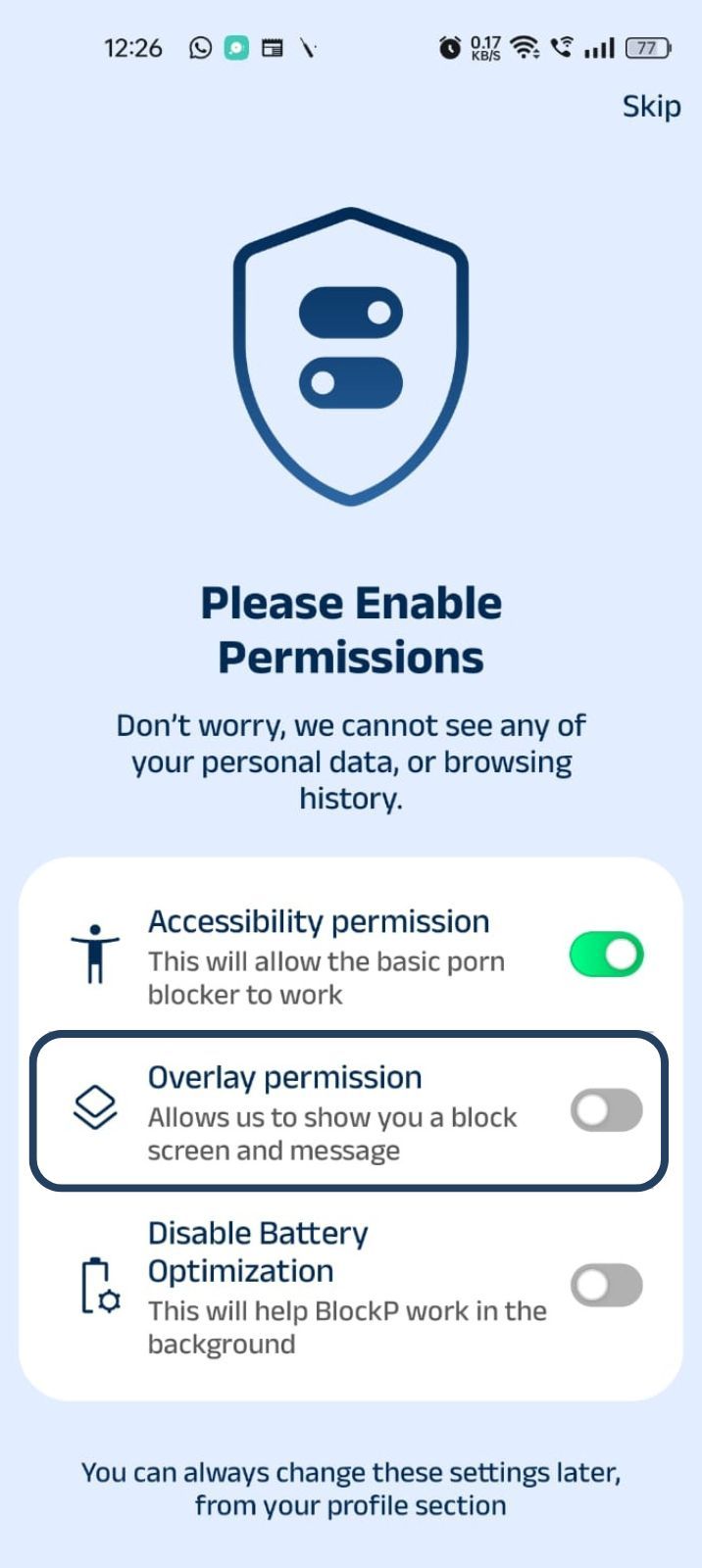
2. Overlay - lets BlockP show you a blocked screen and message when you try to access adult content.
- Click on Overlay permission toggle.
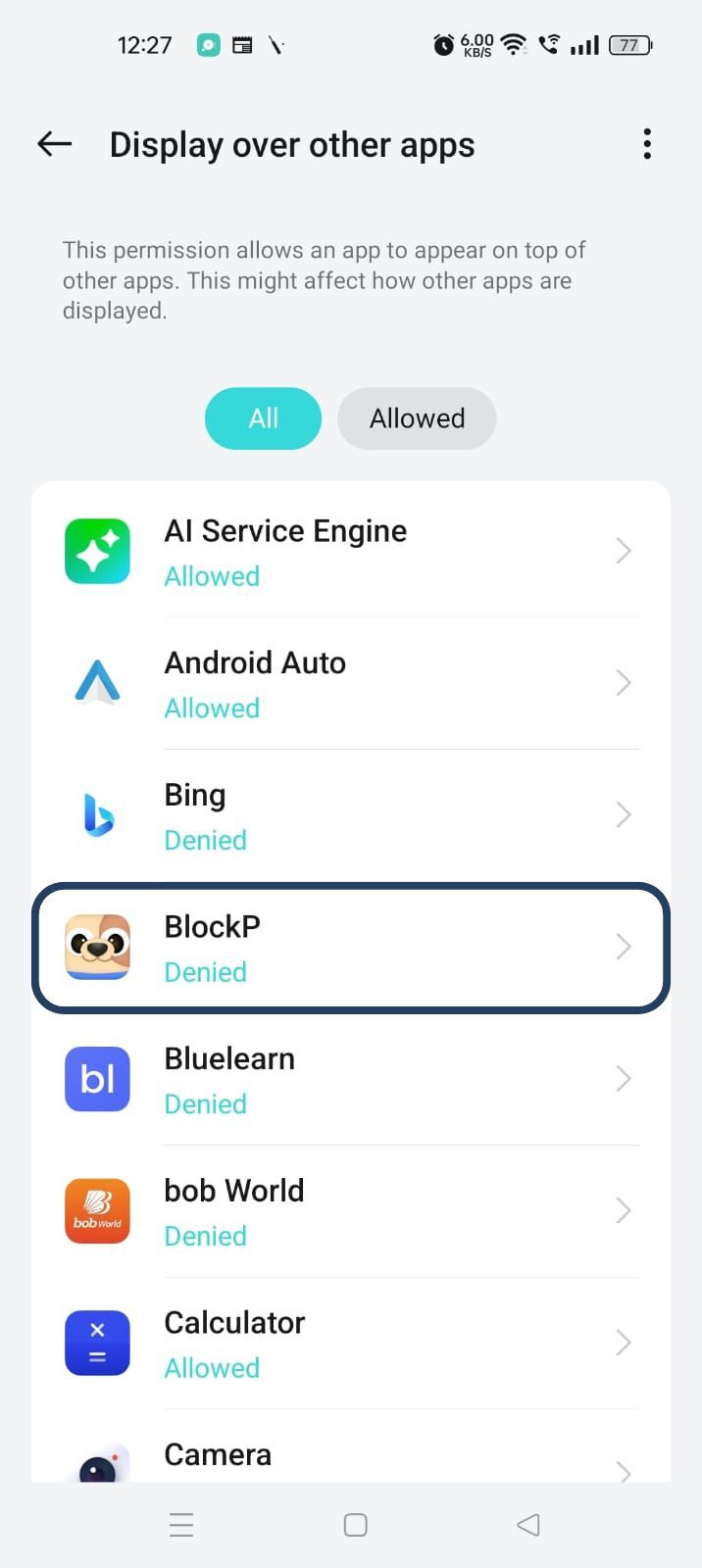
- You will get a menu with a list of apps titled - Display over other apps. Find BlockP in this list and click on it.
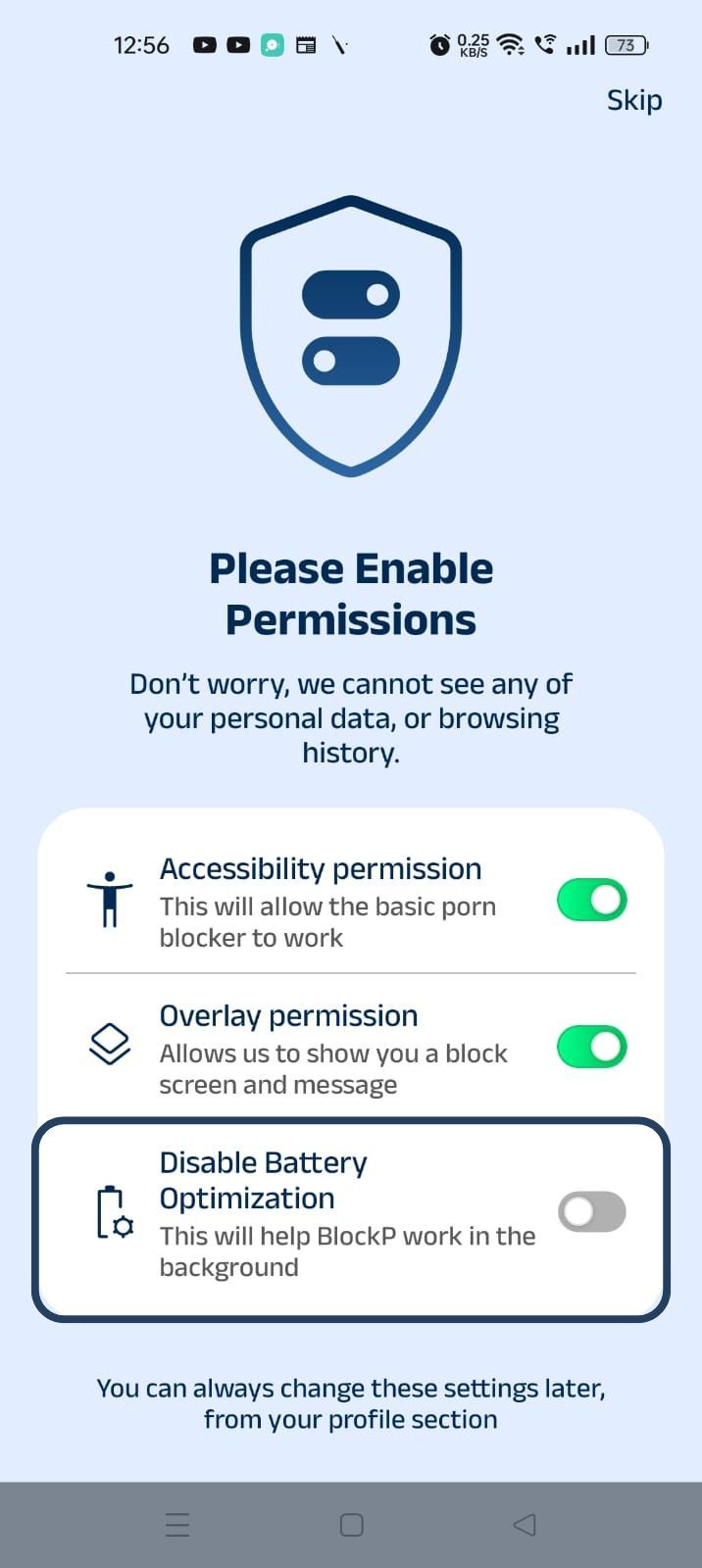
3. Disable battery optimization - so that BlockP can keep working in the background to filter adult content.
- Click on the Disable battery optimization toggle
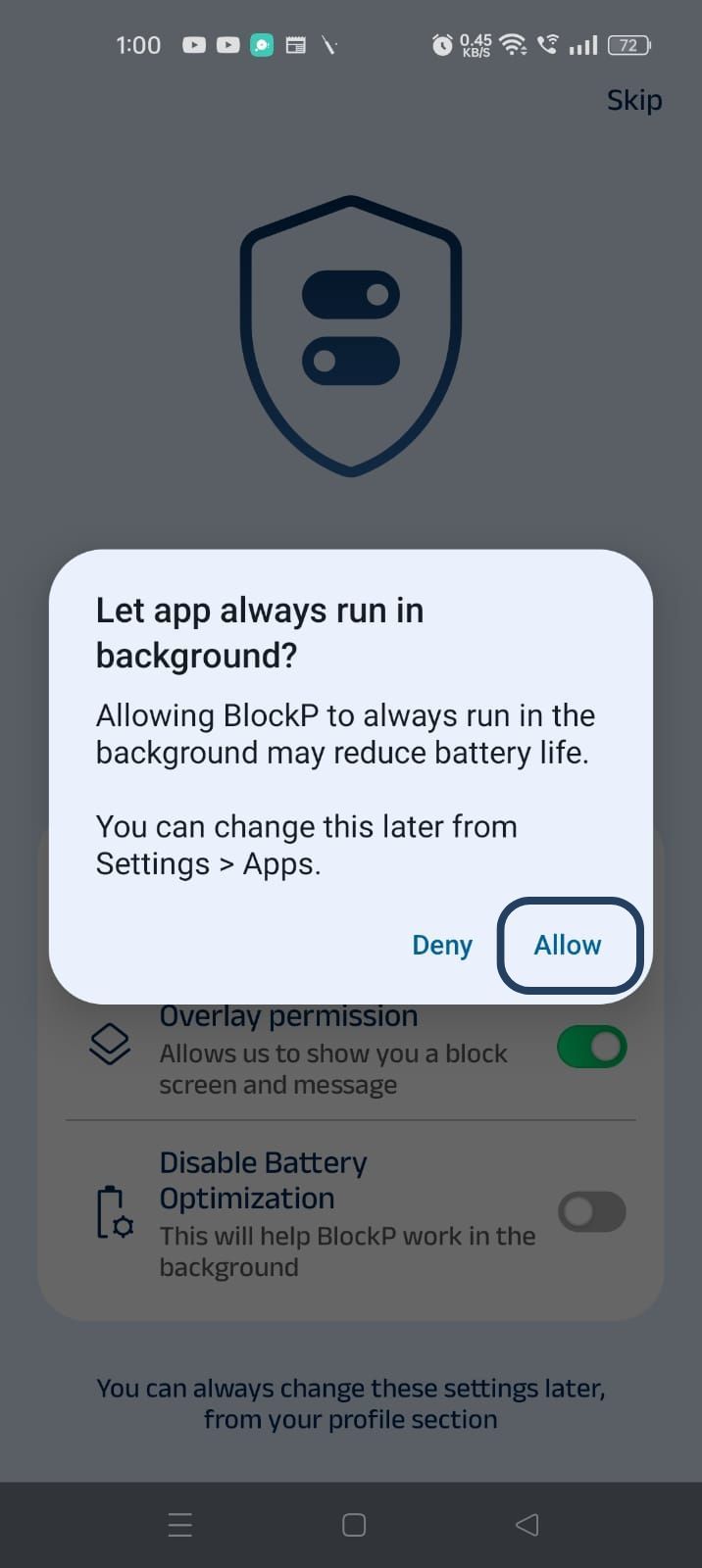
- When prompted, tap Allow to let BlockP run in the background. This helps BlockP stay active and block content without interruption.
Step 4: Go to Advanced Settings
Locate the advanced settings icon in the top right corner of BlockP’s home screen and click on it.
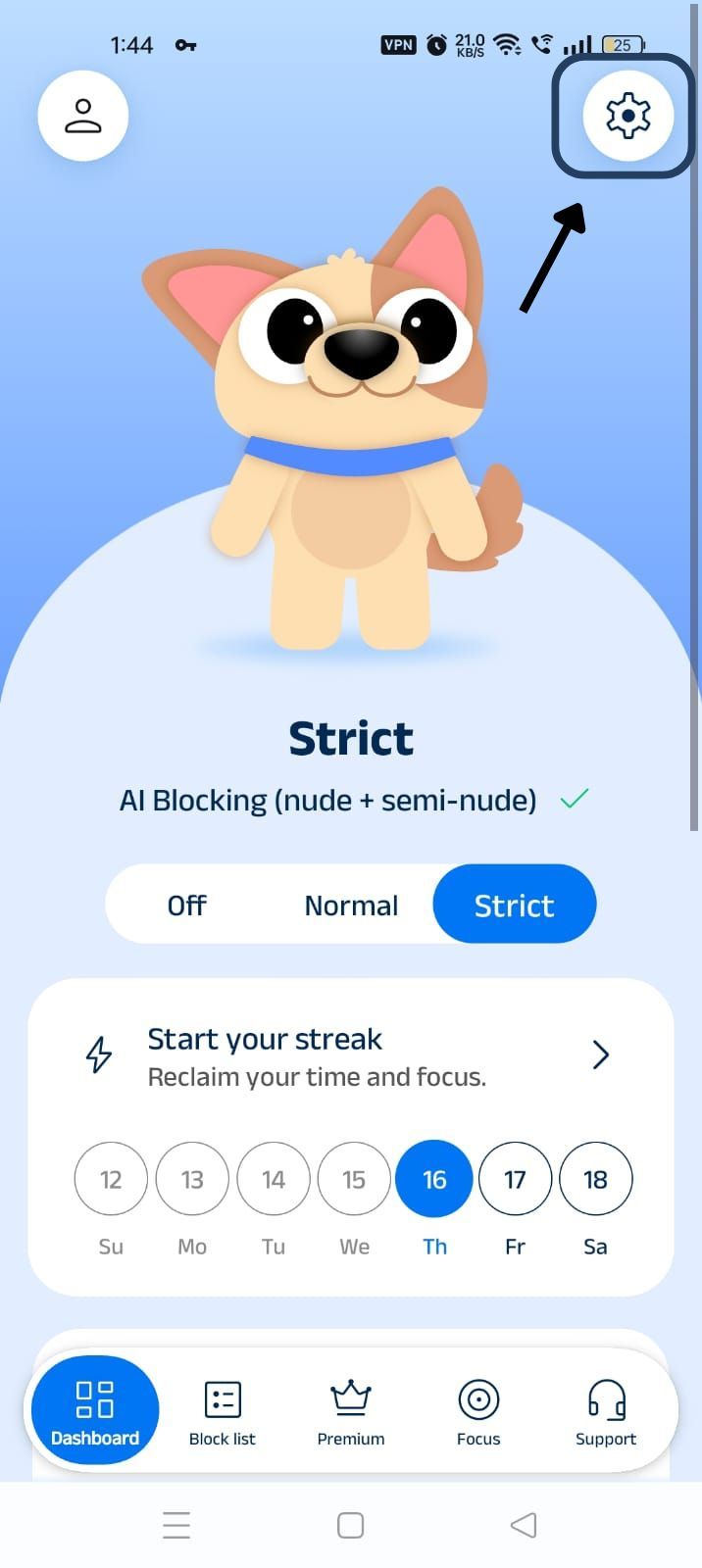
Step 5: Scroll Down to Social Media Blocking Section
Scroll down the General Settings section and find the Social Media Blocking subsection. This section lists options related to social media apps like WhatsApp, Telegram, Instagram, Facebook, Snapchat, X, and so on.
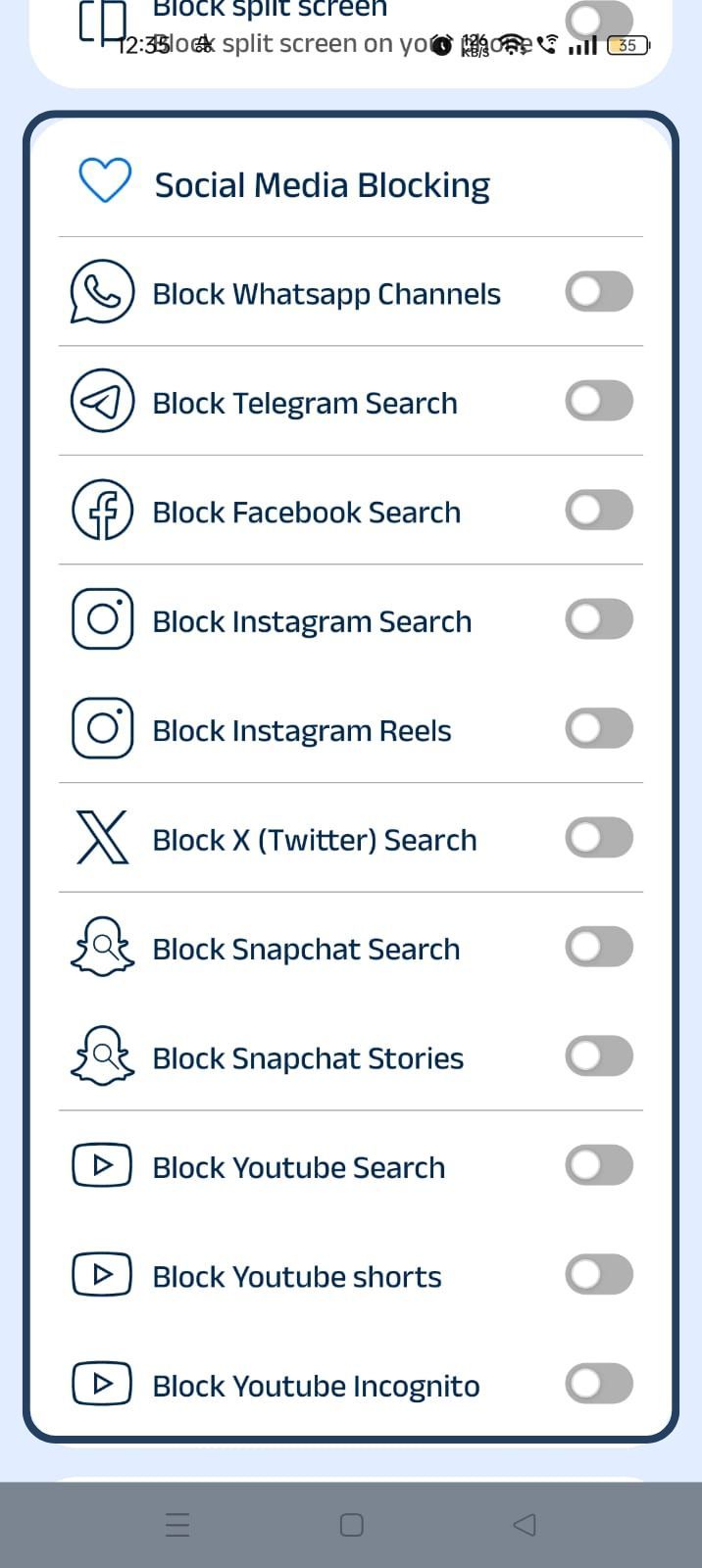
Step 6: Block YouTube Incognito Mode
In the social media blocking section, find the Block YouTube Incognito option and slide the toggle to activate it.
How YouTube Incognito Blocking Works in Block
When you give BlockP accessibility permissions, you are letting it see what exactly you are doing on your phone in real-time. It is perfectly safe, as the data is processed on your phone itself and not sent to any external servers.
When you block YouTube Incognito mode, your child will not feel any difference when they are using other YouTube features. But the moment they try to enable Incognito mode, BlockP detects the attempt, blocks Incognito mode from activating, and redirects the user to its custom block screen.
Benefits of Blocking YouTube Incognito with BlockP
- When you block YouTube Incognito mode with BlockP, you are closing a real loophole. Because your child does not have to look up a tutorial or do some high-tech maneuver to use it. They can enable it with a single clock. It is easy and it is tempting.
- BlockP works at the device level, even if the child switches networks or uses a VPN. With BlockP, your family’s filtering protections cannot be bypassed.
- The goal of BlockP is not surveillance; the goal is to create a safe digital space where parents do not have to watch their kids 24x7. So, as BlockP applies the filters consistently across devices, parents can be assured that their child will be protected.
- It promotes better digital habits by removing the constant temptation on YouTube and creating visibility and awareness about digital behavior.
Why Choose BlockP for YouTube Incognito Blocking?
The option to block YouTube Incognito mode is one of the most common shortcuts people use to indulge in compulsive YouTube watching. Especially for children, it gives a way to hide their video-watching habits from their parents.
If you try to use a DNS-based or network-level filter, your child can switch the network from WiFi to mobile, or use an unprotected WiFi network outside of home, or use a VPN to easily bypass the protections.
With BlockP, the option for YouTube incognito mode Android blocking works at the device level, so the protection can not be bypassed.
If you use the account-level options like Google Family Link, then it cannot always know the in-app behavior. But BlockP's accessibility permissions mean that it can see what is happening within the app in real-time and instantly step in if a child tries to switch to Incognito mode.
Frequently Asked Questions
Q: Why can't Google just disable Incognito on the YouTube app?
Incognito mode is a legitimate option designed to help people browse privately. So, Google can not disable a mainstream option like Incognito mode.
Q: Does blocking YouTube Incognito work on all Android devices?
With BlockP YouTube blocker, you can disable YouTube Incognito if the Android device lets you give accessibility permissions to BlockP.
Q: Can my child disable YouTube Incognito blocking without my PIN?
If you are using BlockP for parental control incognito mode and have added yourself as the accountability partner, then your child cannot disable the restriction without getting the PIN from you.
Q: Will blocking Incognito affect other YouTube features?
No.
Q: Can my child use YouTube Incognito on other devices?
If you are using BlockP, then the settings will be applied on all devices. If you leave a phone or computer unprotected, then, yes, the child can use such a device to use YouTube Incognito mode Android.
Q: Does YouTube Incognito blocking work on mobile data?
Yes, as it is a device-level BlockP setting, it does not matter if you are using WiFi or mobile data.
Q: Can my child use Incognito in other apps if YouTube Incognito is blocked?
No.
Q: What happens when my child tries to use YouTube Incognito?
When you disable YouTube Incognito with BlockP and your child tries to enable Incognito mode, they will be redirected to BlockP’s custom block screen.
Q: Is YouTube Incognito blocking included in BlockP's free version?
No. But BlockP offers offers a free trial along with options for monthly or yearly subscription based on your preference.
Q: Can I monitor what my child watches if Incognito is blocked?
Yes, you can still view YouTube history.
Q: Can I allow YouTube Incognito during certain hours (e.g., weekends)?
Yes, you can change the settings in the BlockP dashboard.
Q: How is this different from Family Link's YouTube controls?
Family Link manages Google account-level actions.
BlockP’s YouTube Incognito mode Android works at the device level to catch actions within the app.