How to Enable Focus Mode on BlockP Android App
Discover how BlockP Focus Mode helps you block distractions, manage screen time, and stay productive. Learn how to enable a powerful focus mode app to regain control of your time.
Get Started with BlockPIf you have never used focus mode on your phone or laptop, this is going to sound very familiar:
You sit down to work and open your laptop—you are ready to work. And five minutes later, you are scrolling through social media without even knowing why!
You pick up your phone to check work emails. You look up to realize that you have been scrolling social media for the last 30 minutes and work emails - not yet checked!
It feels like there is an invisible loop that makes you powerless to control your time and attention. This is where Focus mode steps in.
Do you feel like your phone and computer are constantly challenging your discipline or willpower?
Then you are right in thinking that. The digital platforms are designed to override your control.
So, you need the focus mode to safeguard your attention and time in a digital environment that constantly tries to hijack it.
Step-by-Step: How to Enable Focus Mode in BlockP
BlockP is the best adult content blocker that not only helps you stay free from adult content but also helps you reclaim your attention.
The Focus Mode of BlockP is the crucial feature that helps you unlearn rampant digital consumption habits and learn to use your phone and computer with intention.
Here is how to set up Focus Mode in BlockP:
Step 1: Install BlockP.
Download the BlockP app from the Google Play Store and install it on your Android phone.
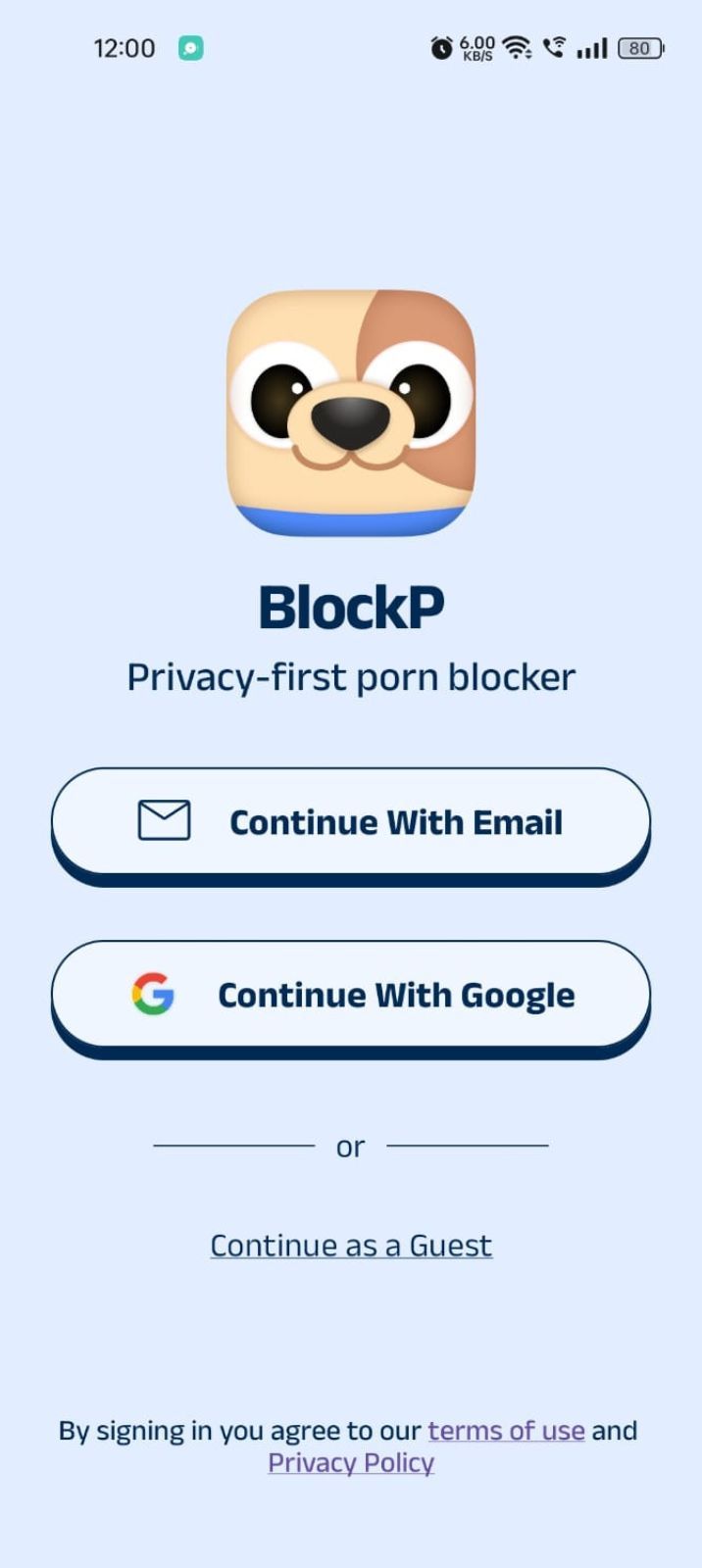
Step 2: Sign Up on BlockP
- Open the BlockP app.
- Sign up using Email or Google.
- Or tap Continue as a Guest to get started without creating an account.
Step 3: Give Necessary Permissions
1. Accessibility - Lets the Android adult content blocker see what you are watching on your screen. Here is how to let BlockP use it:
- Click on the Accessibility permission toggle.
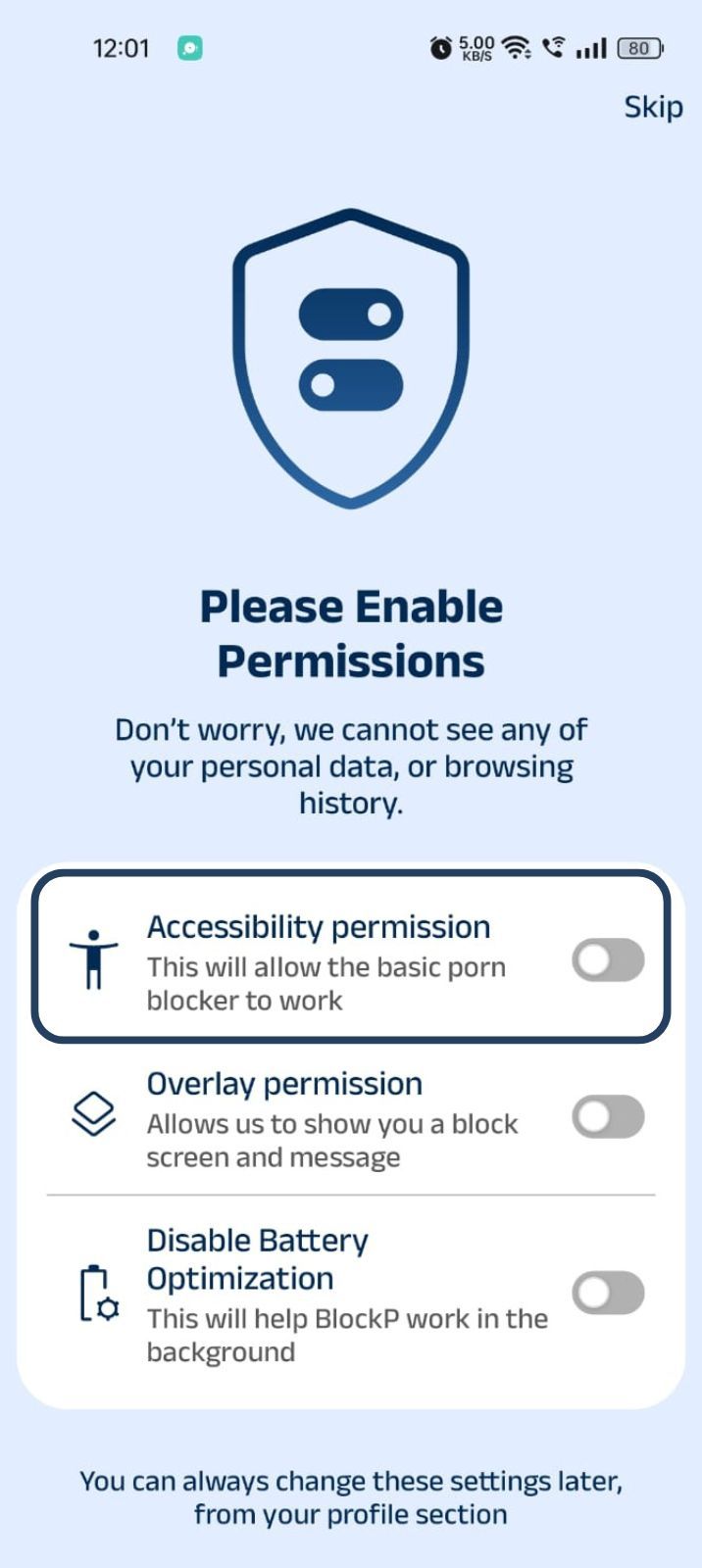
- Then click on "Let BlockP Access Accessibility Services"
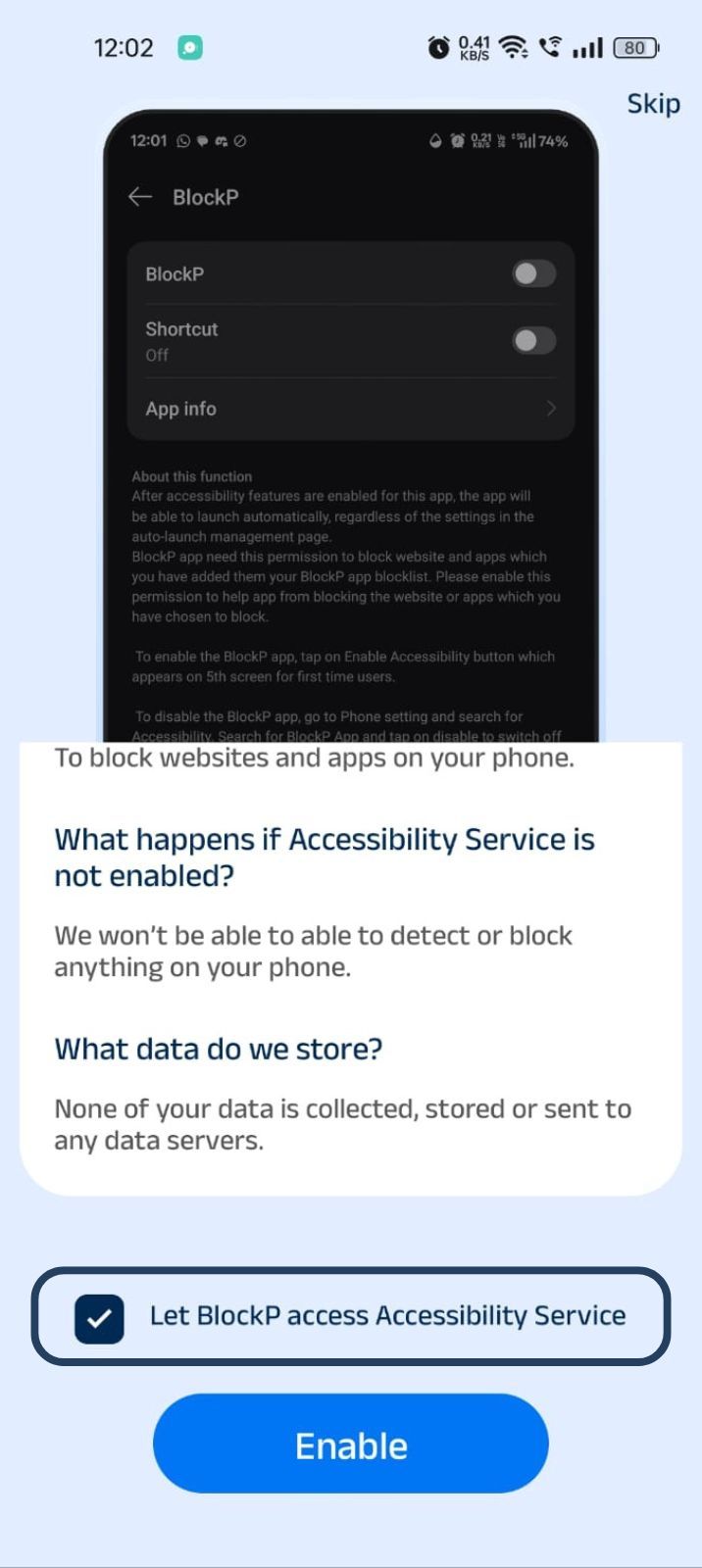
- Next, click on the Enable button
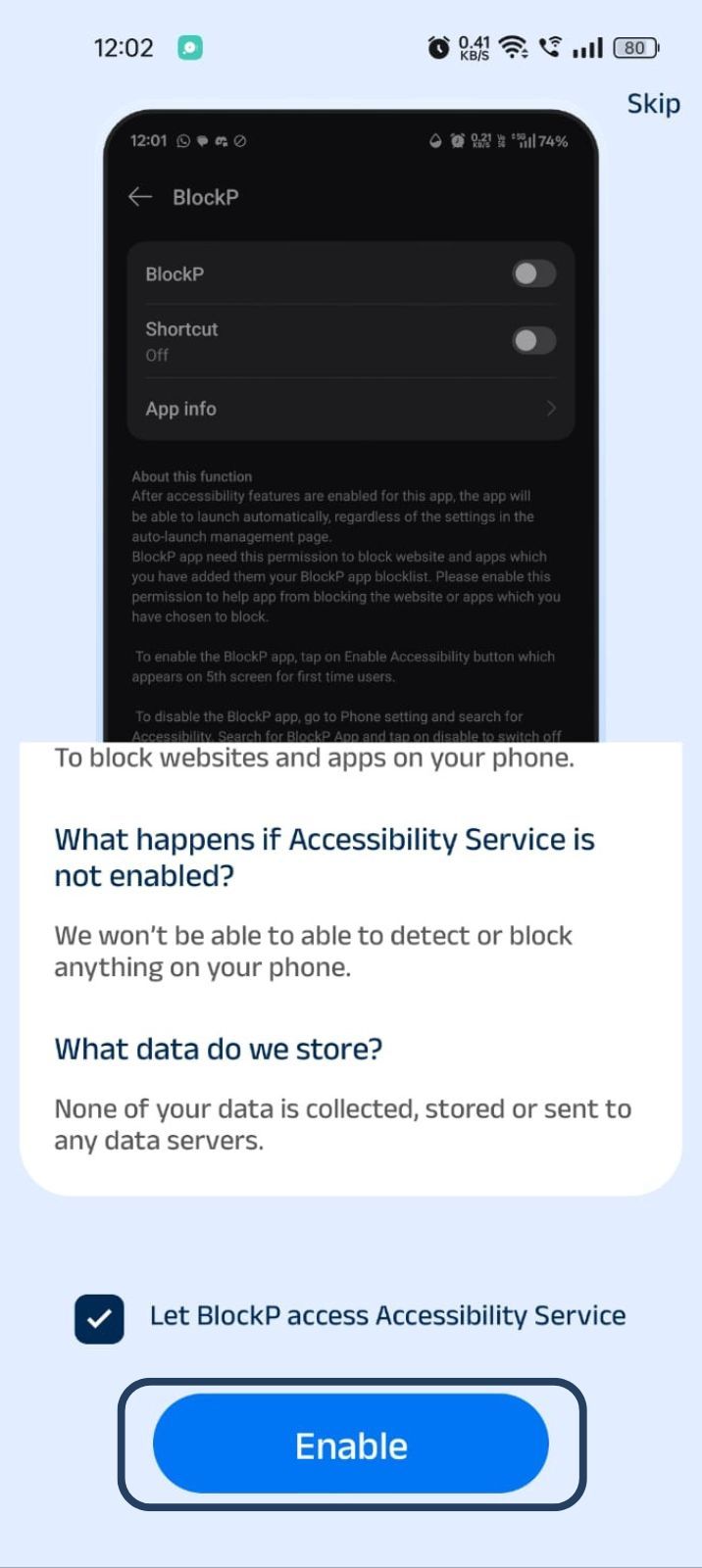
- Next, click on the downloaded apps button.
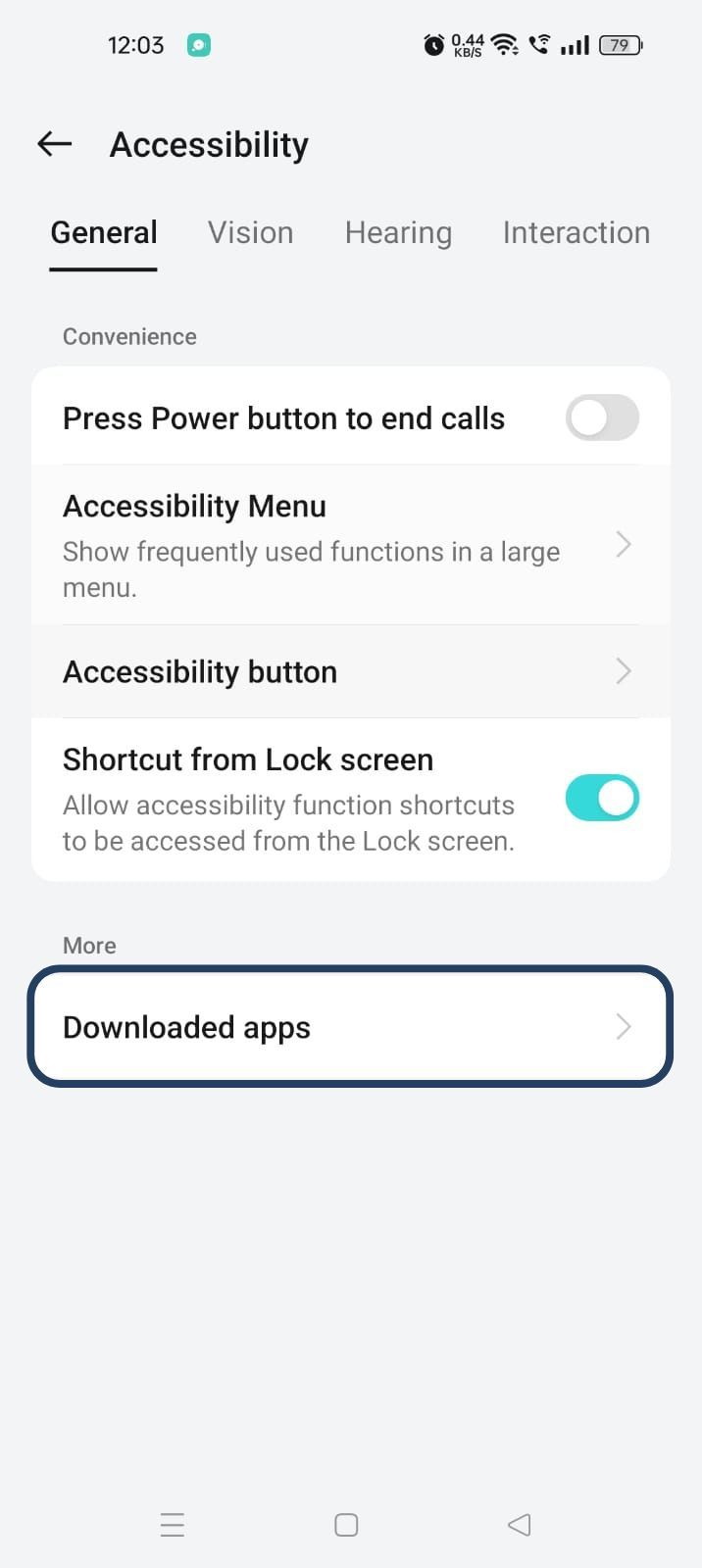
- Now, you will find Blockp - click on BlockP.
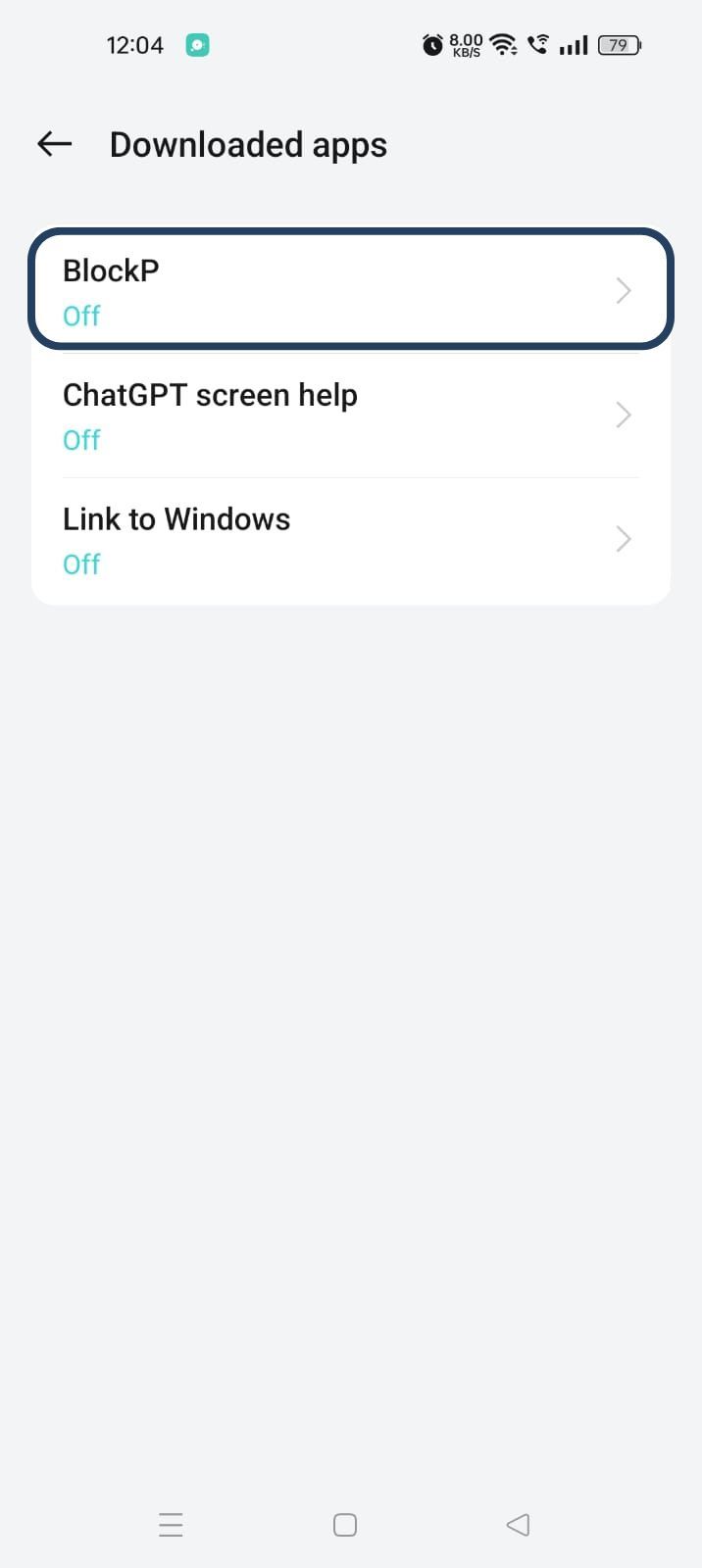
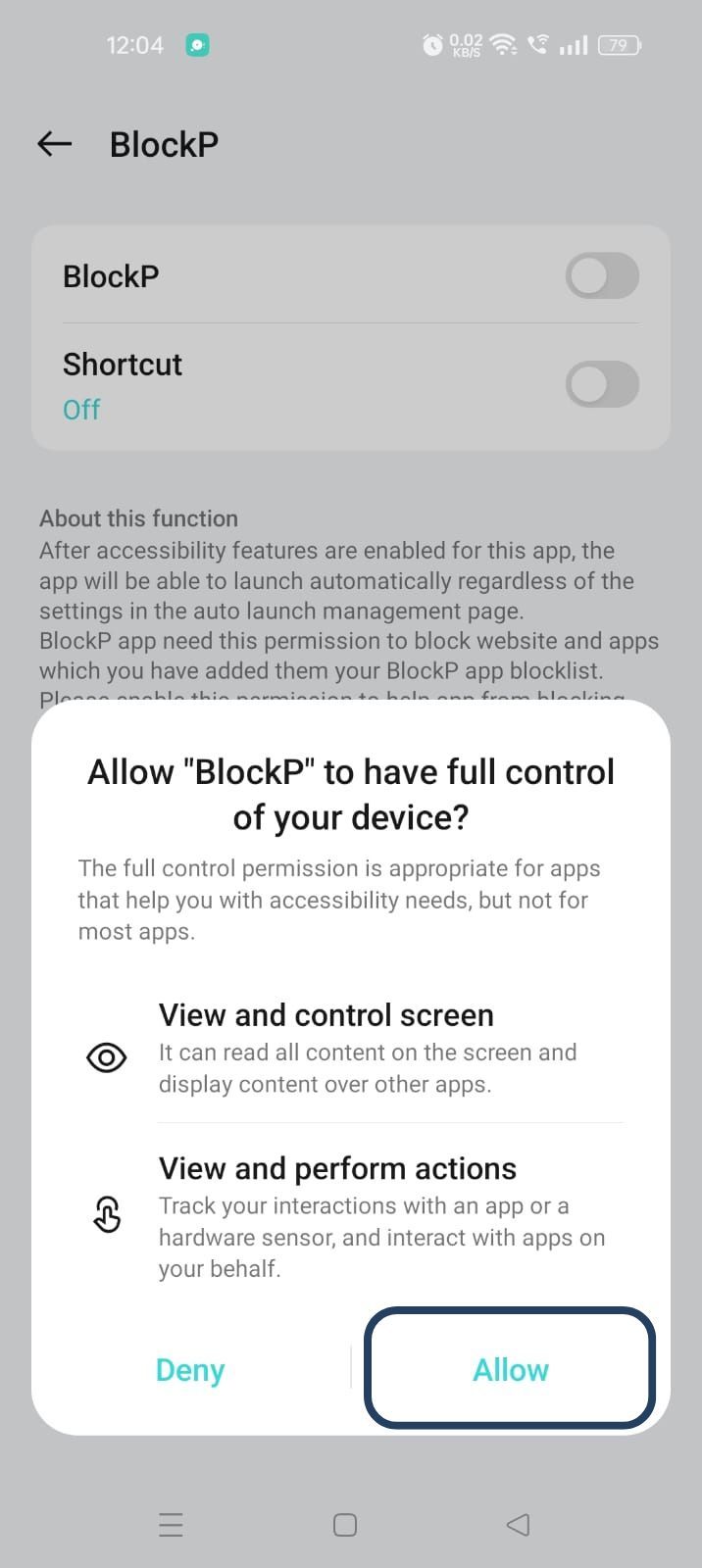
- The new screen will show a toggle in front of BlockP - enable the toggle and then click on the Allow button to complete the accessibility permission.
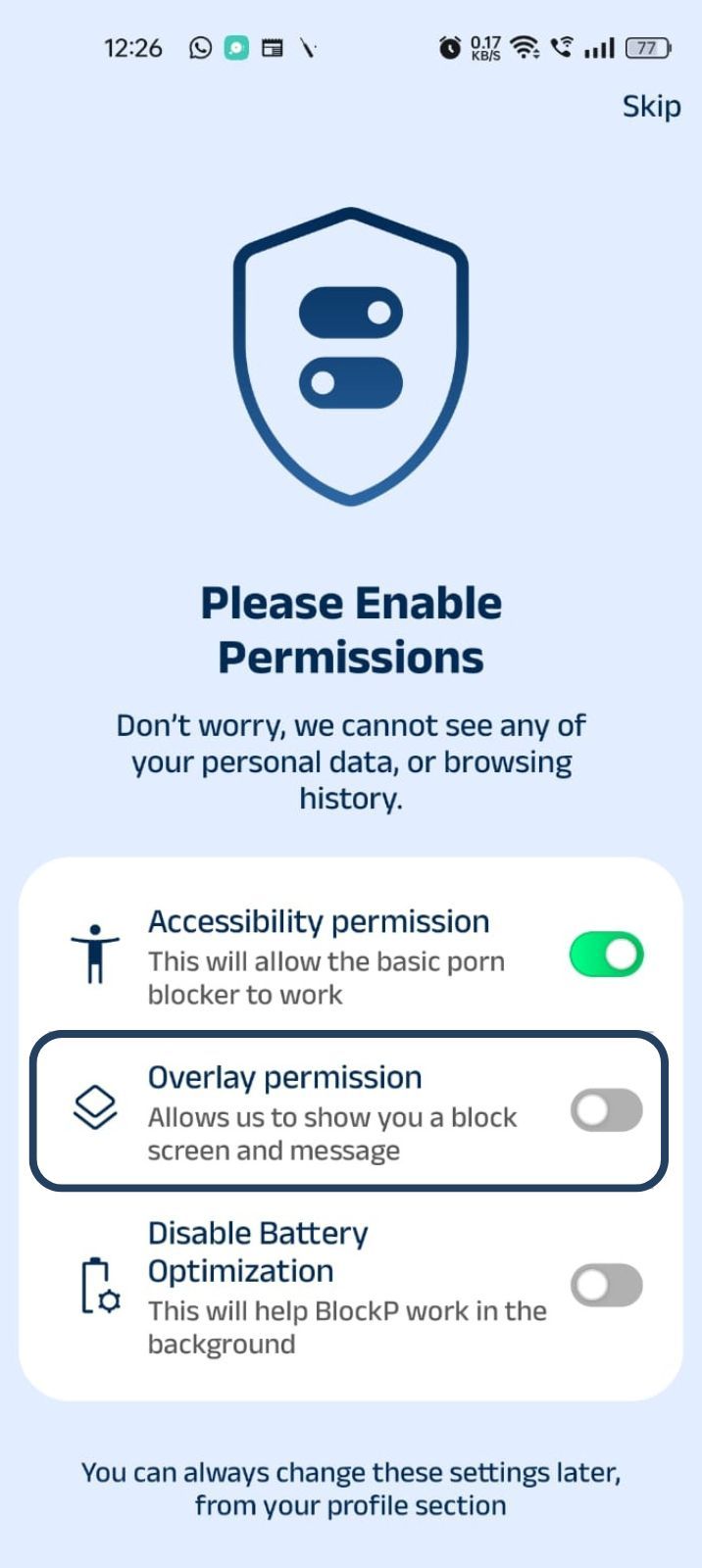
2. Overlay - lets BlockP show you a blocked screen and message when you try to access adult content.
- Click on Overlay permission toggle.
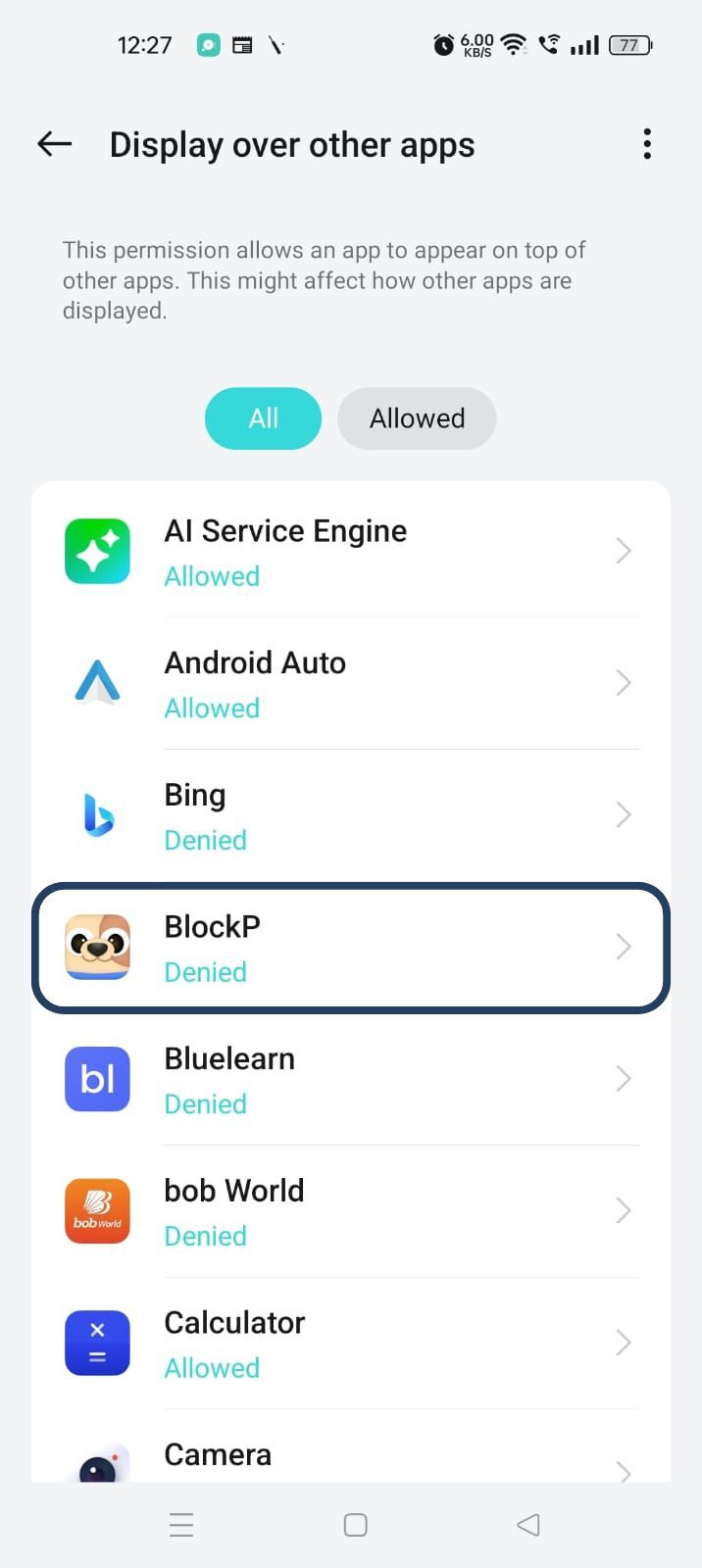
- You will get a menu with a list of apps titled - Display over other apps. Find BlockP in this list and click on it.
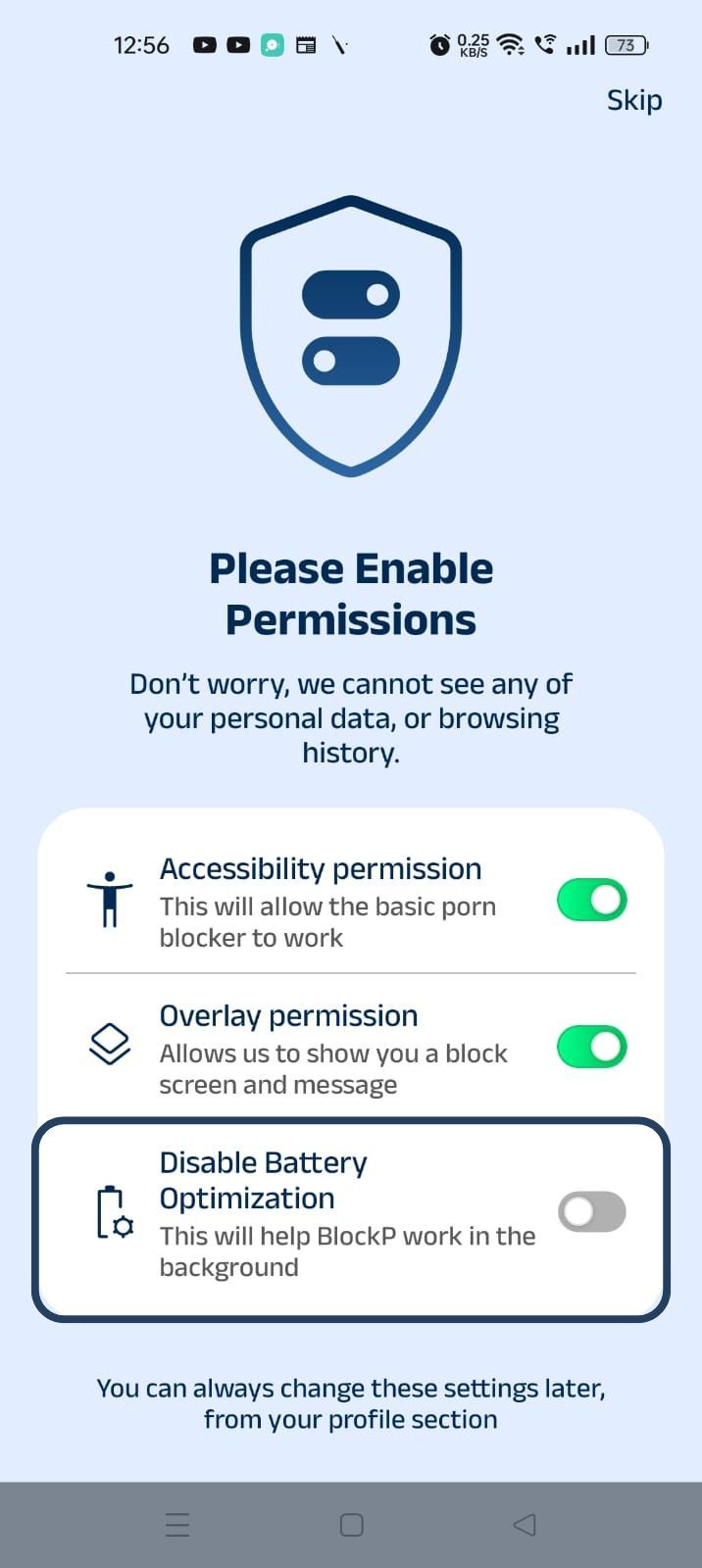
3. Disable battery optimization - so that BlockP can keep working in the background to filter adult content.
- Click on the Disable battery optimization toggle
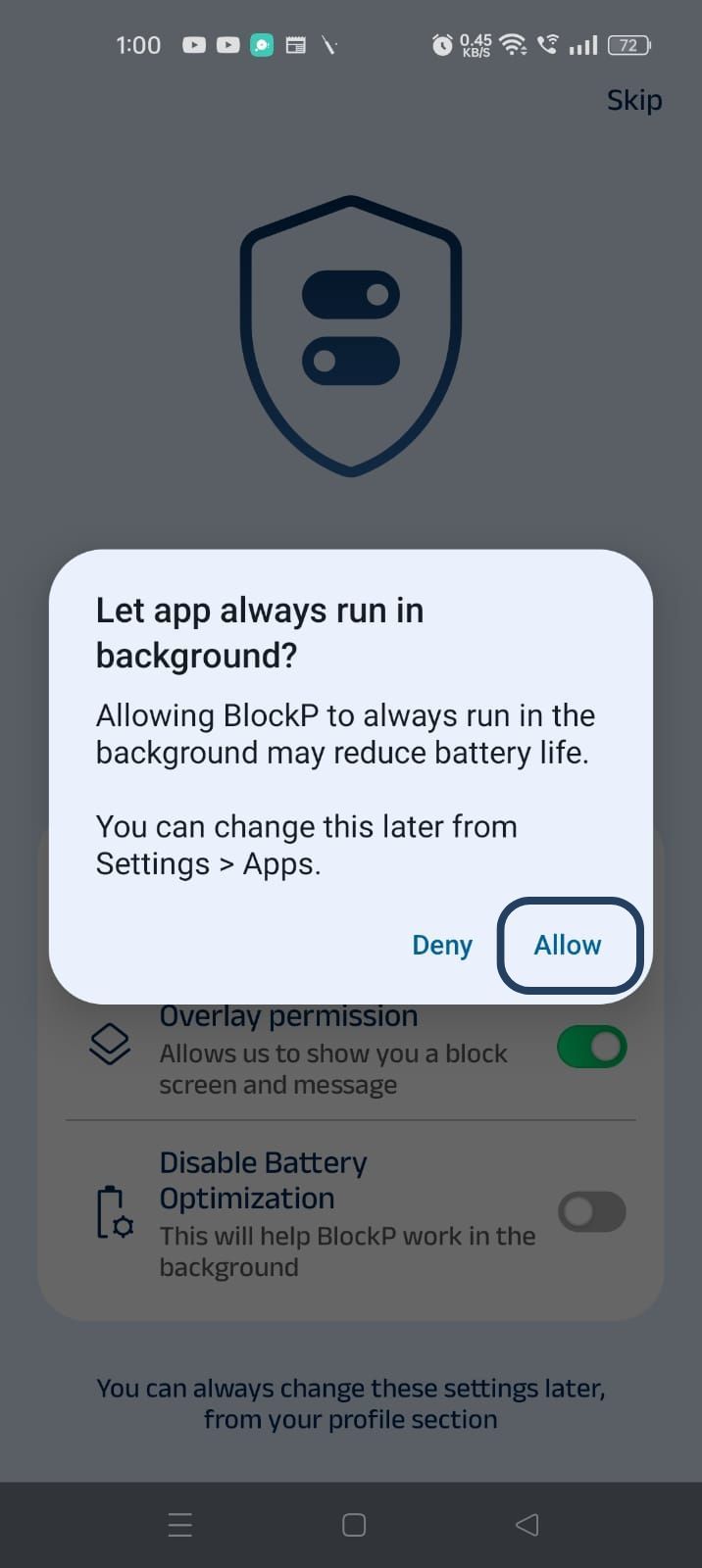
- When prompted, tap Allow to let BlockP run in the background. This helps BlockP stay active and block content without interruption.
Step 4: Click on the ‘Focus’ Icon
At the bottom of the home screen you will see a tab with 5 icons. Tap on the Focus icon, which is the 4th one from the left.
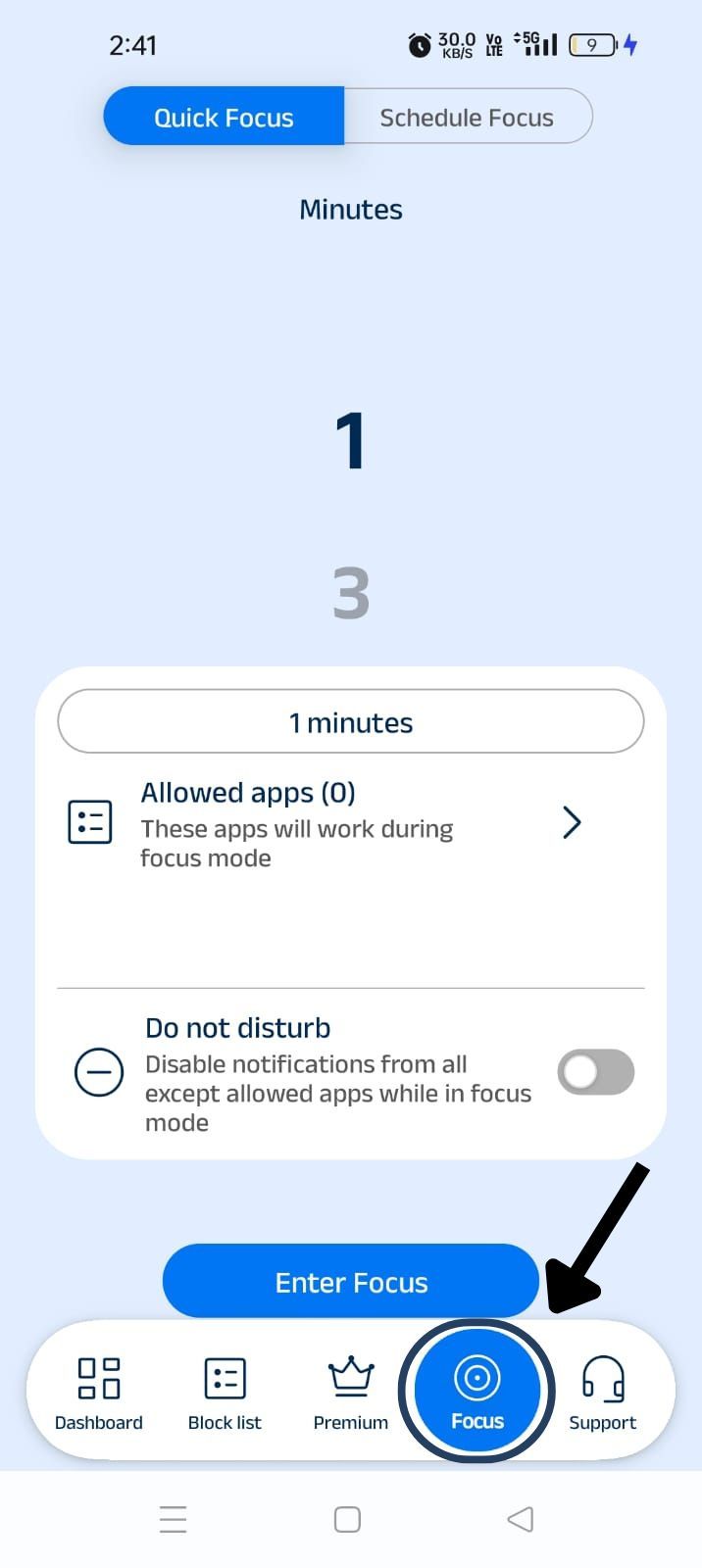
Step 5: Enable “Usage Access” to Enable Focus Mode
- Click the "Enter Focus" button.
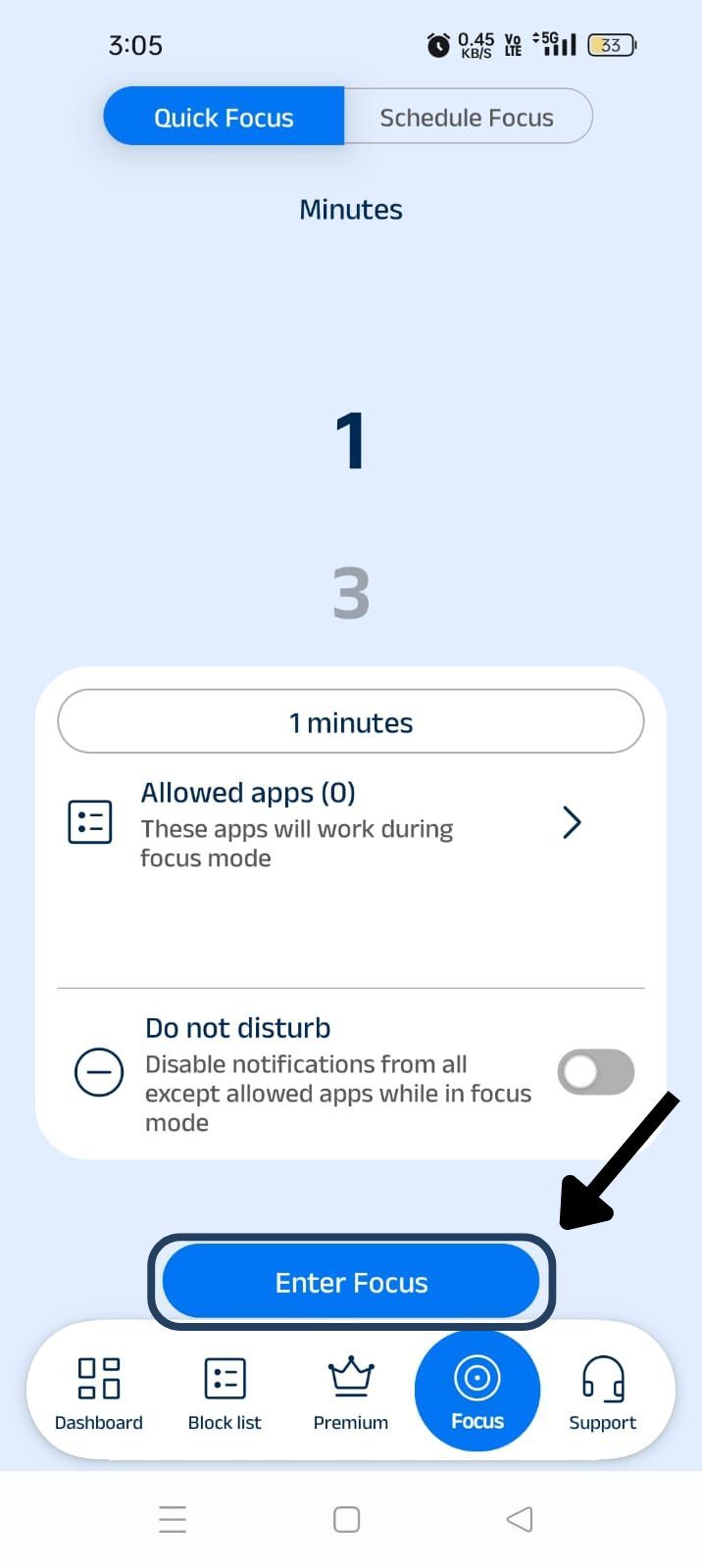
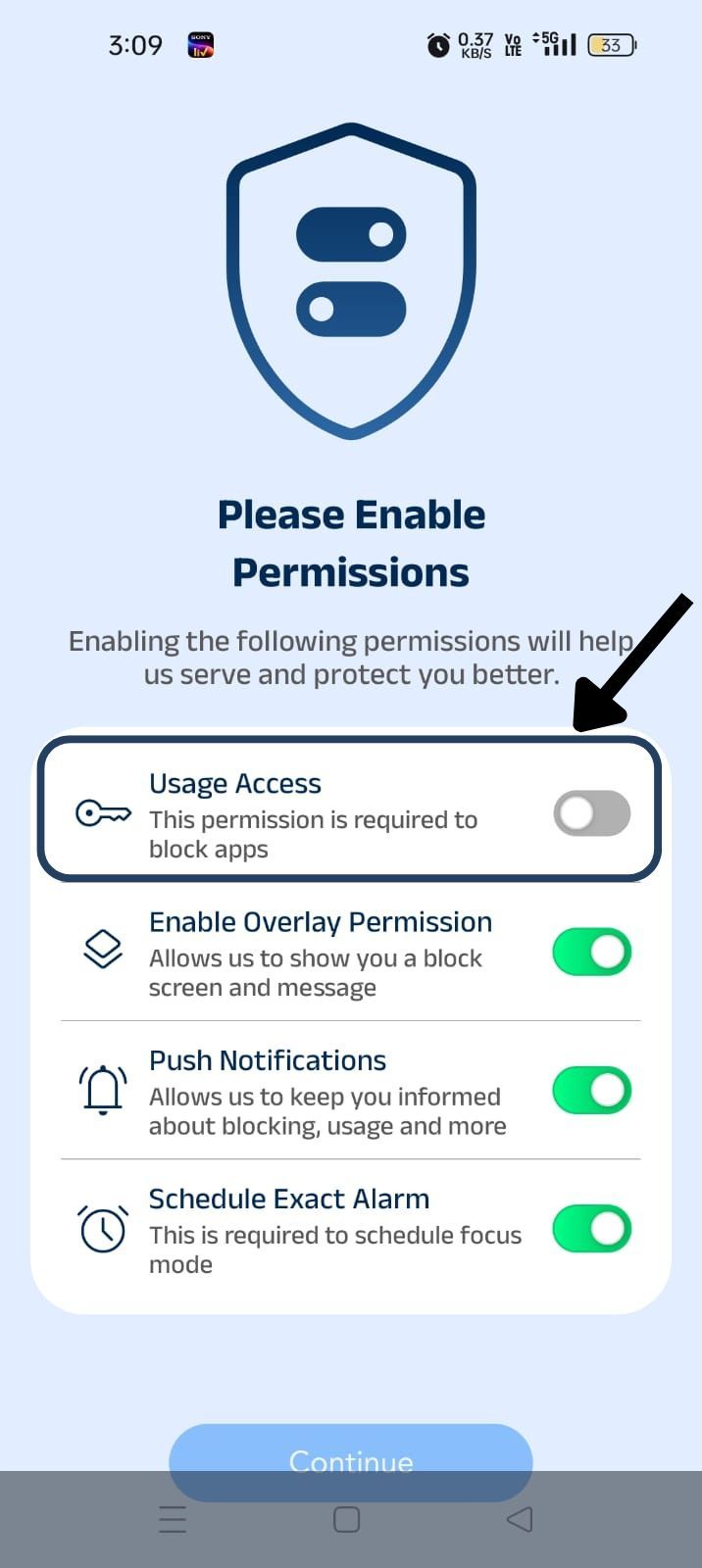
- "A new screen titled 'Please Enable Permissions' will appear. Turn on the 'Usage Access' toggle to grant the required permission."
- On the "Usage Access" screen, find and tap "BlockP" from the list of apps.
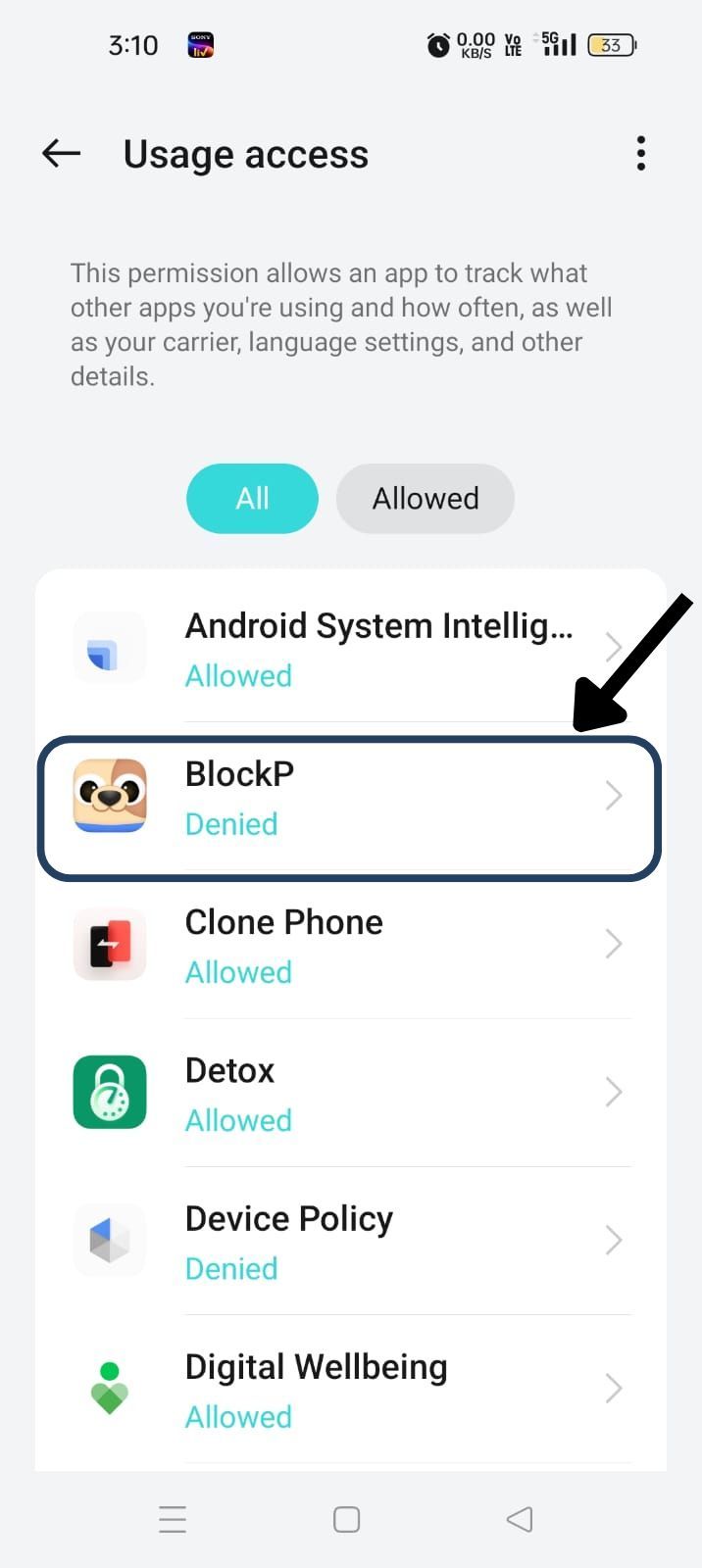
- Turn on the "Permit Usage Access" toggle to allow BlockP to monitor app usage and block selected apps.
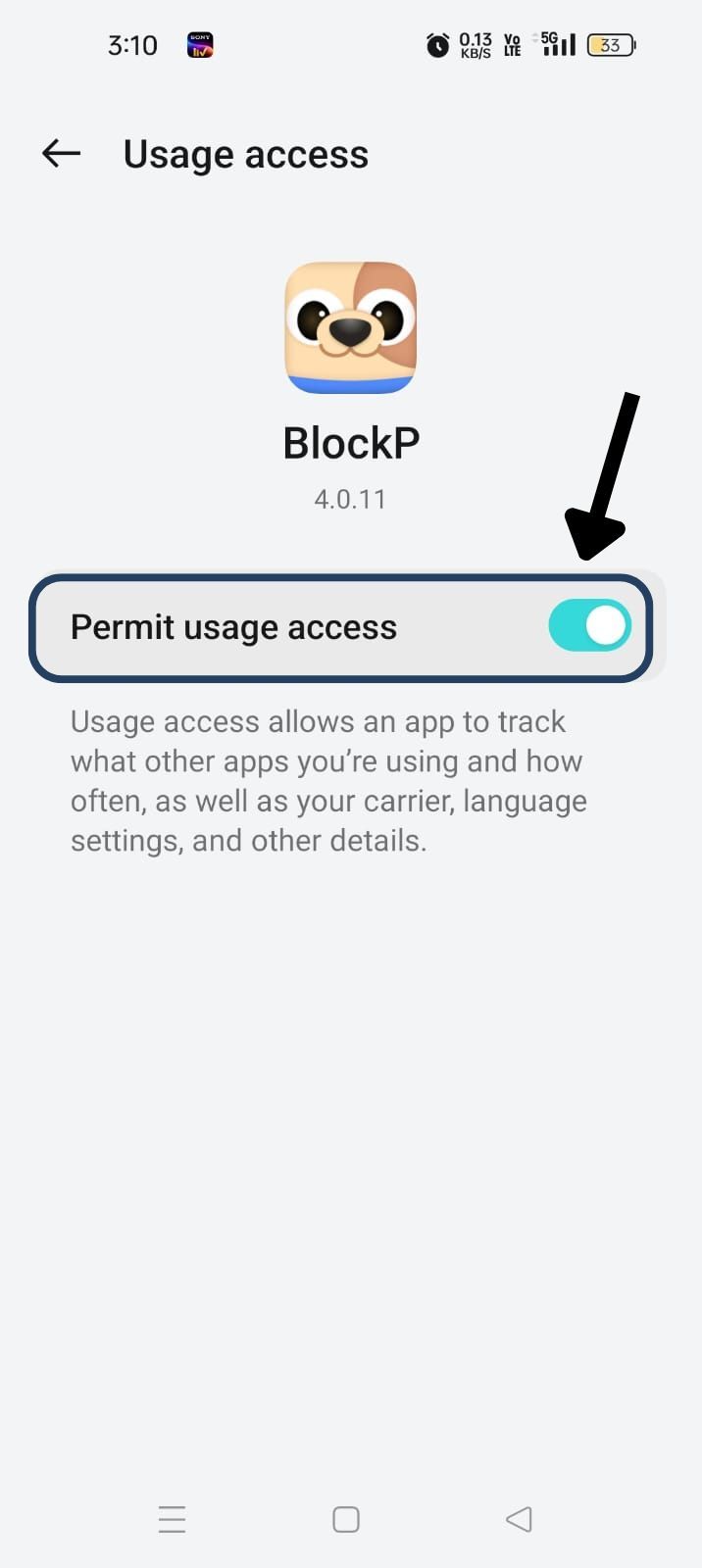
Success! Your Focus Mode is now active. You can enable or disable Focus Mode anytime from the BlockP app based on your needs.
In the Focus settings of BlockP, you will see the following two options -
Option #1: Quick Focus
Quick Focus mode is for moments when a craving hits and you want to stop the distractions immediately. Here is how to use it:
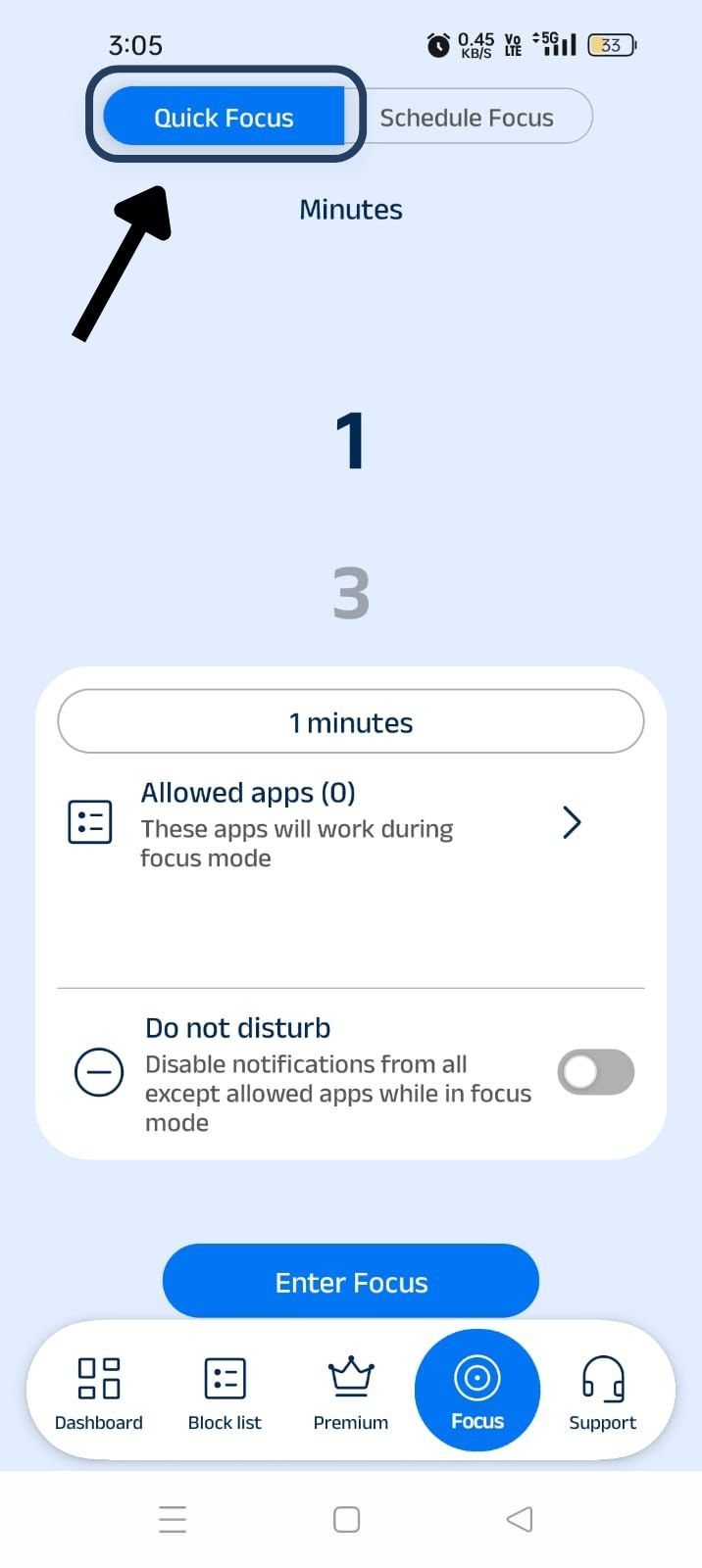
- Scroll the minutes section and select how long you want to block distracting apps. BlockP gives you options for 1 minute to 600 minutes.
- Allow Apps - Next, pick the apps you still want to access during the focus mode, like email or meeting apps. These apps will continue to work as usual.
- As an additional measure, select the toggle switch next to Do not disturb - it will disable notifications from all except allowed apps as long as you are in Quick Focus mode.
- Click on the Enter Focus button to activate.
Option #2: Schedule Focus
This setting helps you add planned focus periods depending on your preference.
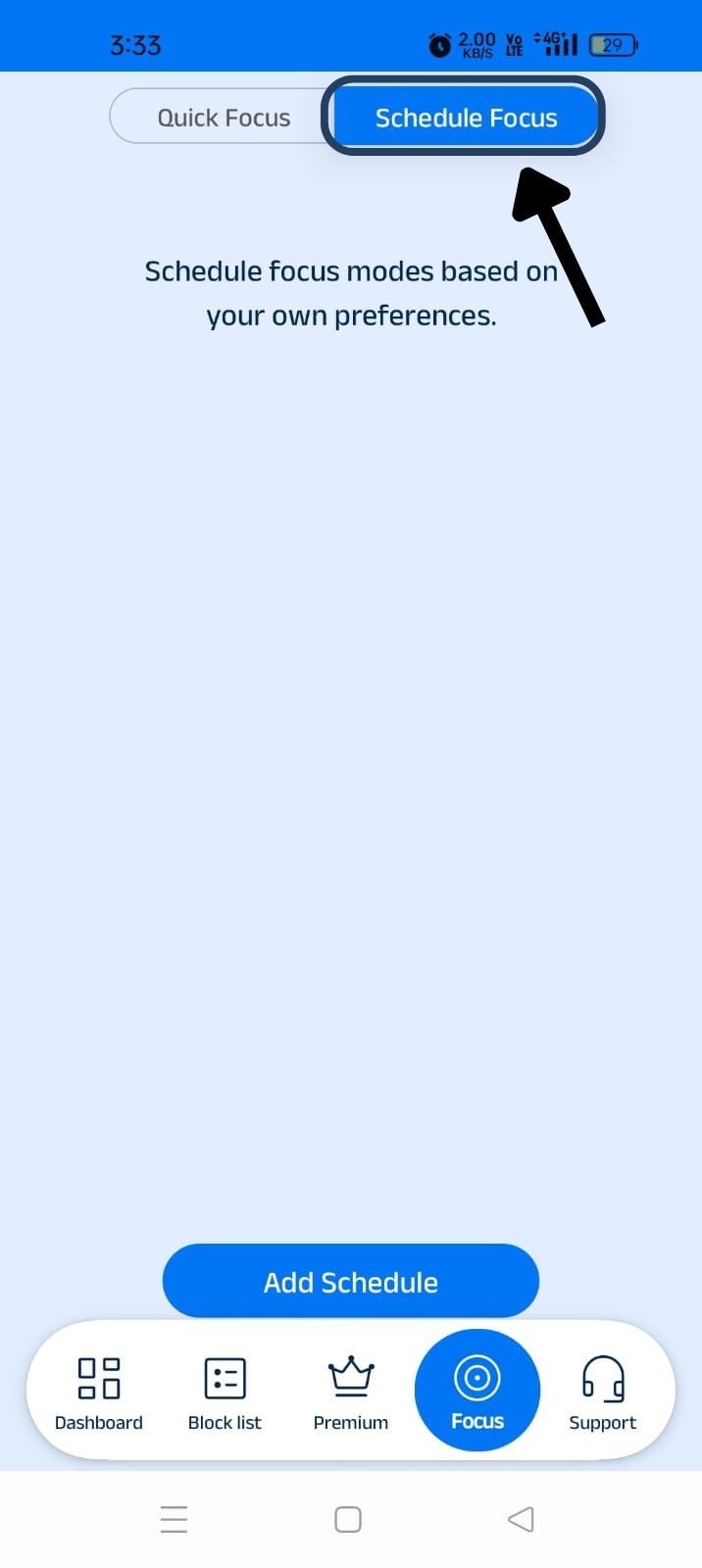
- Click on the Add Schedule button.
- Add a profile title.
- Set up the time - from and to.
- Select the days of the week for scheduled focus mode.
- Select the apps that you will need to use in the Allowed Apps list.
- Add on: Enable the standard adult content blocker switch to block adult content on the device.
- Save the settings
- Go back to the Schedule Focus window. Here you can see all your focus mode profiles and use the toggle switch to activate or disable them.
What Is Focus Mode and How Does It Work
Focus mode is a deliberate constraint on your digital devices. It helps to prevent distractions and protect your attention. Here is how focus mode works:
Disrupt the Dopamine Loops
Features of digital platforms like infinite scrolling and algorithms that deliver variable content, creating an uncertainty around reward, are designed to give intense dopamine hits. In the beginning, the dopamine feels exciting and keeps us scrolling the apps.
Once your dopamine reward system is hijacked, the powerful dopamine loops keep you craving and scrolling constantly.
Focus mode adds friction. It helps you get out of the fight or flight mode that creates an urgency in you to keep checking your phone. It gives you the time to pause and really consider whether you actually want to look at social media.
Stops Task Switching
When you keep looking at your phone every five minutes, it feels like a harmless distraction. But constantly switching between your task and social media can cost you.
Research has shown that it takes more than 20 minutes to regain focus after a significant distraction. With the intense dopamine high of digital content, this can cause significant disruption to your work or studies.
Focus mode ensures that high-value apps are functional while blocking the distracting apps. Once you stop impulsively checking social media, your focus and mental abilities can stay intact.
How BlockP Focus Mode Helps You Stay in Control
BlockP’s focus mode has two different but complementary focus settings to help you stay in control.
Option 1: Quick Focus
Quick Focus is all about tactical intervention. Its purpose is to immediately support you in moments of cravings and prevent the hijacking of attention.
The Quick Focus setting allows you to lock the distracting apps for a specified duration - from as little as a minute to an hour if needed. It is a kind of a panic switch that helps you create distance between your 'drug,' i.e., social media or other gaming apps, and you.
This friction helps you practice urge surfing - where you observe the craving without acting on it. It also lets you disable notifications to further protect you from distractions.
Option 2: Schedule Focus
Quick Focus is for dealing with immediate cravings, whereas Schedule Focus of the focus app, like BlockP, is a strategic tool for learning healthy digital behavior.
Here, you can create a profile and select the day of the week and the duration when the focus mode will block distracting apps. For additional protection, Schedule Focus also lets you enable a standard adult content blocker during focus hours.
Schedule Focus makes focus effortless because you don’t have to think and set up periods of productivity every day.
You can use your device freely because everything you need for work (Gmail, LinkedIn, Zoom, etc.) will be freely available, and at the same time, social media and other distracting apps will stay restricted without you actively fiddling with the settings.
PS: In both Quick Focus and Scheduled Focus modes, BlockP lets you select a list of allowed apps that will continue to work as usual. So, you can stay in control without sacrificing productivity.
Benefits of Using Focus Mode Daily
Installing a focus timer app is not only for saving your time. It gives you advantages in your mental capacity, health, and productivity.
Reduce Stress
The constant digital stimulation keeps your body in a state of arousal. Over time, this chronic arousal can create stress in your body. Studies have shown that going on a digital detox for even a short time can lower your cortisol levels and inflammation markers.
Improve Cognitive and Mental Health
A Georgetown University researcher, Kushlev, found that even with a short-term digital detox,
- Participants felt a noticeable reduction in anxiety and stress.
- They slept 20 minutes more per night.
- After two weeks of digital detox, the attention span of the participants improved.
These changes are not small - the researchers of the study found that the effects of a two-week digital detox are similar to reversing 10 years of age-related cognitive decline!
Boost Productivity
Focus mode gives periods of time during the day where you can perform academic or work tasks with deep concentration.
When you make your digital consumption intentional with a focus timer app, it can actually help you with networking, collaboration, and work performance.
Focus Mode for Students, Professionals & Creators
The challenge of staying focused online is not the same for all of us. Depending on our personal goals, we need focus modes for different purposes.
Students
For students, the biggest danger of digital space is the dopamine trap.
The social media content, like reels and shorts, is designed to give quick bursts of dopamine. On top of it, the features like automatic scrolling and algorithm design keep the students stuck in a constant dopamine loop.
Once your brain gets used to the intense dopamine of digital content, real-life activities like studying can feel boring and slow. Studies have also shown that digital content can affect memory and the ability to concentrate on tasks.
For students, the focus mode of BlockP helps to develop healthy digital behaviors. By automating the focus mode with the scheduling option, BlockP creates a point of friction where digital consumption can not hijack the student’s attention.
Professionals
For professionals, they need social media and other digital tools for work. So, they can not completely switch them off. At the same time, constant notifications and checking can create a distraction that affects productivity.
BlockP’s focus mode helps professionals plan blocks of time for deep work where BlockP’s focus mode restricts the distracting apps.
Creators
For digital creators, the internet and social media create a paradox. It is their workspace; at the same time, it is also the space that distracts them. For a creator, when they are online, the line between creation and consumption can easily become blurred.
BlockP’s focus mode helps creators limit their consumption to intentional content. It gives them back their time and focus so that creativity can flow.
Along with focus mode, creators can combine features of BlockP, like blocking stories and searches on social media. Now, they can enjoy access to the analytics and publishing tools without worrying about the distracting bits.
Frequently Asked Questions
1. What is the best focus mode app?
BlockP is the best focus mode app because it helps you on two counts -
- Schedule focus - To set up intentional periods of focus in advance
- Quick focus - To block the distracting apps immediately when an urge hits.
2. Can I block notifications completely?
Yes. In BlockP’s focus mode, you have the option to disable notifications completely from all distracting apps.
3. Does focus mode improve productivity?
Yes. Focus mode preserves your attention on tasks that matter and at the same time saves you time that would have been otherwise lost in automatic scrolling or task switching.
4. Can I customize allowed apps?
Yes. You can add or remove specific apps in the Allowed Apps list of BlockP.