How to Block Any Website on Chrome Using BlockP Extension
Learn how to block any website or keyword on Chrome with the BlockP Extension. Build a custom Block List, or switch to Allow List mode to permit only chosen sites.
Get Started with BlockPA lot of our digital distraction is rooted in websites that fill the time and engage us mentally. Whether it is social media or an interesting Substack or a blog, if you are spending time on it just because it has become a habit, then you need to try the BlockP option to block any website on Chrome.
Many of us open our browser to work or to reply to an email. But there are familiar traps - we have bookmarked some websites because we read something interesting a year ago, and we keep going back. Our habit loops compel us towards social media.
So, even if a website is not distracting or addictive in itself, our digital consumption patterns make it so. That’s why the BlockP block list feature gives you the option to create a customized block list of the websites and keywords you want to avoid.
How to Add a Website or Keyword to Your Block List in BlockP (Step by Step)
Step 1: Install the BlockP Chrome Extension
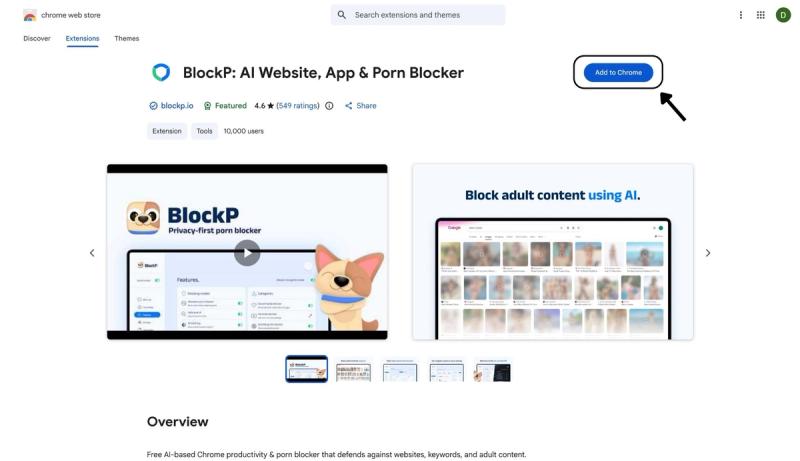
- Go to the Chrome Web Store and search for “BlockP,” or visit the BlockP Chrome Extension page directly.
- Select “BlockP: AI Website, App & Porn Blocker”
- Click “Add to Chrome.”
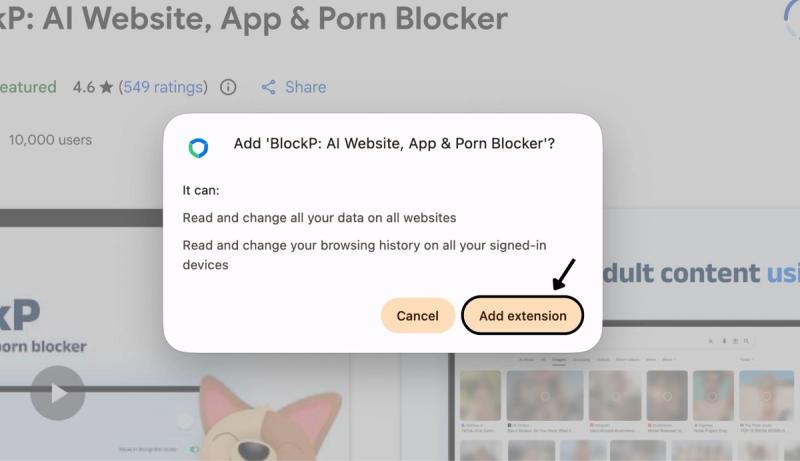
Step 2: Add Extension
Click on ‘Add extension’ in the pop-up.
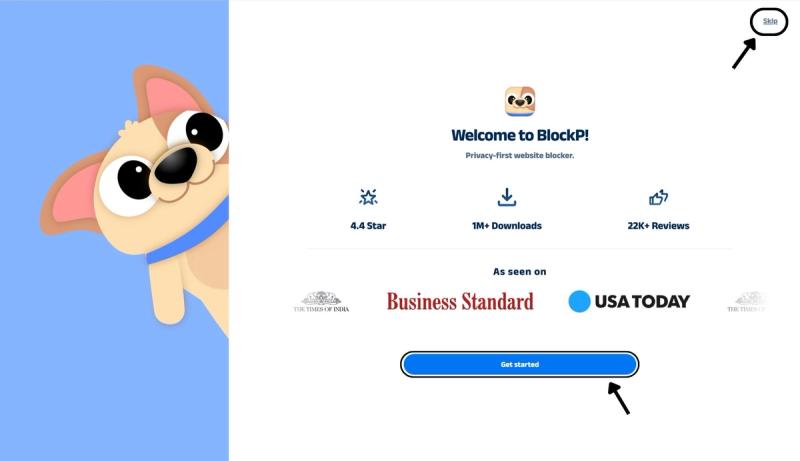
Step 3: Get Started with BlockP
- A new web page will open – click on the “Get started” button at the bottom of the page.
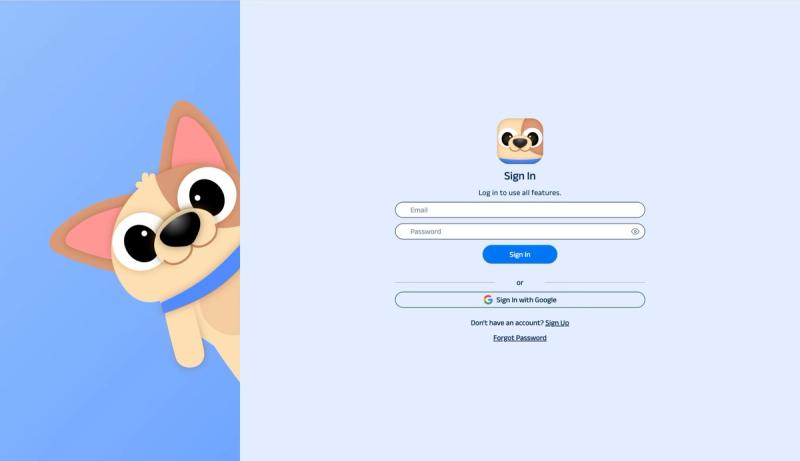
- If you don’t want to answer the questions, click “Skip” in the top-right corner. You’ll then be taken to the login or sign-up screen to continue using the extension.
Step 4: Sign In or Sign Up on BlockP Extension
- Enter your email and password, then click “Sign In.” You can also click “Sign In with Google” to use your Google account.
- If you don’t have a BlockP account, click “Sign Up” to create one.
- After signing in, you’ll be automatically redirected to “See How BlockP works” Screen
Step 5: See How BlockP Works
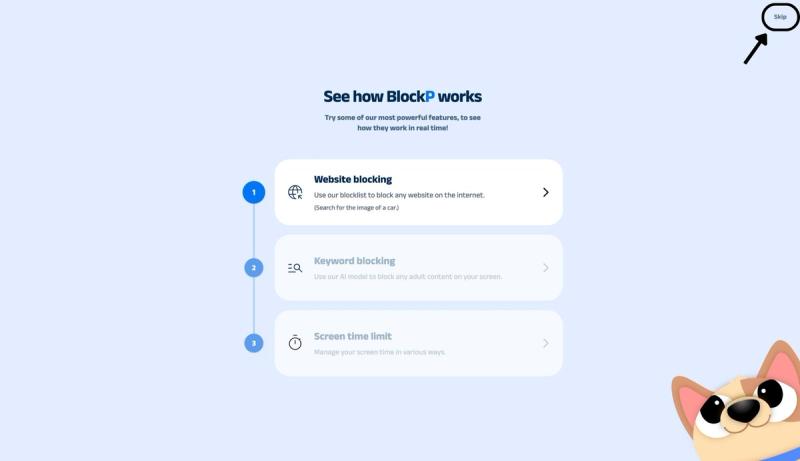
After signing in or creating an account, you’ll see the “See how BlockP works” screen.
- You can explore the interactive guide to learn how features such as Website Blocking, Keyword Blocking, and Screen Time Limits work.
- If you already know how BlockP works or want to skip the guide, click “Skip” in the top-right corner.
After exploring how BlockP works or clicking the “Skip” button, you’ll be redirected to the extension dashboard, where you can access and manage features.
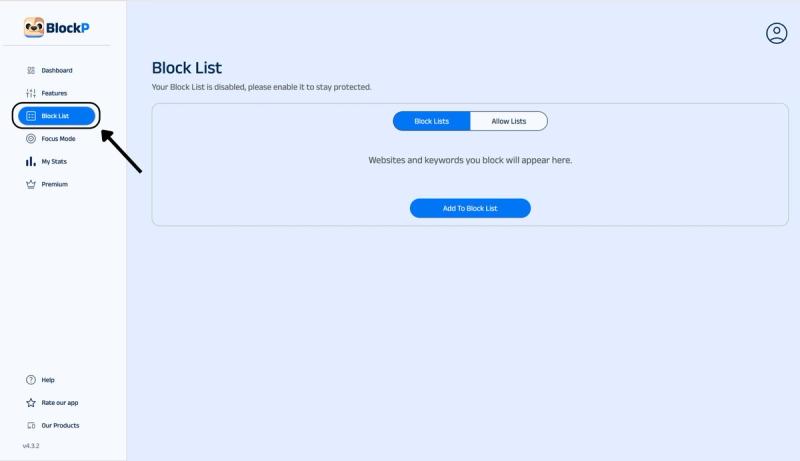
Step 6: Go to the Blocklist Section
Click on the Blocklist option (you can find it below the features option on the left side of the BlockP extension page).
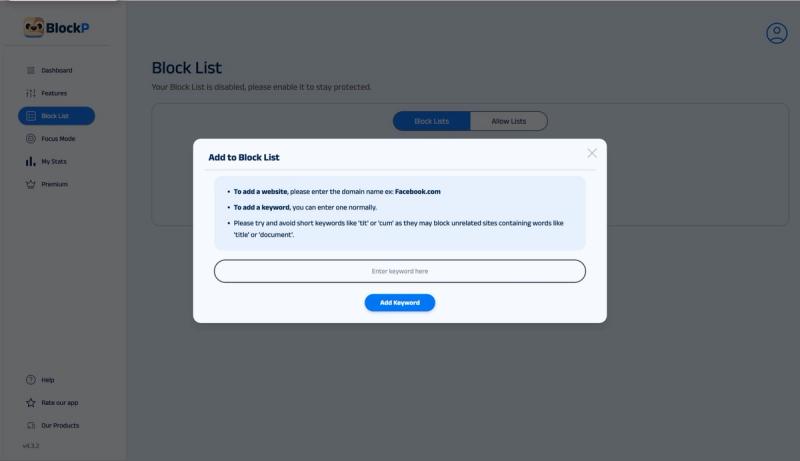
Step 8: Create Your Custom Blocklist
In the Blocklist section, you will find 2 options - block list and allow list. Click on the Blocklist option, then click on the Add to Blocklist button below the Blocklist option.
- To block a website, enter the domain - for example, facebook.com
- To block a keyword, enter the keyword normally - for example, "facebook."
Add as many websites and keywords that you want to block.
What Is the Block List in BlockP?
Blocklist is the BlockP setting that lets you block specific websites on Chrome by adding their URL and block websites by keyword. The BlockP blocklist is like creating your own custom website blocker Chrome extension.
It is basically BlockP asking you, "What is distracting for you, and what do you want to avoid? Once you tell BlockP, "These are the websites and keywords I don’t want to see on my browser anymore," it blocks those domain names and keywords across your Chrome, including social media platforms and searches.
These websites or keywords need not necessarily be related to adult content. They could be
Block List vs Allow List: What's the Difference?
Block list lets you block any website on Chrome or block any keyword on Chrome. You can still access everything else on your browser.
The blocklist is most suitable for a working professional or a grown-up who knows what websites or keywords are risky for them and wants to avoid them.
The allow list is much stricter because when you create your Chrome website allow list, BlockP shuts off the rest of the content and allows you to use only the websites listed on the allow list.
The allow list is more suitable for a parent who wants to ensure that their child does not accidentally stumble onto a porn site and whose use is limited to a few safe websites necessary for their schoolwork or hobbies.
Similarly for someone battling severe porn addiction, the allow list makes more sense for learning better digital habits.
How to Block Websites by Keyword
When there is a distracting topic that you keep coming across on many websites, it becomes impossible to create a blocklist of all those websites. So, instead, what you can do is block that particular distracting keyword so that BlockP can block any website where it detects such keywords.
Tip: Avoid blocking very short keywords like 'tit' or 'cum' since they can block unrelated pages containing words like 'title' or 'document.' Blocking three or four letter fragments may block you out of banking websites or news websites. Block full words or whole phrases.
Benefits of Using BlockP's Block List
The value of BlockP block list goes much beyond customizing porn blocking by blocking specific trigger words and sites.
Eliminate Digital Distractions
According to researcher Dr. Gloria Mark, every time we are interrupted, it takes us 23 minutes to get back to the task. So, if we keep getting interrupted by social media or any other distraction, we can lose hours in a day.
When you can block any website on Chrome, it minimizes the usual distractions and helps your attention stay whole for extended periods of time. This type of digital consumption habit is helpful for both working professionals and a teenager whose neural pathways are still a work-in-progress.
Protect the Children
A custom website blocker Chrome extension like BlockP helps the parents keep their children safe without monitoring every click.
A Robust System
When you combine the blocklist feature with other BlockP settings like focus mode and social media blocking, it supports streamlined digital consumption.
On top of it, BlockP’s password protection and prevent-uninstall features ensure that the blocklist safeguards you have put in place cannot be easily bypassed.
Quit Porn
For someone trying to quit porn, the blocklist helps to block their specific triggers, which may not always be sexual and therefore not covered in the usual porn-blocking settings.
Why Choose BlockP's Block List?
| Feature | BlockP | BlockSite | FocusGuard | BlockerX | StayFocusd |
|---|---|---|---|---|---|
| Unlimited websites in free Block List | Yes | Limited on free tier | Yes | Very limited free (as few as 1 to 3 sites) | Yes |
| Keyword blocking | Free | Premium only | Free | Limited free (1 to 3 keywords), unlimited on premium | Yes, free |
| AI-based adult content detection | Yes | No | No | No (relies on a 2M+ site domain list) | No |
| Allow List (whitelist) mode | Yes | Yes | Yes | Yes | Yes |
| Incognito mode protection | Yes | Limited | Limited | Yes | Not built in |
| Accountability partner / community support | Yes | No | No | Yes | No |
| Password-protected settings | Yes (with accountability partner and long password options) | Premium only | Yes | Yes (via partner access code) | Yes ("Require Challenge") |
| Free plan usable long-term | Yes | Restricted | Yes | Restricted | Yes, fully free |
Frequently Asked Questions
How do I block a website on Chrome with BlockP?
Add any website you want to block to BlcokP’s blocklist in the dashboard.
Can I block a website by keyword?
Yes.
What is the difference between a block list and an allow list?
The blocklist blocks the websites and keywords added to the list and allows everything else. Whereas the allow list only allows the websites listed in the allow list and blocks everything else.
How does the allow list mode work?
In the allow list, you are basically creating a custom website blocker Chrome extension that only allows the websites listed and blocks the rest of the websites.
Can I block as many websites as I want?
Yes.
Why should I avoid very short keywords?
Very short keywords often make up a part of longer words. For instance, it is part of the institution. So, inadvertently, you may end up blocking essential websites if you block very short keywords.
Can I remove a site or keyword from my block list?
Yes.
Does the block list work with AI blocking and social media blocking?
Yes.
Will a large block list slow down Chrome?
No.
Is the block list included in the free BlockP Chrome extension?
BlockP blocklist is a core feature that you can get on the free version.