How to Prevent App Uninstall on BlockP Android App
Enable Uninstall Protection on BlockP to prevent app removal, reduce bypass attempts, and stay committed to your productivity goals.
Get Started with BlockPSetting up a blocking app is the easy part, and most people do it really well. The real test comes when an urge hits - can the app protect you with its features, or does it require you to use your willpower? Only in those moments do we realize how important it is to have the option to prevent app uninstall on Android.
Simply removing the app to bypass its restriction is one of the most common ways of bypassing adult content protections. For someone who is trying to quit adult content or a parent who has installed an adult content blocker on their child’s phone, the option to uninstall creates a constant sense of worry because it keeps the user vulnerable to relapse.
That’s why BlockP supports the users with a device admin level setting to Prevent App Uninstall on Android.
How to Enable Uninstall Protection on BlockP Android
Here is how to prevent app-uninstall on Android with BlockP:
Step 1: Install BlockP.
Download the BlockP app from the Google Play Store and install it on your Android phone.
Step 2: Sign Up on BlockP
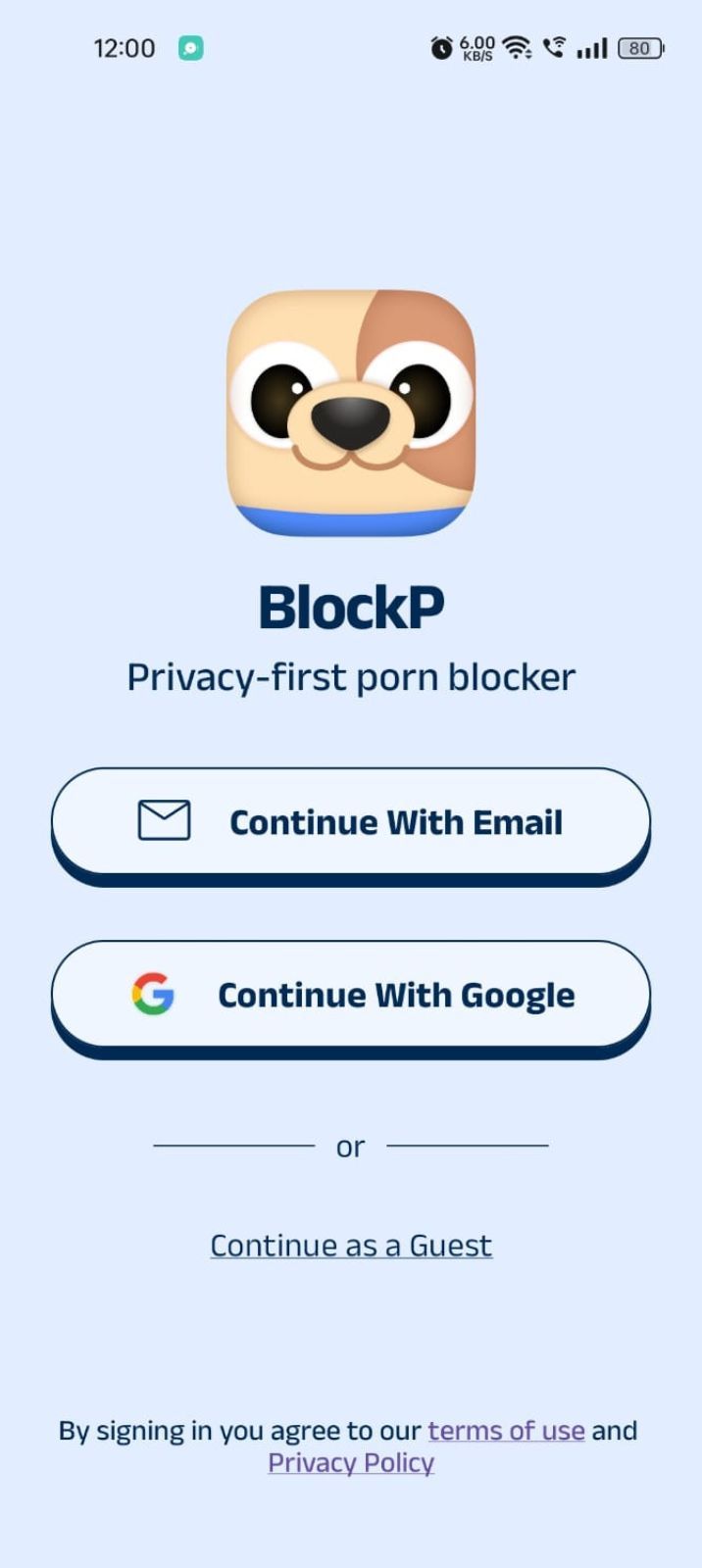
- Open the BlockP app.
- Sign up using Email or Google.
- Or tap Continue as a Guest to get started without creating an account.
Step 3: Give Necessary Permissions
1. Accessibility - Lets the Android adult content blocker see what you are watching on your screen. Here is how to let BlockP use it:
- Click on the Accessibility permission toggle.
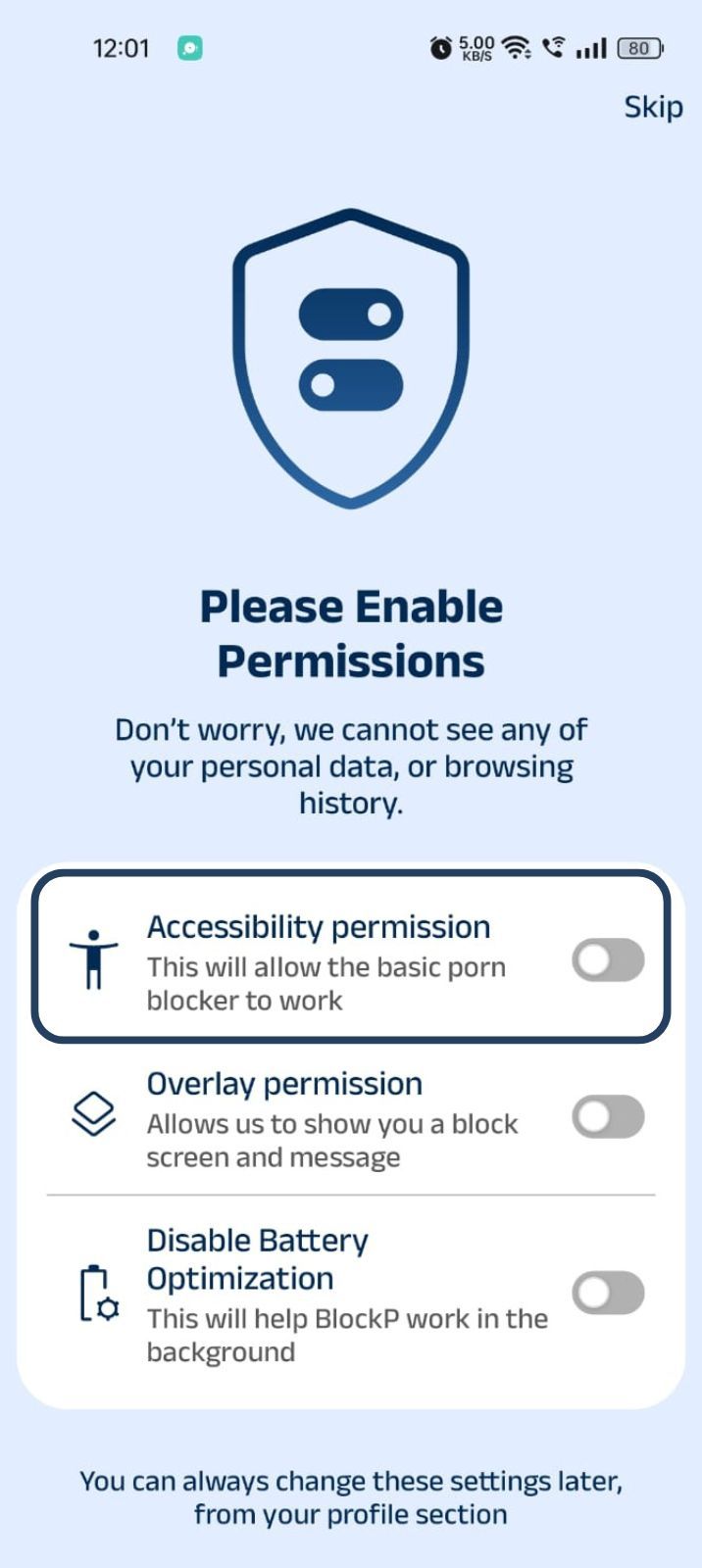
- Then click on "Let BlockP Access Accessibility Services"
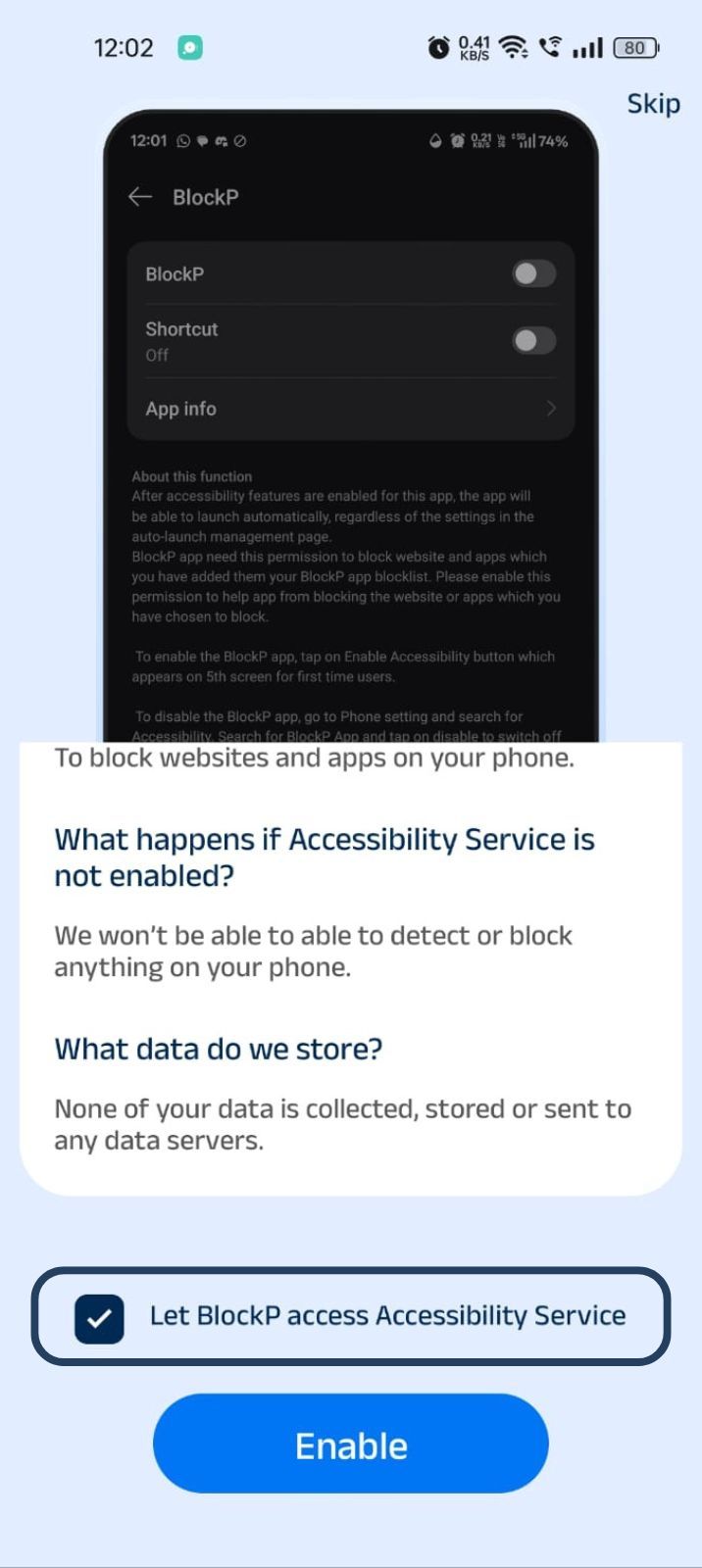
- Next, click on the Enable button
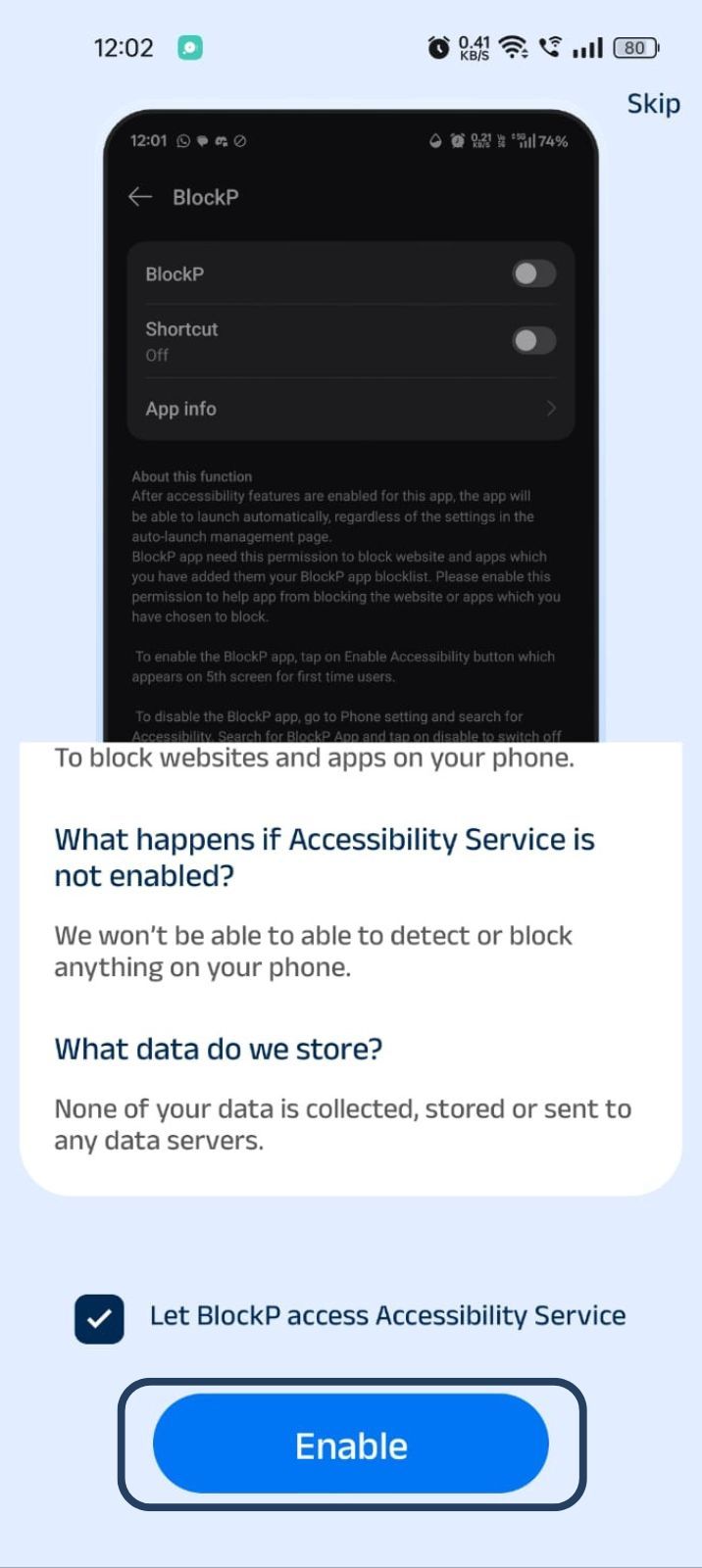
- Next, click on the downloaded apps button.
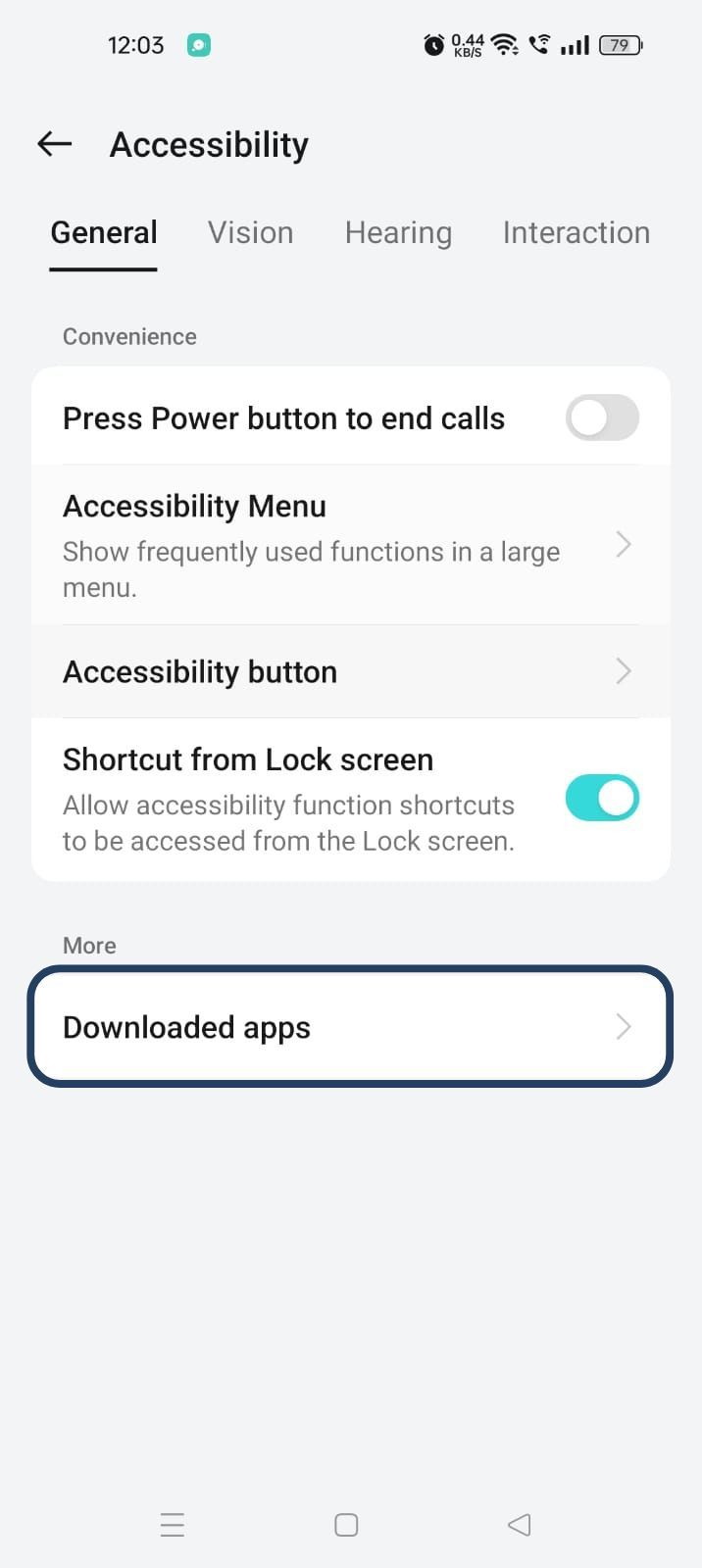
- Now, you will find Blockp - click on BlockP.
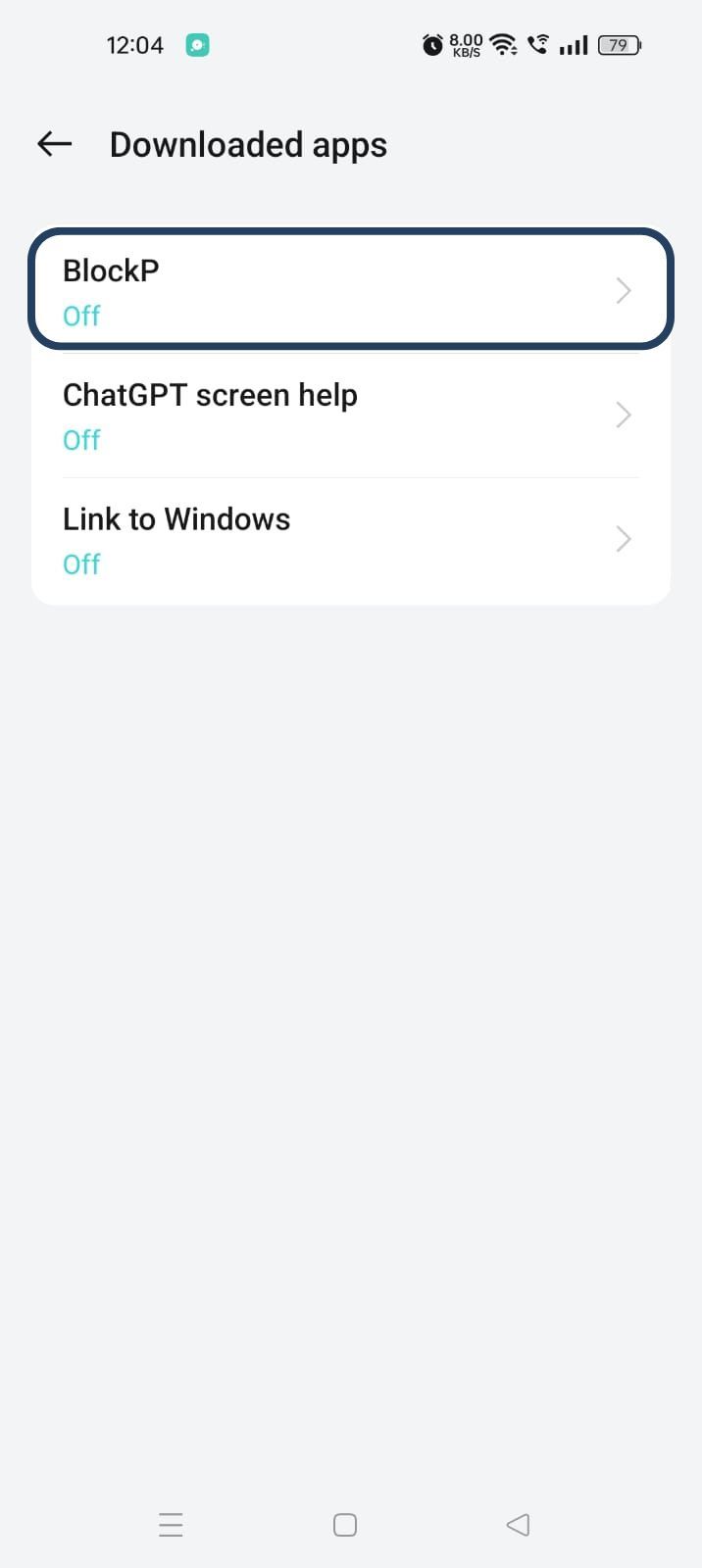
- The new screen will show a toggle in front of BlockP - enable the toggle and then click on the Allow button to complete the accessibility permission.
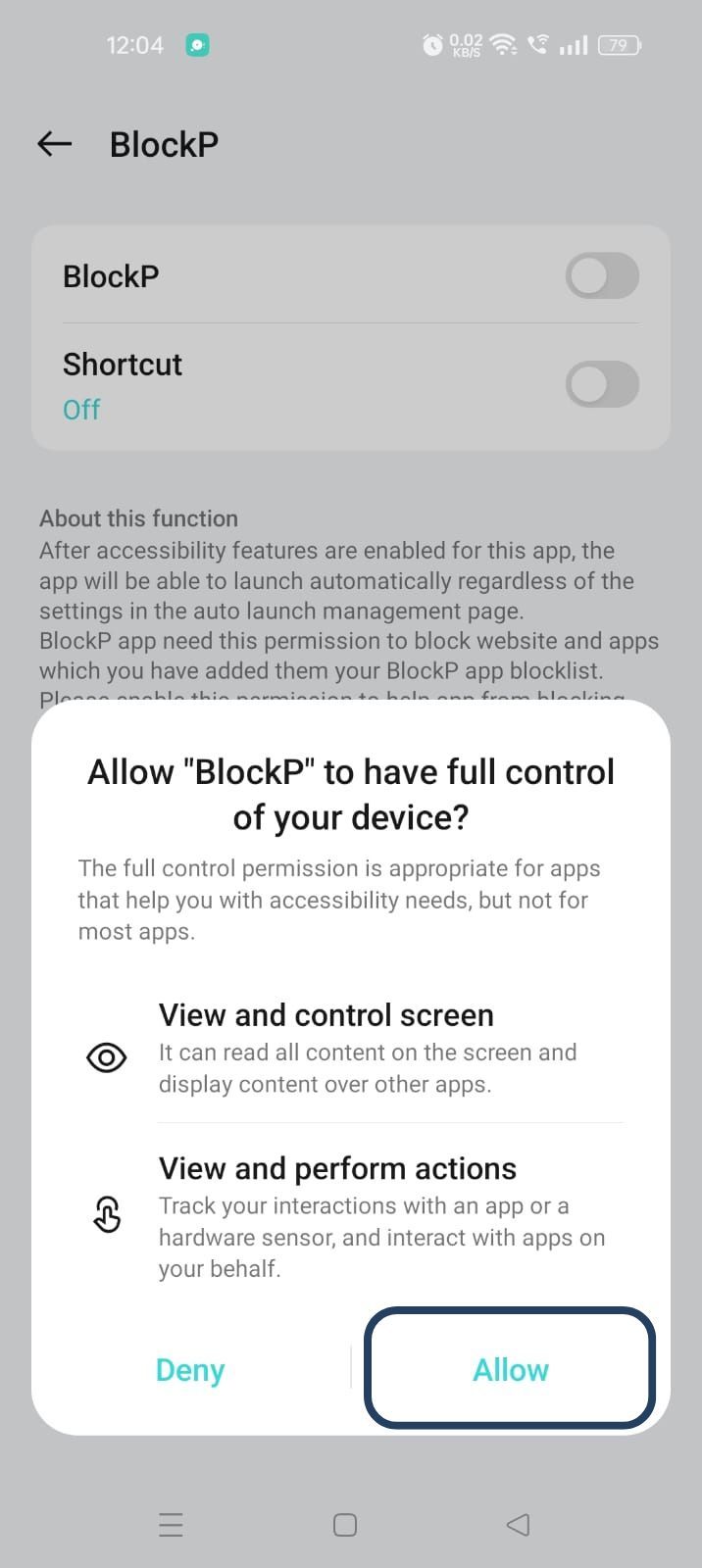
2. Overlay - lets BlockP show you a blocked screen and message when you try to access adult content.
- Click on Overlay permission toggle.
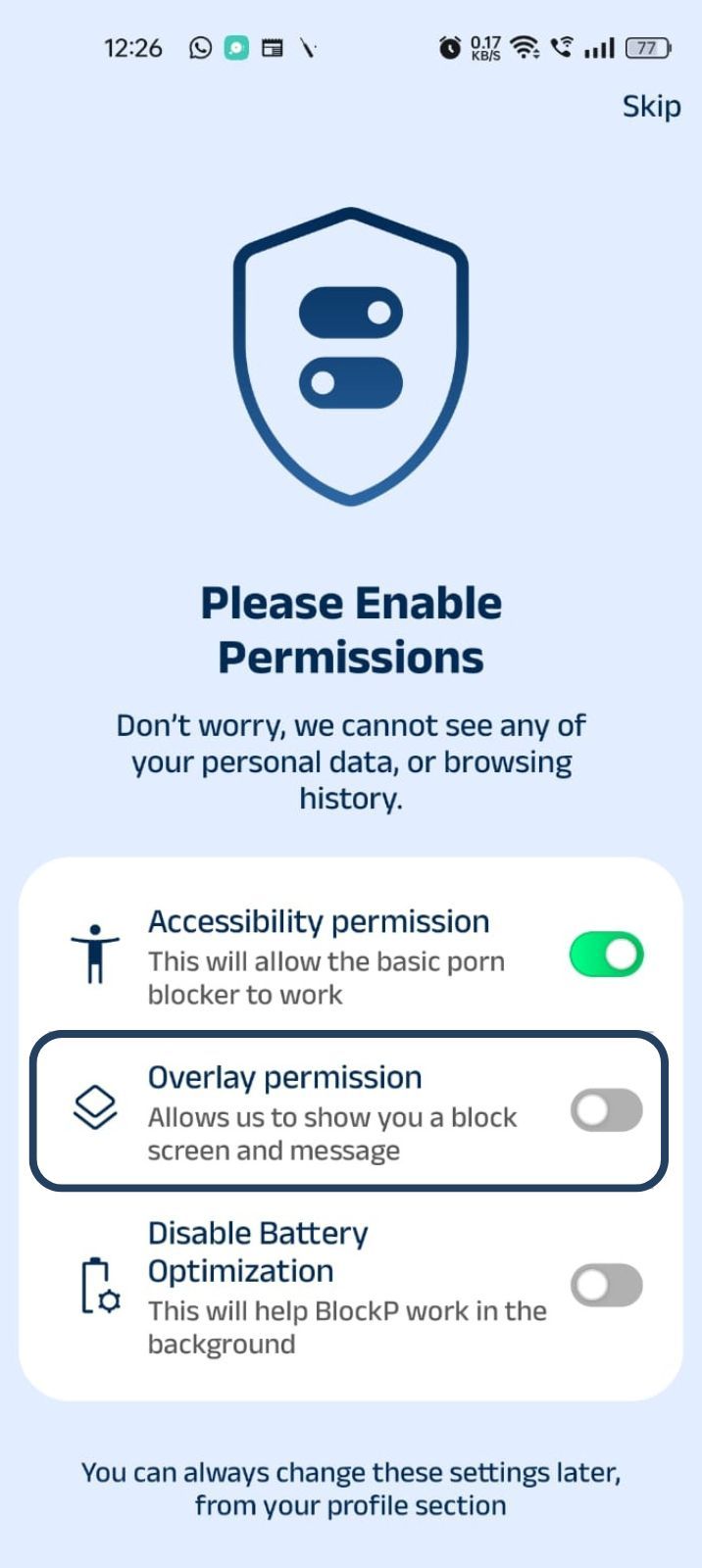
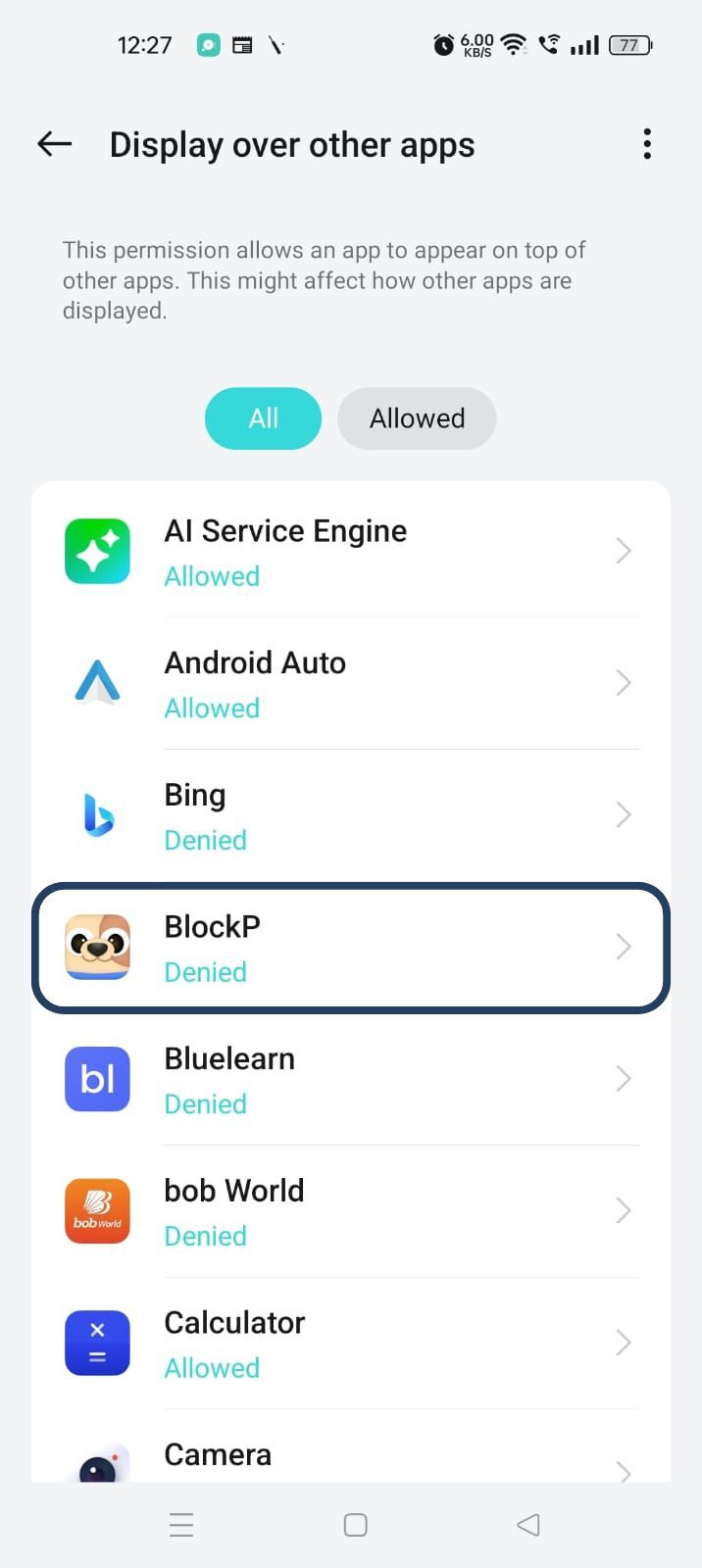
- You will get a menu with a list of apps titled - Display over other apps. Find BlockP in this list and click on it.
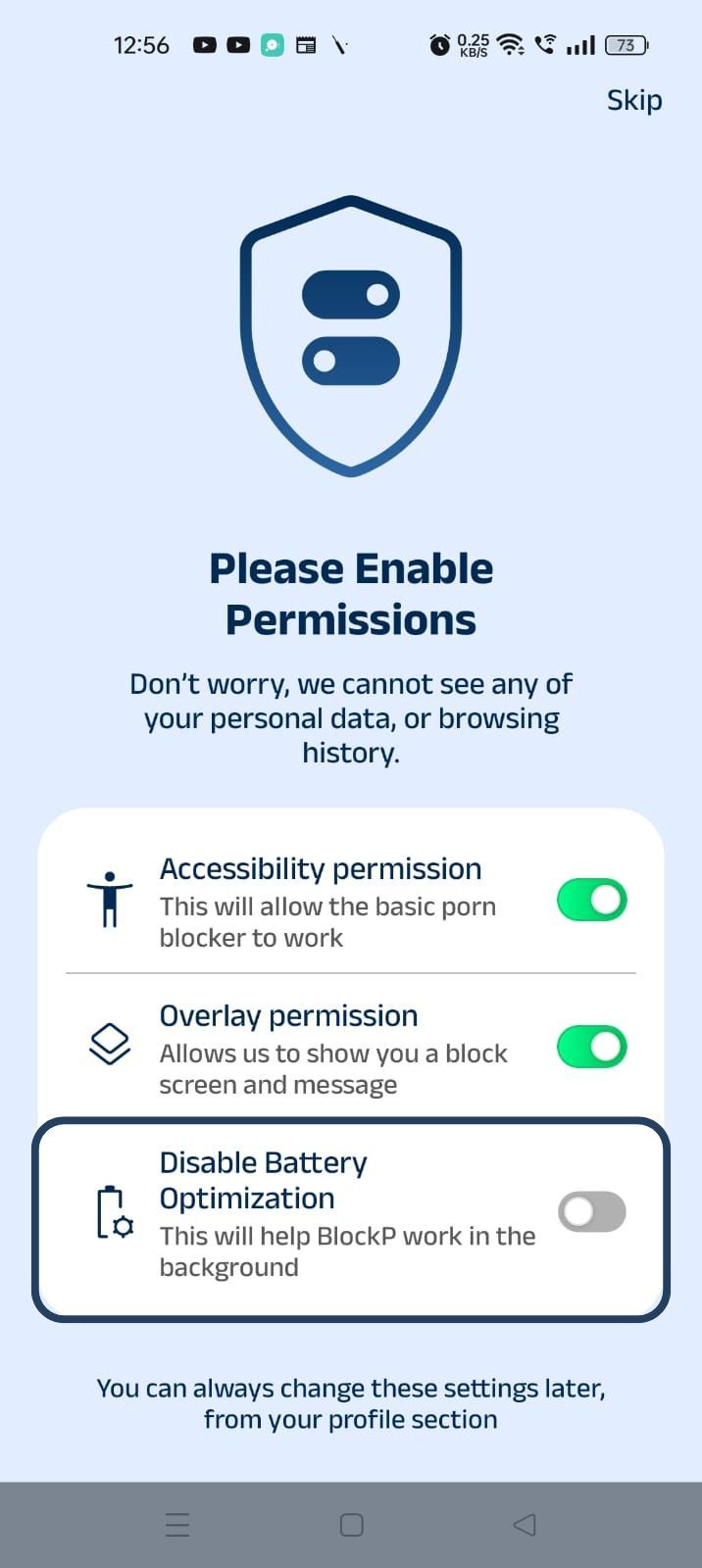
3. Disable battery optimization - so that BlockP can keep working in the background to filter adult content.
- Click on the Disable battery optimization toggle
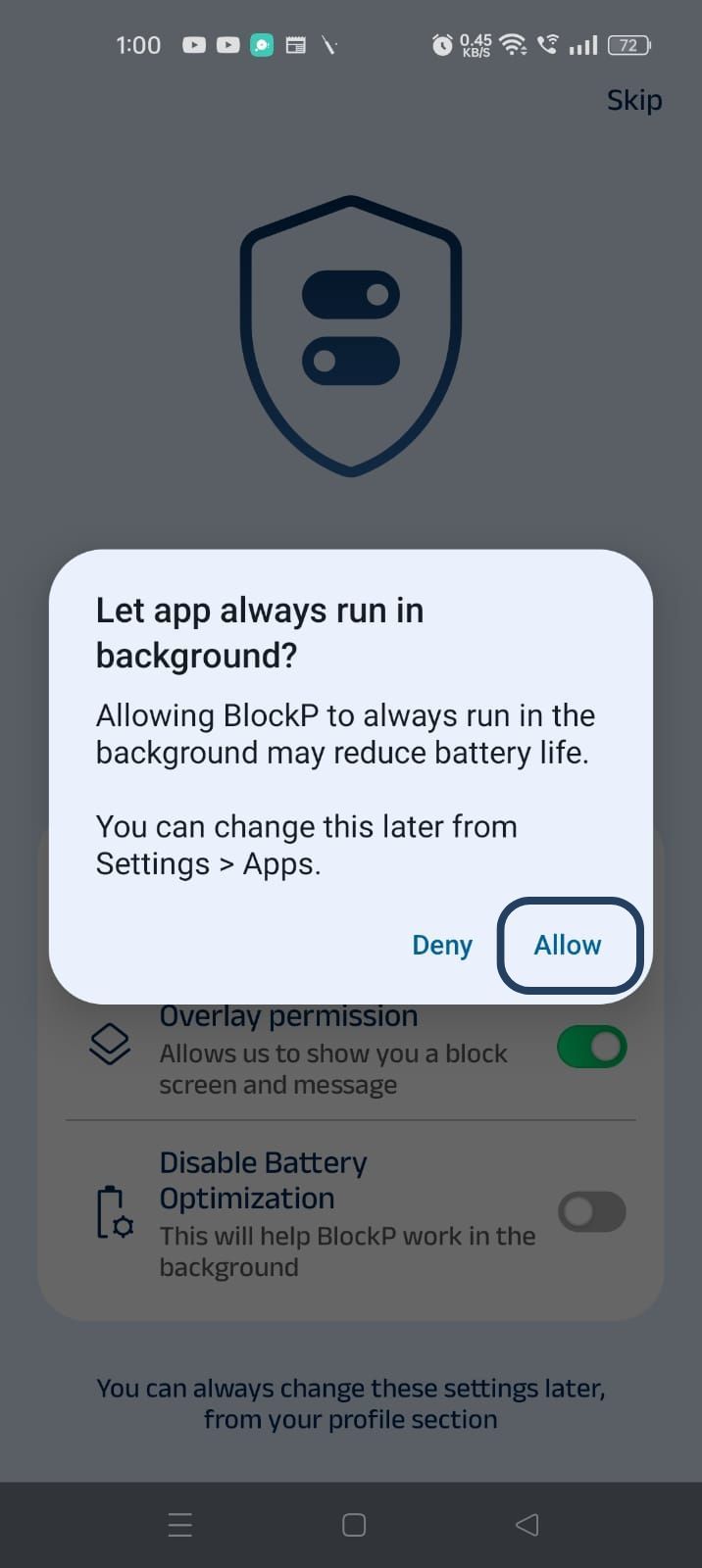
- When prompted, tap Allow to let BlockP run in the background. This helps BlockP stay active and block content without interruption.
Step 4: Go to Advanced Settings
Locate the advanced settings icon in the top right corner of BlockP’s home screen and click on it.
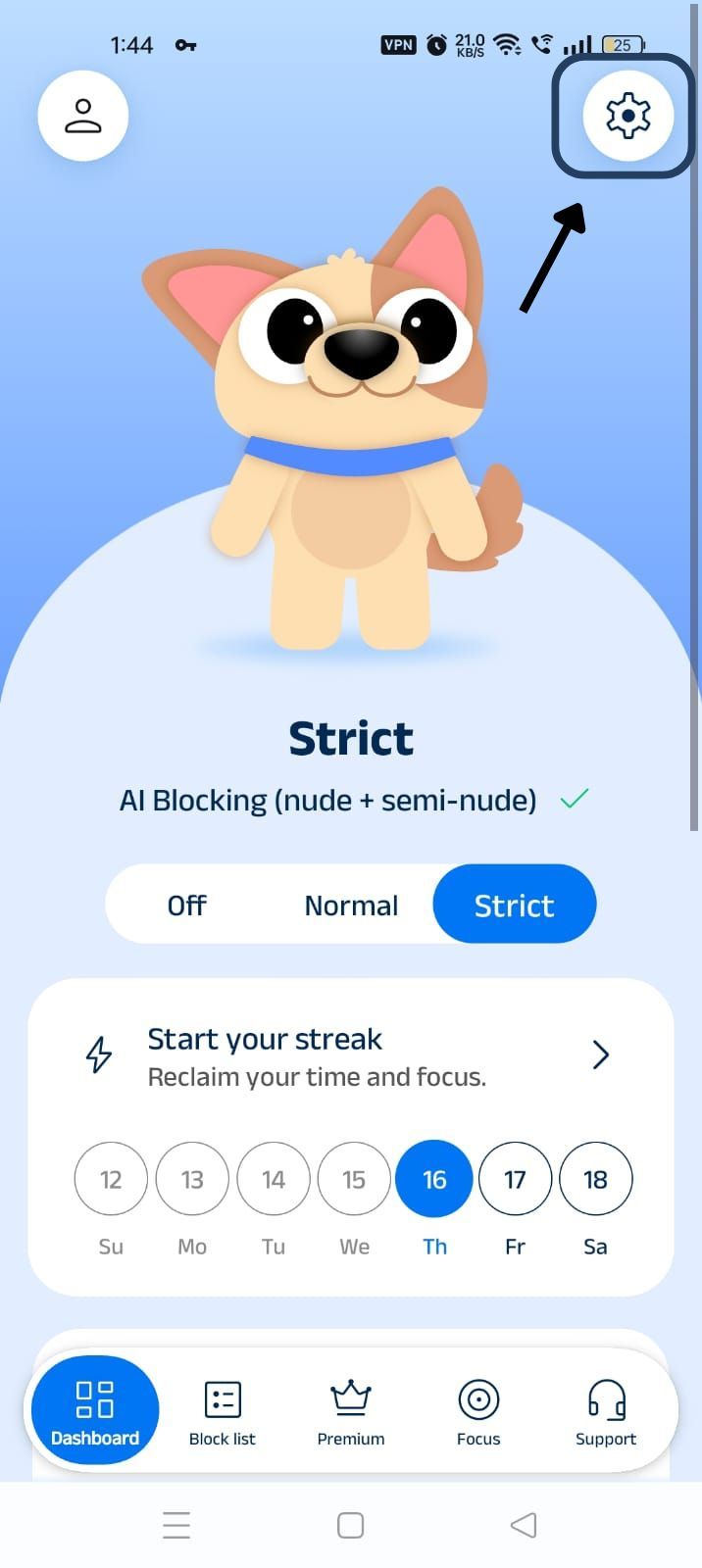
Step 4: Go to the BlockP App's Home Screen
Open the BlockP app’s homescreen and scroll down. Just below the streak tracker, you will find the ‘prevent uninstall’ option.
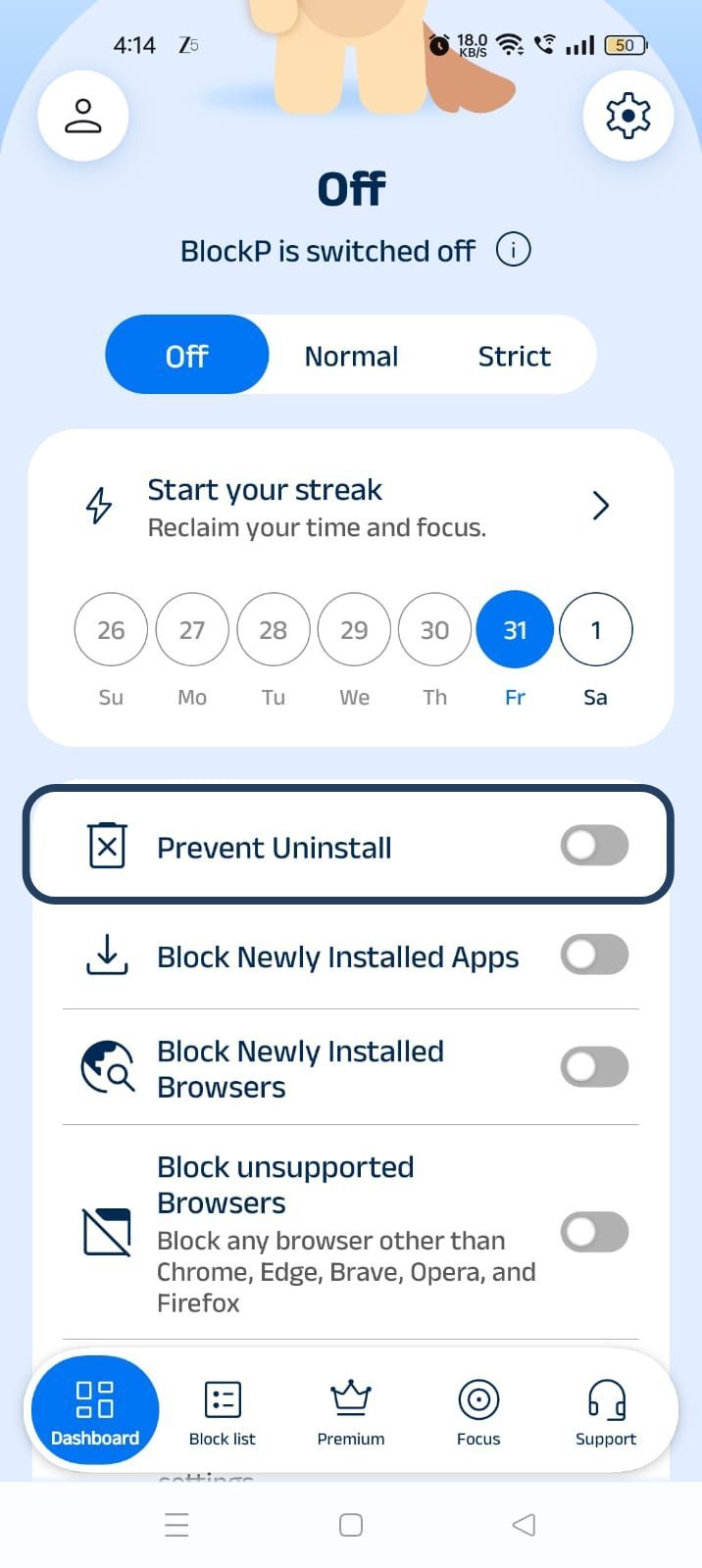
Step 5: Enable Prevent App Uninstall
Slide the toggle next to the Prevent App Uninstall option. Now, BlockP will lead you to settings where you have to let BlockP act as a device admin.
A verification pop-up will appear asking you to activate BlockP as a Device Admin App.
- Enter the verification code (CAPTCHA) shown on the screen.
- Tap Activate to grant Device Admin permission.
Note: This permission helps BlockP prevent unauthorized uninstallation, keeping your protection active and secure.
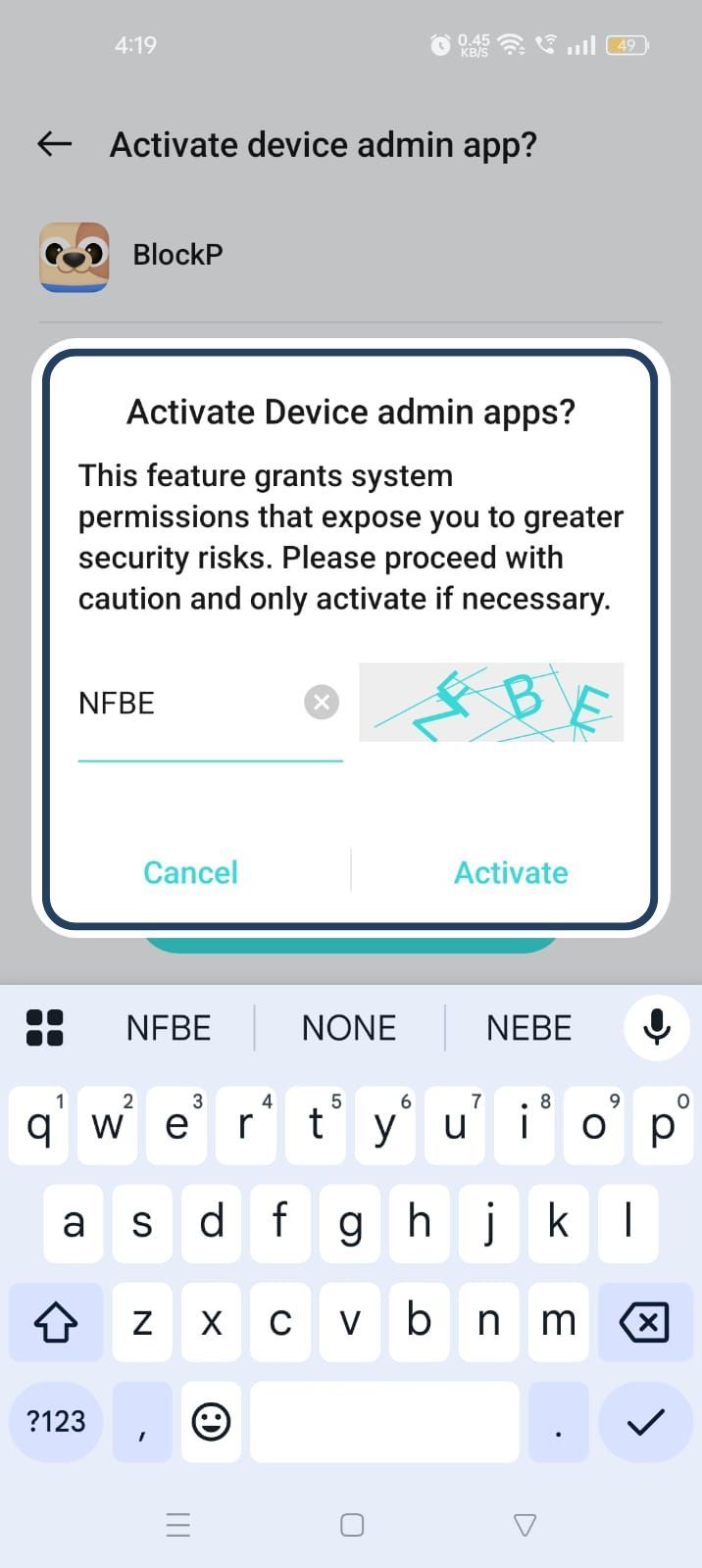
Step 6: Activate Device Admin
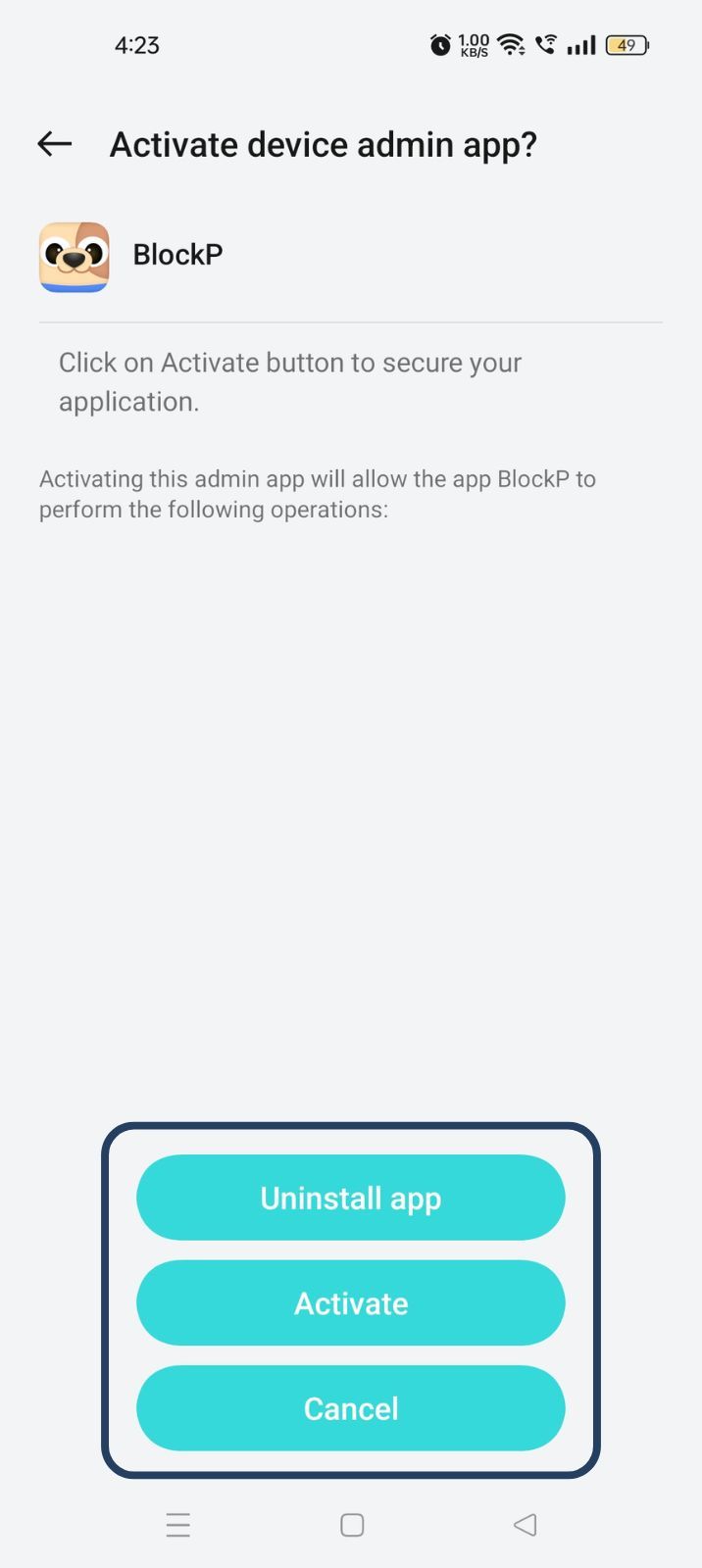
After completing the verification, you'll be taken to the Activate Device Admin App screen.
- Tap the Activate button to grant BlockP Device Admin permission.
- This permission helps BlockP prevent unauthorized uninstallation, ensuring your protection stays active.
Why Prevent App Uninstall on BlockP?
When we set up our adult content filters in BlockP, we are often acting with a more motivated and calmer mindset. But when the urge hits and when cravings become overwhelming, BlockP’s restrictions, which are there to support, can feel like an enemy.
So, when the temptations hit in full force and only your willpower stands between you and relapse, commitment becomes soft. And uninstalling the app puts you just a couple of clocks away from full-frontal access to adult content.
This is not something that happens rarely.
This tug-of-war between the best intentions and the lure of an easy way out is a regular experience. So, an easy loophole like the option to uninstall the adult content blocker altogether creates a high risk of relapse, and repeated relapses undermine your confidence.
So, without the BlockP uninstall protection, your months and years of streak will be constantly at risk and also can be lost within a few seconds.
Benefits of Using Uninstall Protection on BlockP
When you enable BlockP's Prevent App Uninstall on Android, you are not just closing a technical loophole. It changes how the restrictions behave when you are emotionally and psychologically vulnerable.
- Your cravings come in waves. The prevent app uninstall option creates just the necessary friction that helps one stay committed until the urges wane off.
- It closes one of the most convenient escape routes for bypassing BlockP protections.
- If you are trying to quit adult content, it ensures that your streak is protected even when your willpower fails.
- The parents can feel confident that their children are truly protected, as there is an effective way to prevent bypassing the app blocker.
- It is a device-level setting that uses admin permissions - so, no app can be used to impulsively disable it.
How BlockP Prevents App Uninstall on Android
BlockP detects when you try to uninstall the app and instantly leads you to a custom screen. This custom screen has a message that reminds you and motivates you to stay on course.
Why Choose BlockP?
BlockP stands out as the best choice among the content-blocking apps because it takes a comprehensive approach, i.e., no loophole is considered too insignificant, and the user is left to rely on their willpower.
It leverages its various adult content blocking options (AI-powered filters) and bypass-prevention options (block phone reboot and password setting) to create an efficient free from adult content digital ecosystem on your phone.
So, you can set up features like prevent app-uninstall and they will automatically work in sync with all other settings for most effectiveness.
Frequently Asked Questions
How do I prevent BlockP from being uninstalled on Android?
BlockP has a simple setting option - prevent app uninstall that prevents any efforts to remove the app from the phone.
What is Uninstall Protection in BlockP?
BlockP's feature to Prevent App Uninstall on Android uses device admin permissions to prevent you from removing the app and accessing adult content.
Does Uninstall Protection work with Focus Mode?
The Uninstall protection of BlockP works with other BlockP features like Focus Mode.
Will Uninstall Protection affect my Android phone's performance?
No, because it works in the background and kicks in only if you try to Uninstall BlockP.
Can I disable Uninstall Protection later?
Yes.
Is Uninstall Protection available on all Android devices?
Yes.
Can parents use Uninstall Protection to help protect a child's device?
Yes.
Does Uninstall Protection help prevent bypassing app restrictions?
Yes.
Is Uninstall Protection free in BlockP?
Currently the BlockP uninstall protection is available on the premium version of BlockP, but you do have the flexibility of monthly/yearly subscriptions and also a free trial.