
How to Block Facebook Search on Android Using BlockP
Block Facebook Search on Android with BlockP to reduce exposure to adult, semi-nude, and suggestive content while staying focused online.
Get Started with BlockPFacebook Search is definitely a useful tool for discovering interesting content. But, more often than not, it becomes a quiet drain on time and attention. That’s why more and more people are looking for ways to block Facebook search.
According to the Pew Research Center, 71% of US adults use Facebook and 37% of them check it every day. Although it's not the most popular social media platform for teens, roughly three in ten teens are actively using Facebook.
As Facebook is such a large part of your virtual life, BlockP’s feature to block Facebook search becomes your valuable ally for not getting hijacked into the rabbit hole of Facebook search results.
How to Block Facebook Search on Android with BlockP
Here is how to block Facebook search on your Android phone with BlockP:
Step 1: Install BlockP
Download the BlockP app from the Google Play Store and install it on your Android phone.
Step 2: Sign Up on BlockP
- Open the BlockP app.
- Sign up using Email or Google.
- Or tap Continue as a Guest to get started without creating an account.
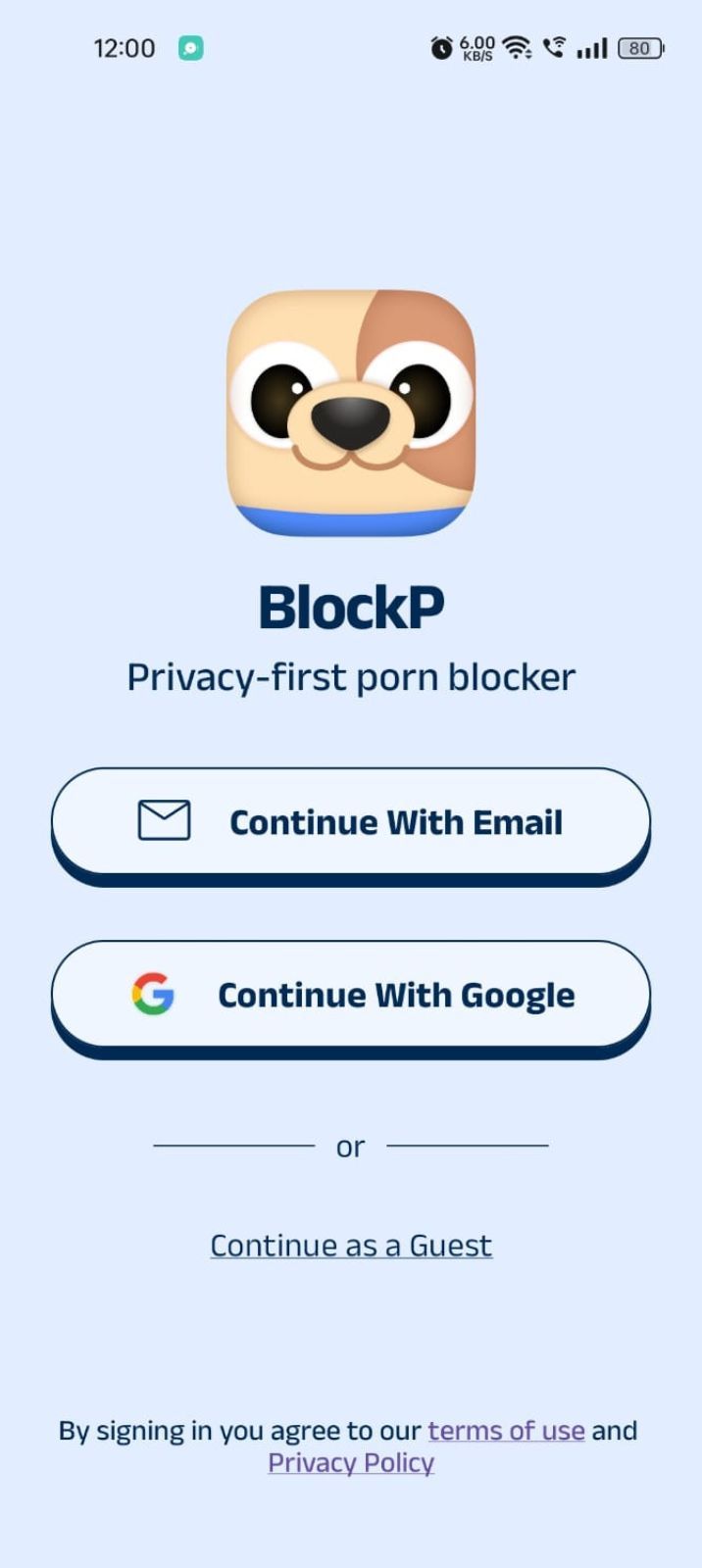
Step 3: Give Necessary Permissions
1. Accessibility - Lets the Android adult content blocker see what you are watching on your screen. Here is how to let BlockP use it:
- Click on the Accessibility permission toggle.
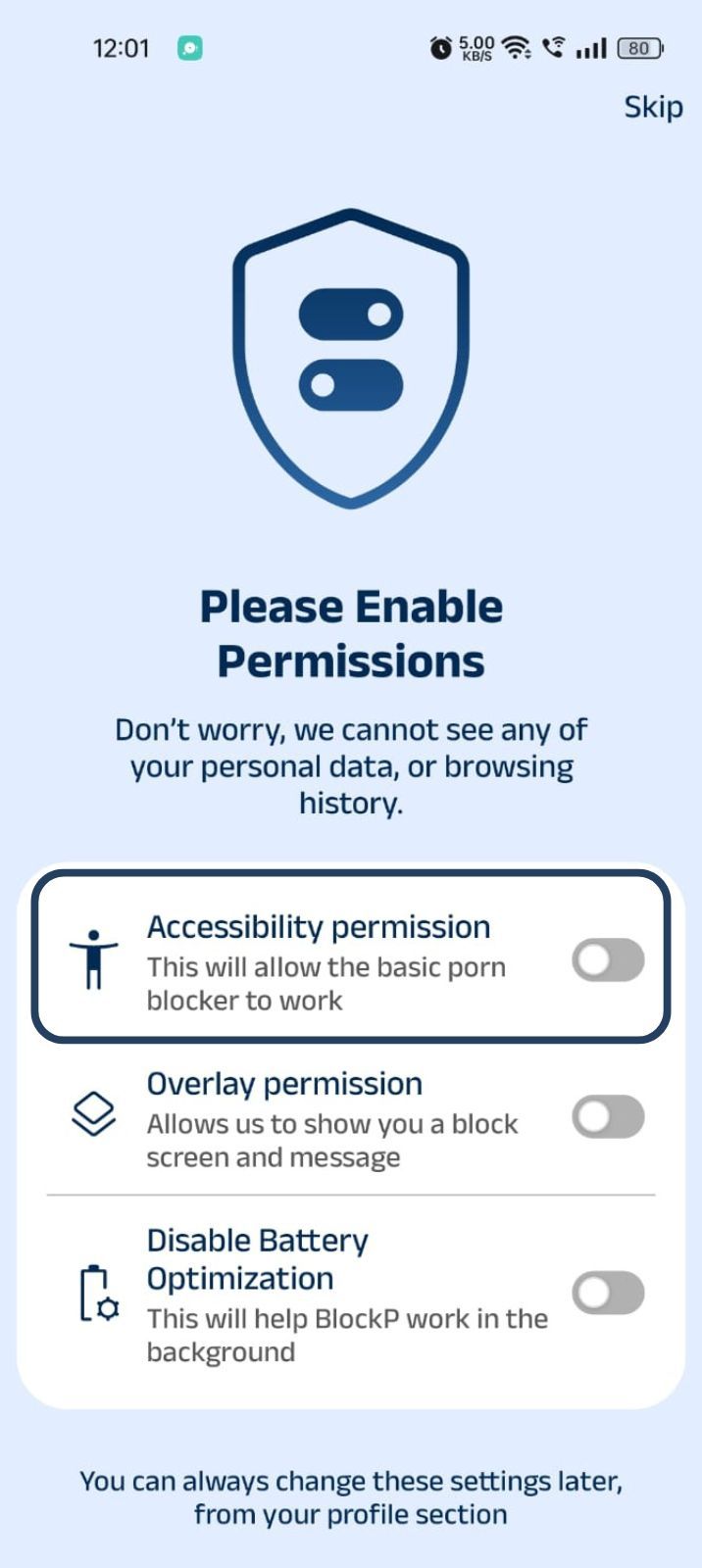
- Then click on "Let BlockP Access Accessibility Services"
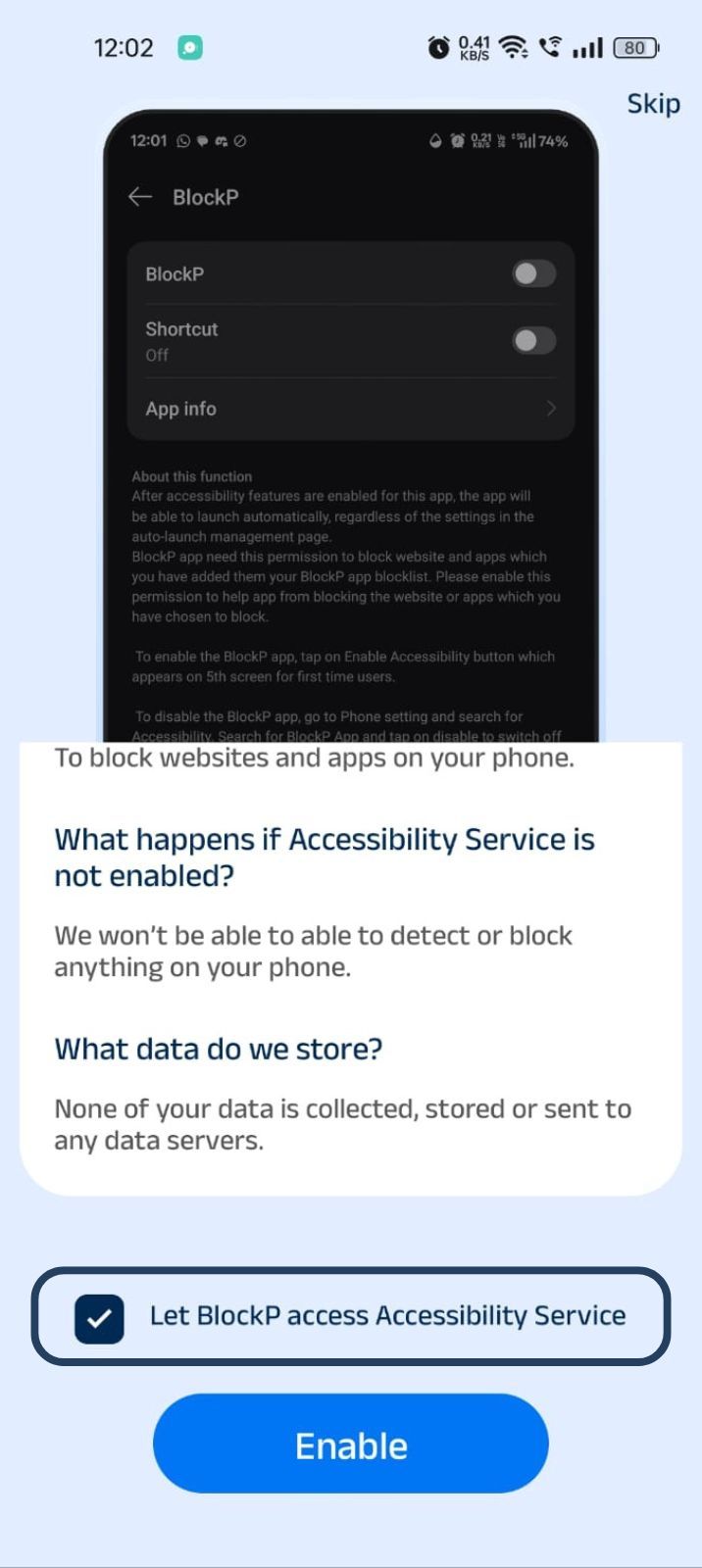
- Next, click on the Enable button
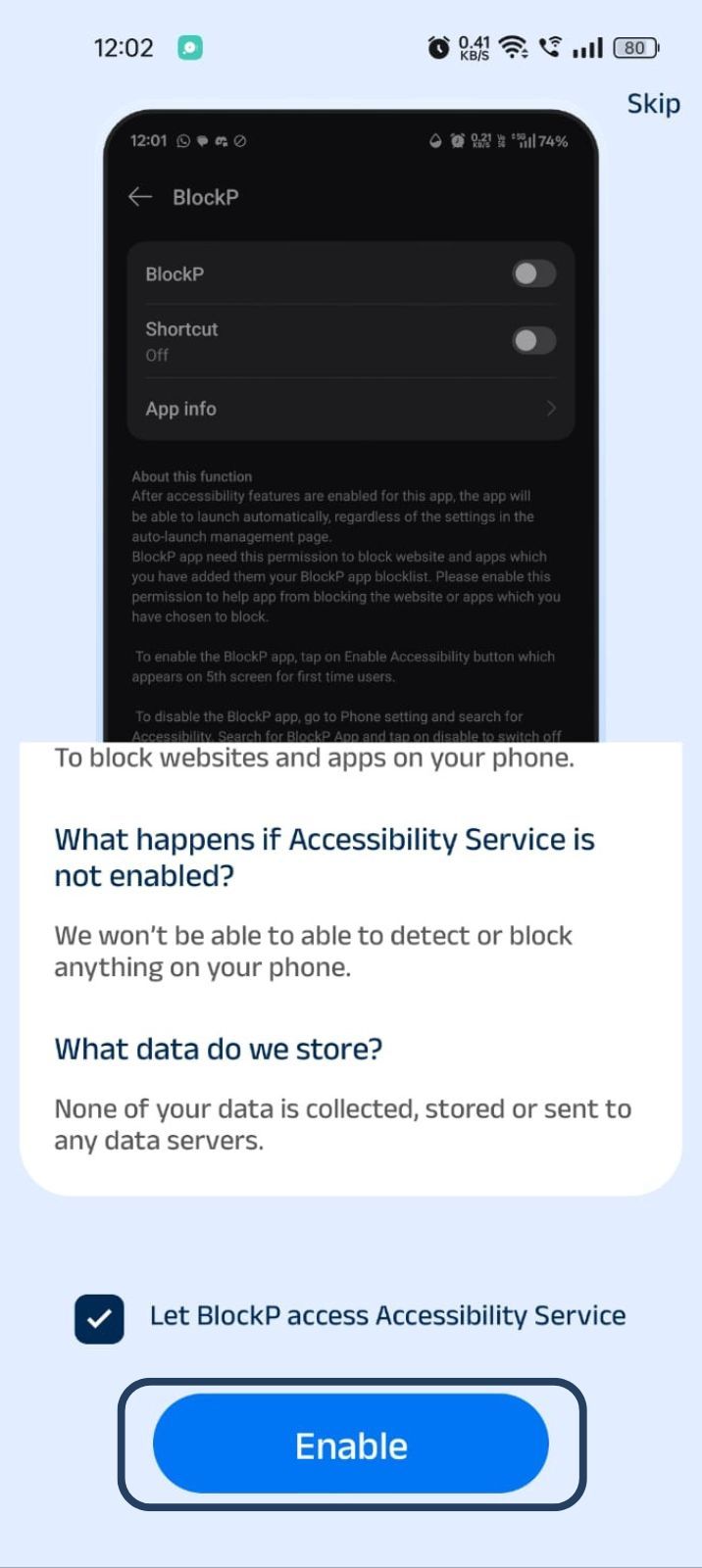
- Next, click on the downloaded apps button.
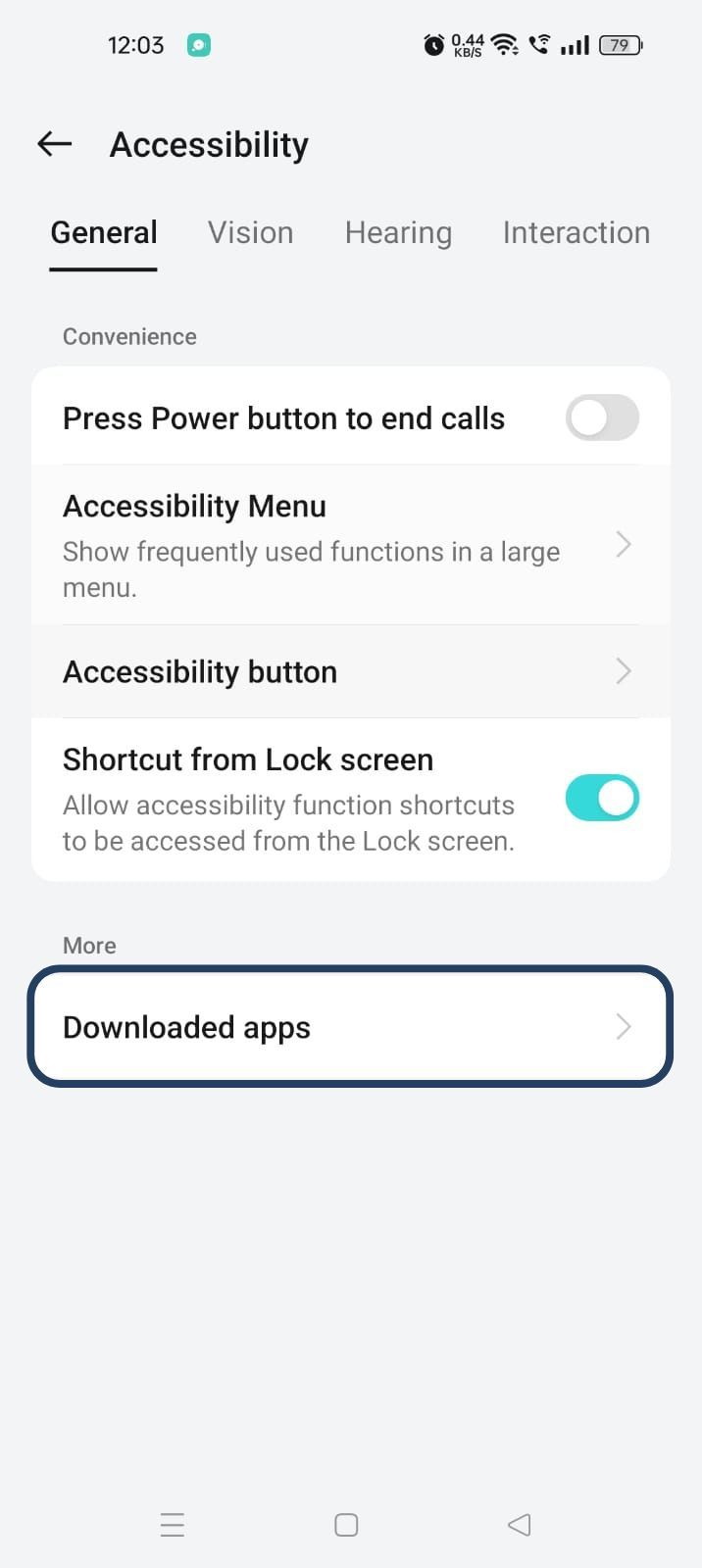
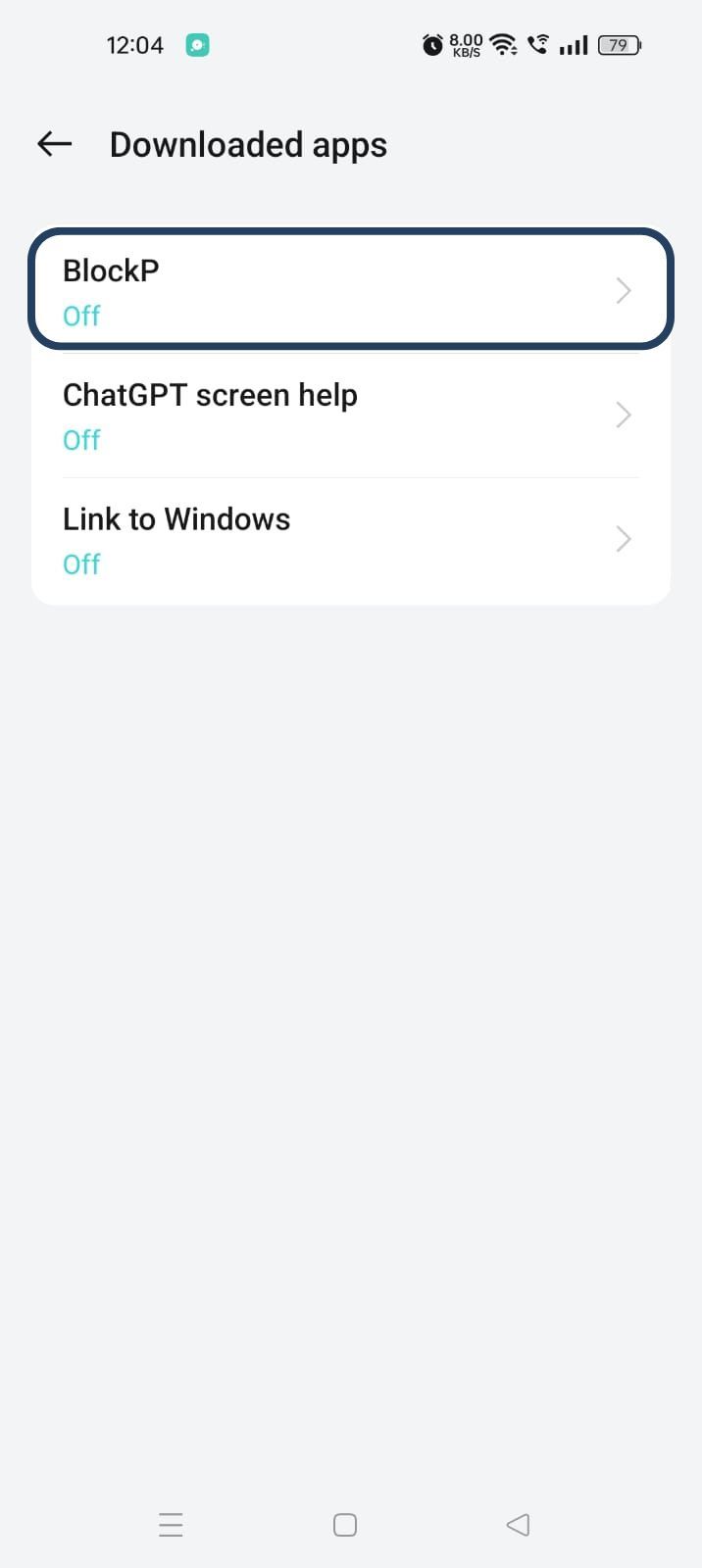
- Now, you will find Blockp - click on BlockP.
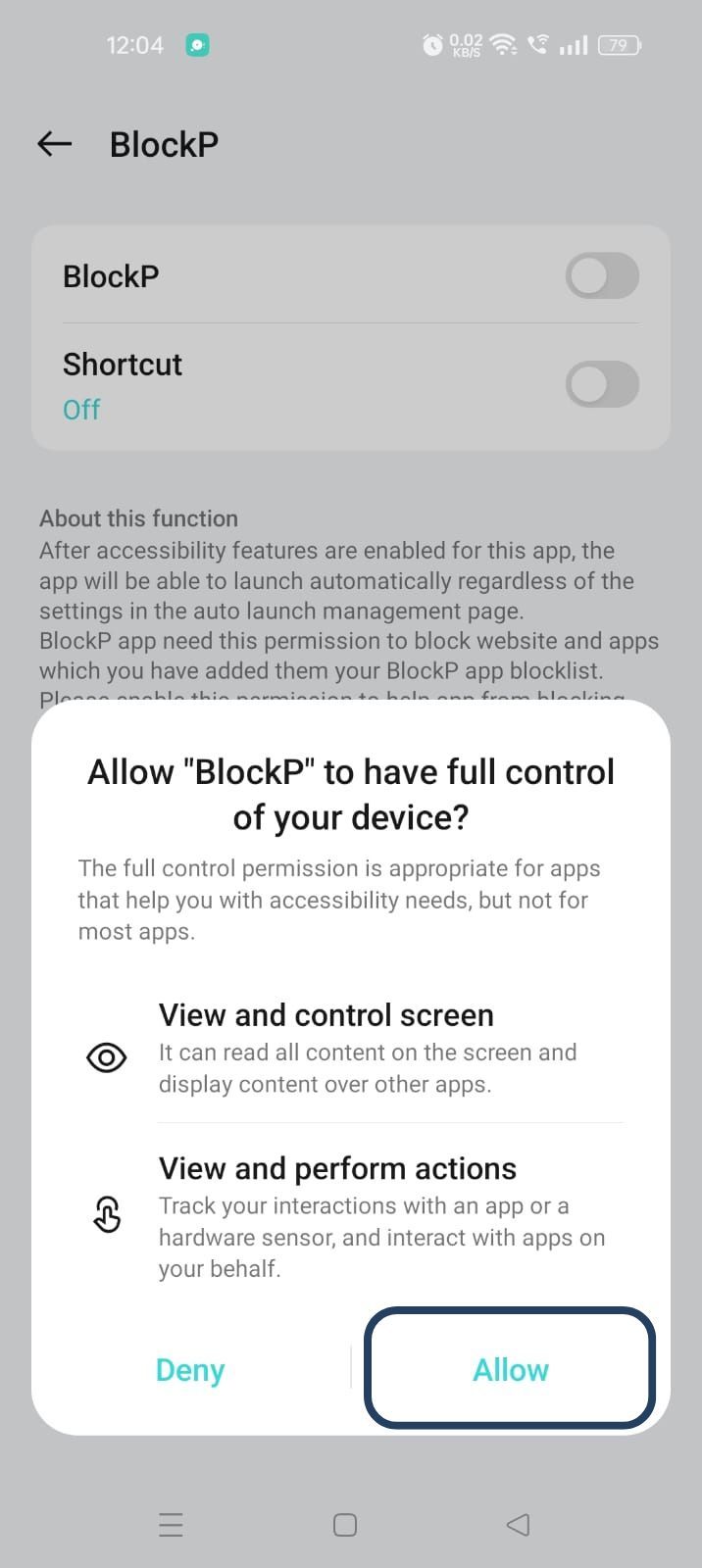
- The new screen will show a toggle in front of BlockP - enable the toggle and then click on the Allow button to complete the accessibility permission.
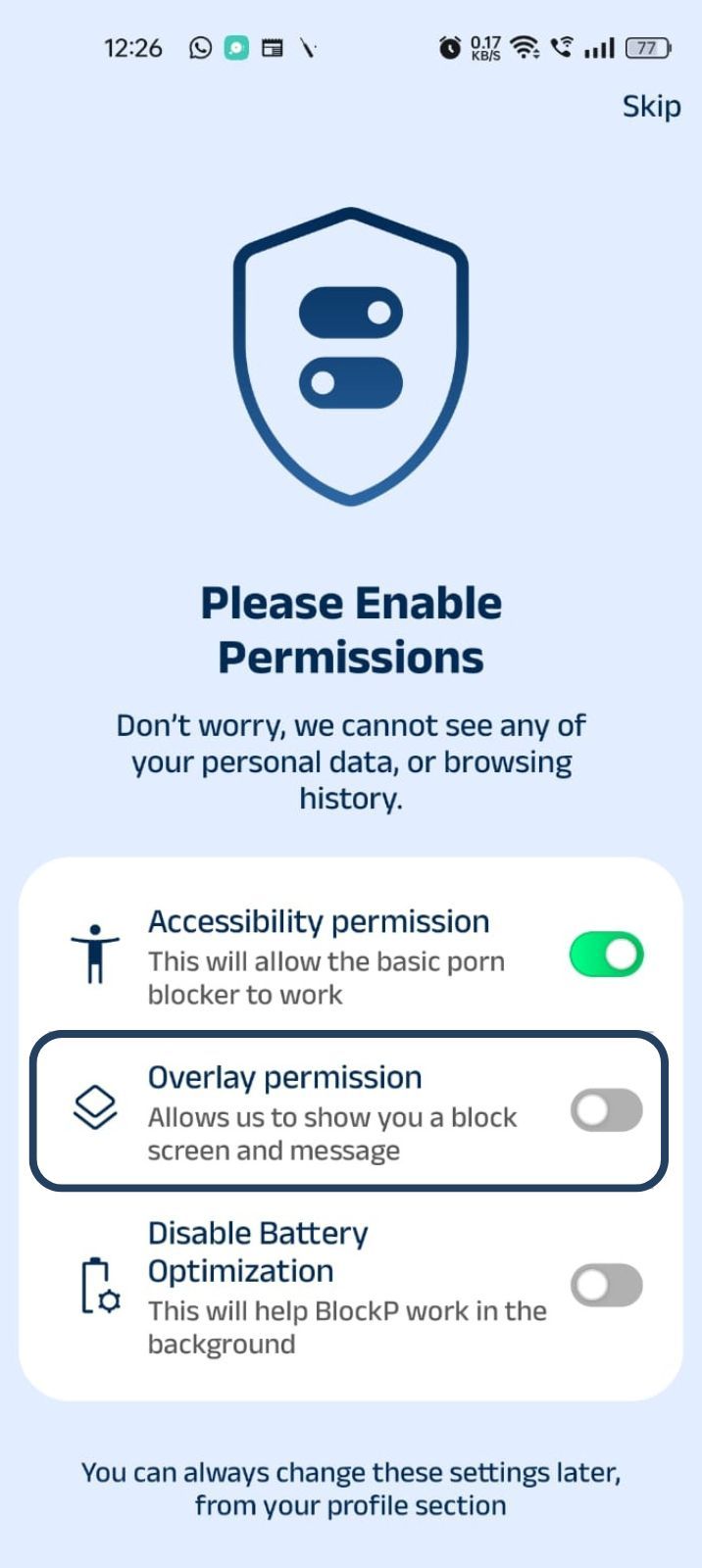
2. Overlay - lets BlockP show you a blocked screen and message when you try to access adult content.
- Click on Overlay permission toggle.
- You will get a menu with a list of apps titled - Display over other apps. Find BlockP in this list and click on it.
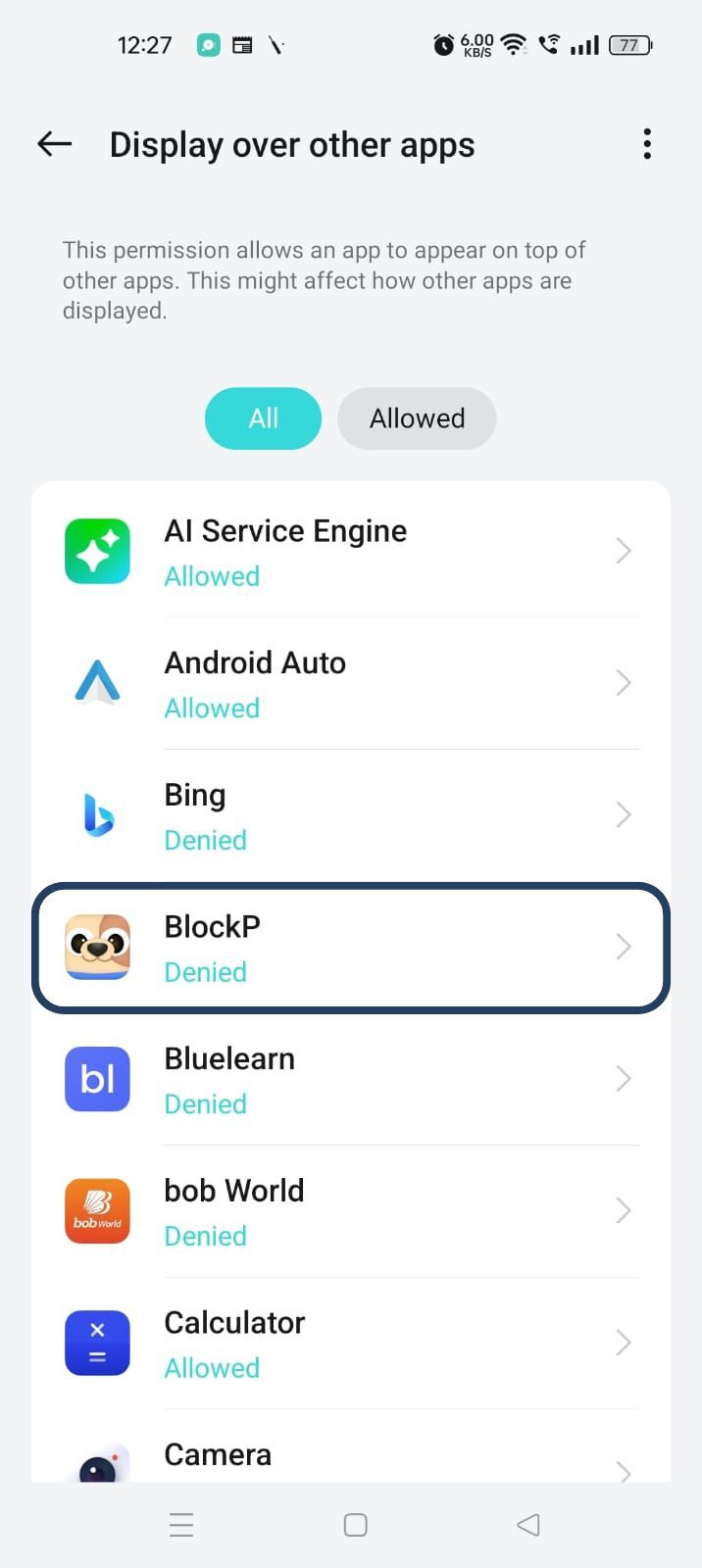
3. Disable battery optimization - so that BlockP can keep working in the background to filter adult content.
- Click on the Disable battery optimization toggle
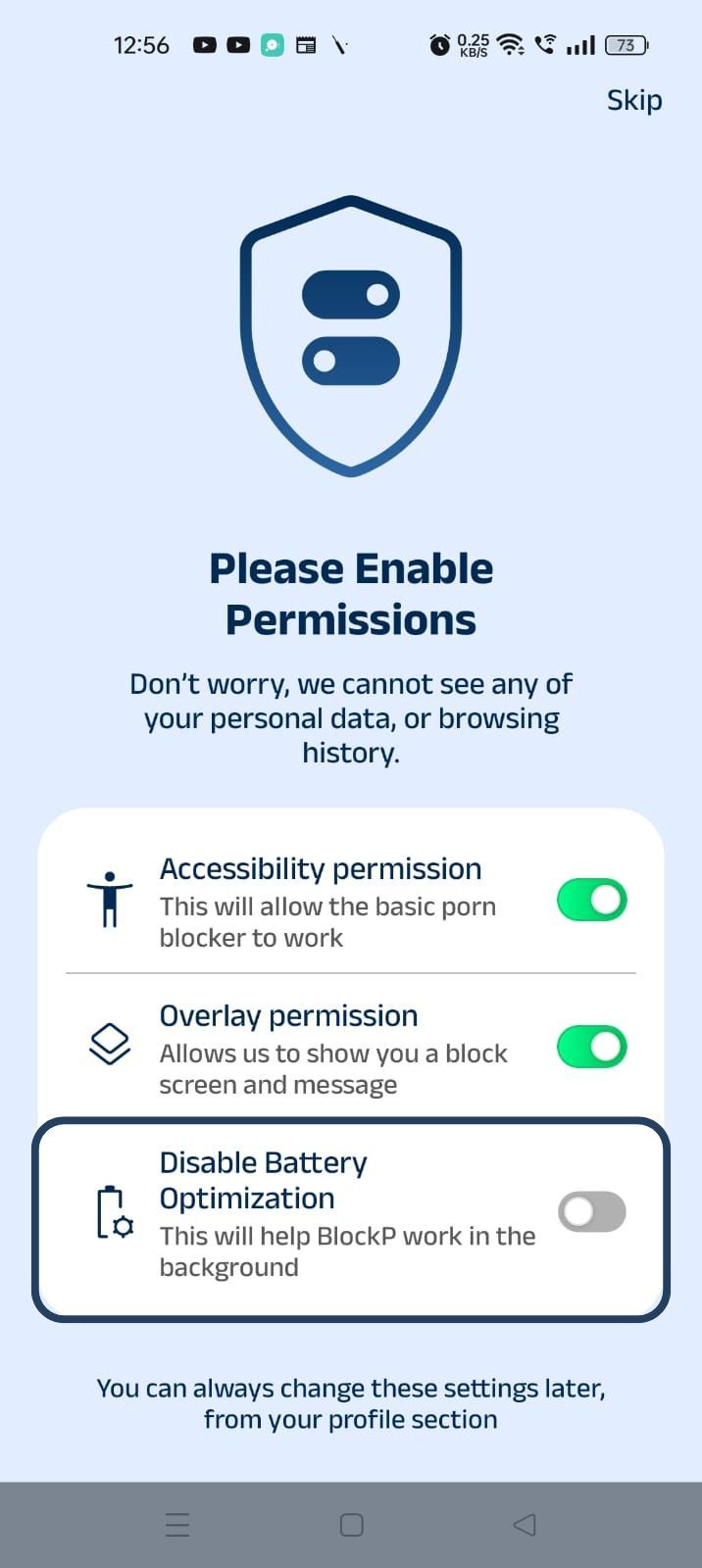
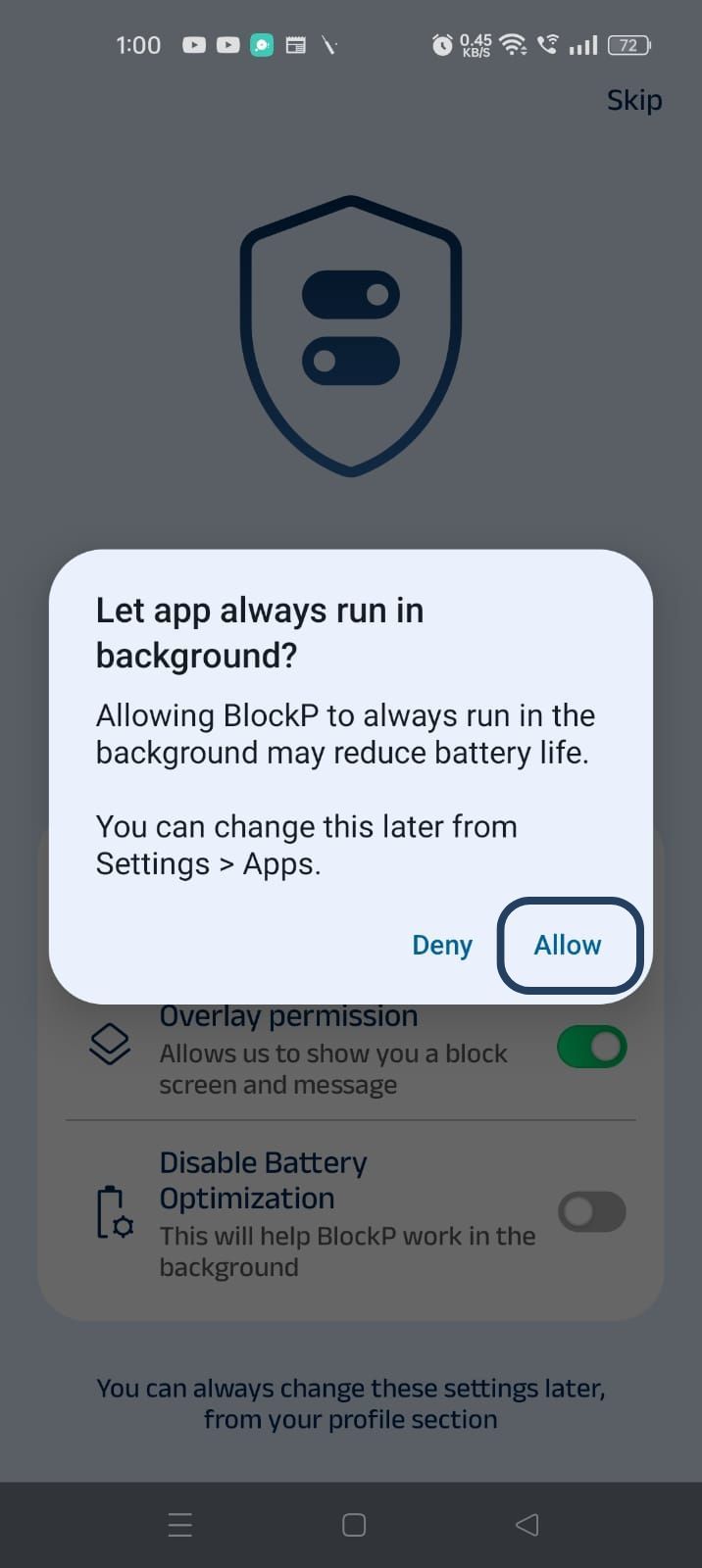
- When prompted, tap Allow to let BlockP run in the background. This helps BlockP stay active and block content without interruption.
Step 4: Go to Advanced Settings
Click on "Advanced settings" (the icon at the top right corner of the BlockP home screen).
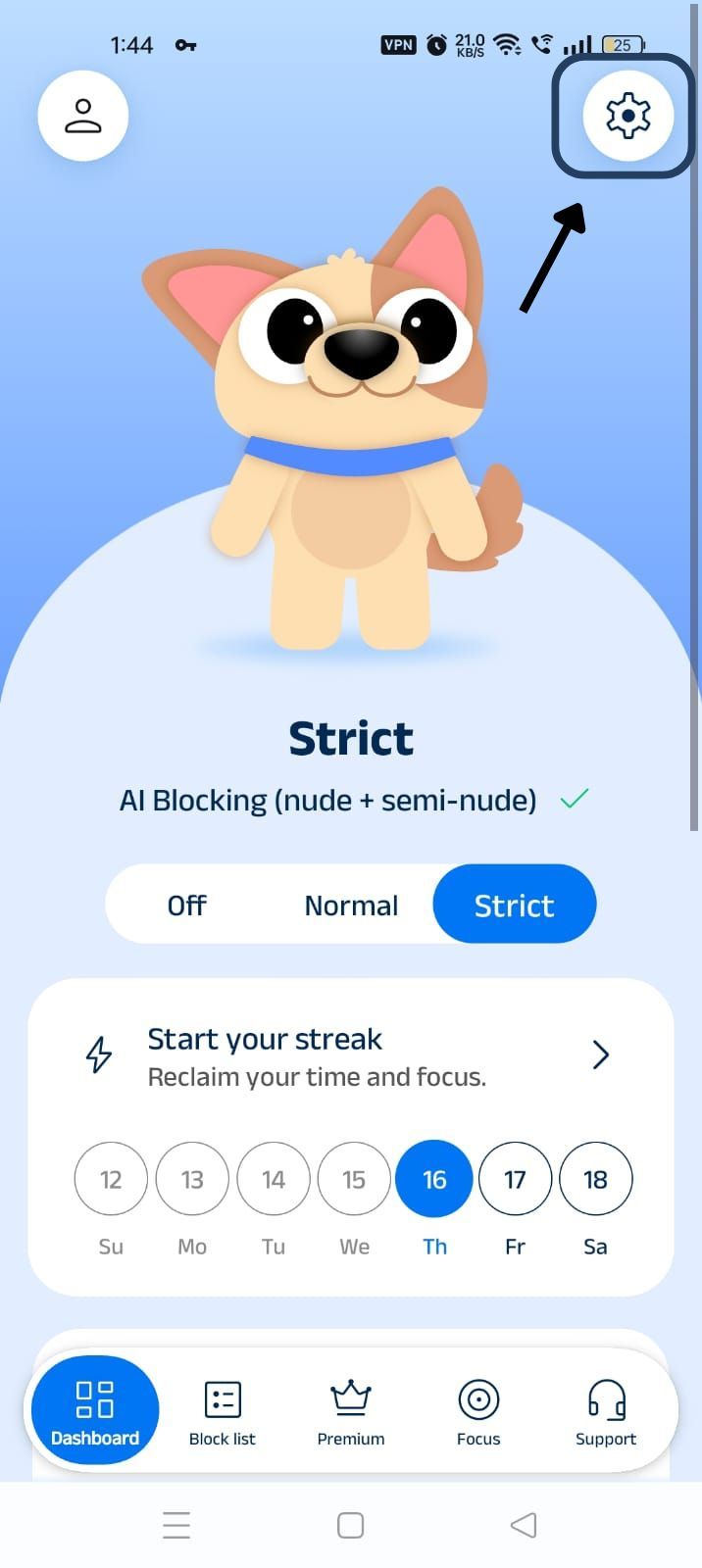
Step 5: Scroll Down to Social Media Blocking Section
Scroll down the General Settings section and find the Social Media Blocking subsection. This section lists options related to social media apps like Instagram, Facebook, Snapchat, X, and so on.
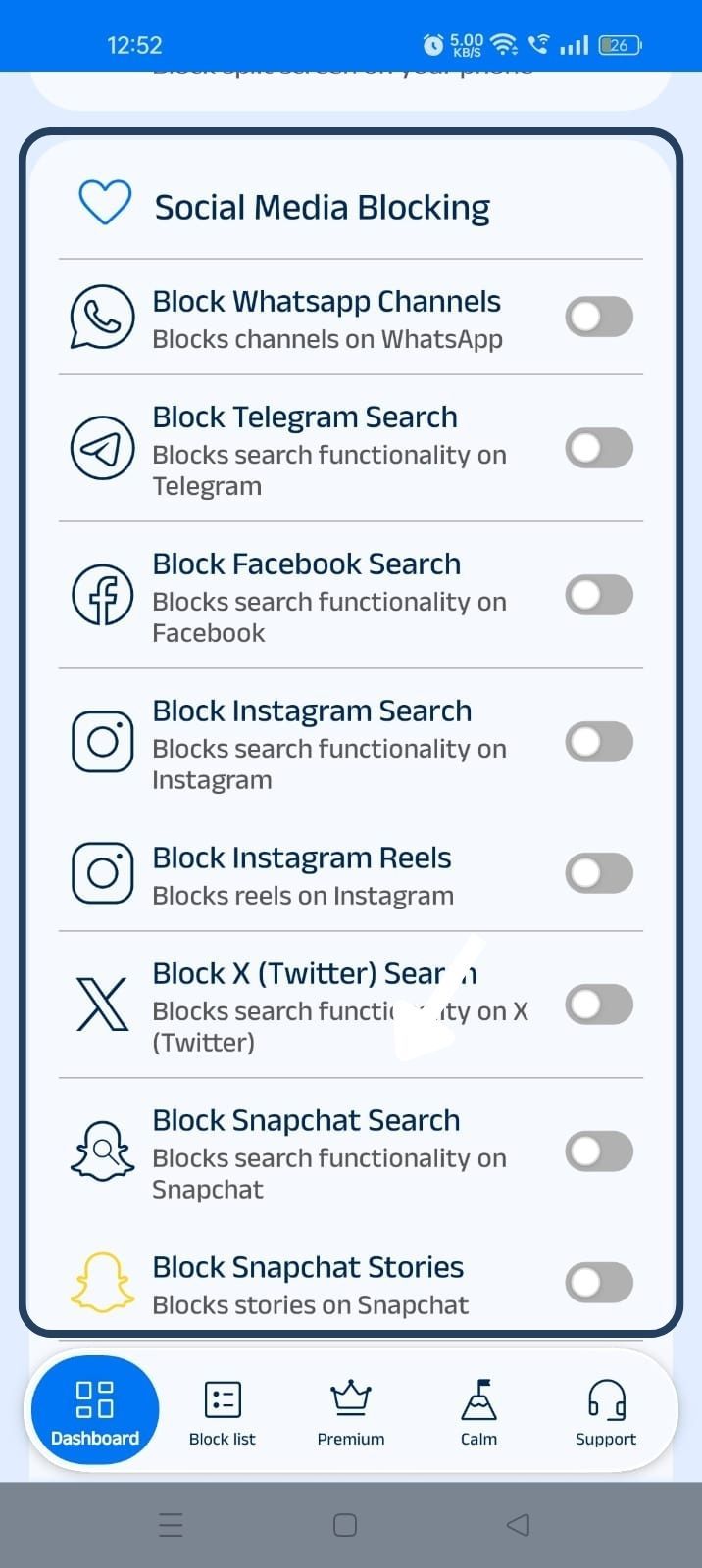
Step 6: Block Facebook Search
In the social media blocking section, find the Block Facebook Search option and slide the toggle to activate it.
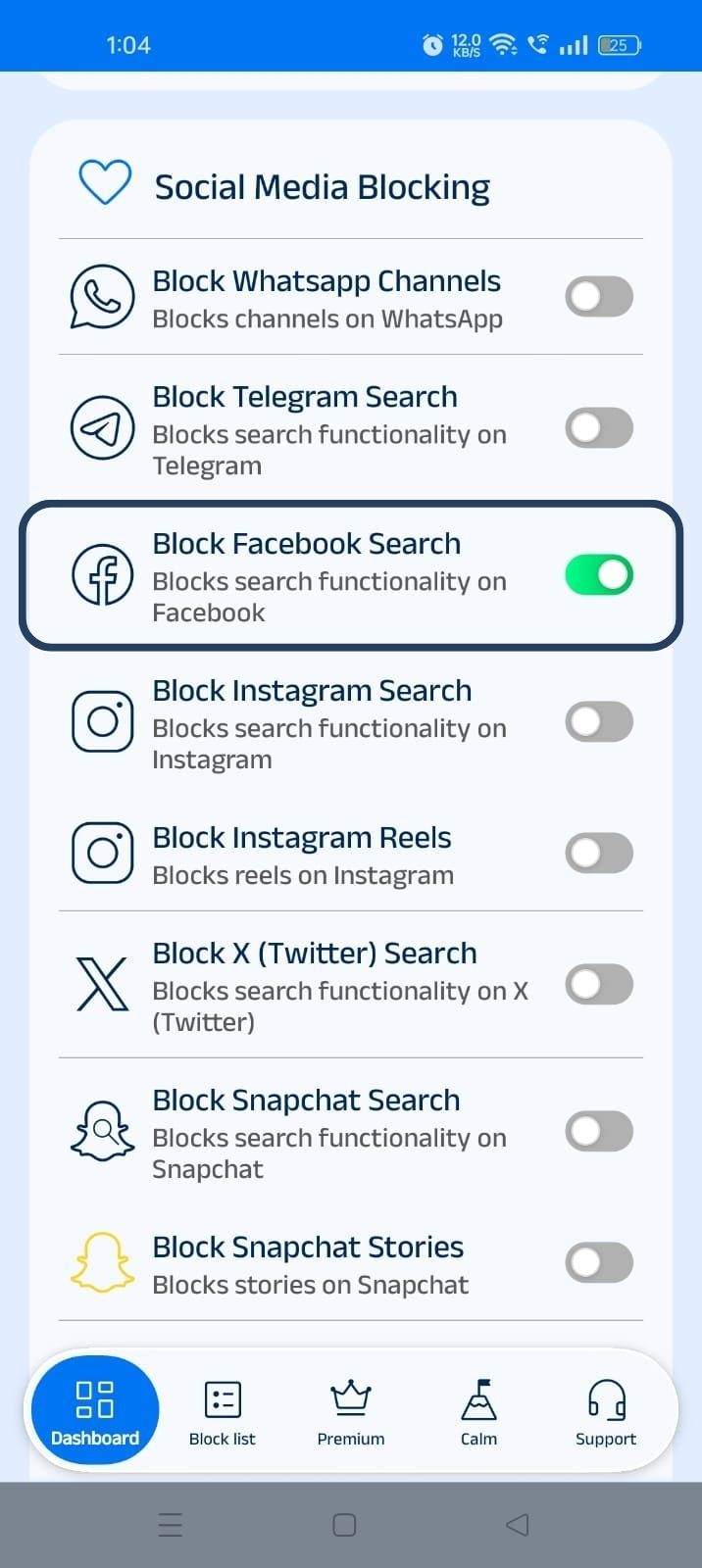
How Facebook Search Can Become a Distraction
When you log into Facebook and answer messages or see the posts from people you follow, you are engaging mindfully with the content. But, with Facebook search, you do not know what really will show up - this uncertainty of reward engages your dopamine-seeking behavior and keeps you hooked on the platform.
As Facebook Search is keyword-based, semi-nude content and risky external links can easily show up in a search result.
Moreover, the algorithm that tracks your searches will also start to show suggestions for similar content. This creates a huge distraction for someone who is trying to use Facebook for work or trying to avoid triggering content.
Benefits of Blocking Facebook Search with BlockP
- When there is no search option where you can get lost in a flood of new content, a quick check-in stays a quick check-in instead of losing hours.
- Search results are unpredictable, so there is a high possibility that you may come across unsafe content. When you are using a Facebook content blocker feature like BlockP’s option to block Facebook search, it reduces the risk of exposure to such content.
- BlockP prevents access to only Facebook search; other sections like messaging and posts remain fully available.
- Using BlockUP to block Facebook adult content and Facebook Search makes shared systems safer for the children.
- For professionals who have to use Facebook for work or students who are studying online, restricting Facebook search helps to protect their focus.
How BlockP Blocks Facebook Search on Android
When BlockP has accessibility permission, it can see what apps and features you are using in real-time. The overlay permission allows BlockP to intervene when it detects specific activity, like Facebook searches, and prevent the feature from loading and redirect you to a custom screen with a motivational message.
Why Choose BlockP?
Most content restriction or productivity apps end up blocking all features of Facebook. This kind of blunt approach is frustrating for grown-ups who are using Facebook for work or connecting with family and friends.
What BlockP does is it blocks only one specific feature, Facebook search, while keeping all others fully accessible.
Frequently Asked Questions
How do I block Facebook Search on Android?
BlockP has a dedicated setting that can block Facebook search on Android.
Can BlockP block Facebook Search without blocking the entire Facebook app?
The BlockP Facebook blocker settings have the option where you can block only the Facebook search without blocking the entire Facebook app.
Can BlockP help reduce exposure to adult content on Facebook?
Yes. BlockP uses AI filters that can detect and block Facebook adult content.
Does Facebook Search Blocking hide semi-nude and suggestive content?
The search results are not effectively moderated to hide the semi-nude and suggestive content.
(You have to use the Facebook content blocker setting on BlockP to block the search feature or enable semi-nude content blocking in BlockP settings.)
Will blocking Facebook Search affect other Facebook features?
Even when you are using the block Facebook search option, the other features like posts and messaging stay fully functional.
Does this feature work alongside BlockP's AI Content Filter?
BlockP's Facebook story blocking works along with its AI content filter to block Facebook nudity.
Can I enable or disable Facebook Search Blocking anytime?
You will have full control over blocking or unblocking Facebook search through the BlockP dashboard.
Does Facebook Search Blocking work on all Android devices?
If you can give the accessibility permissions, Facebook search blocking can work on the Android device. If you are running an older version without options for accessibility and overlay permissions, you can not use the feature.
Can parents use this feature to help reduce exposure to inappropriate content?
Yes. The search results are driven by keywords, so they are harder for the platform to moderate. With BlockP, parents can block the access to the search feature to avoid the risk of coming across unsafe content.
Is Facebook Search Blocking included in the free version of BlockP?
Yes.