How to Block YouTube Search on Android Using BlockP
Block YouTube Search on Android with BlockP to reduce exposure to adult, explicit, and suggestive video content while staying focused online.
Get Started with BlockPThe search option on YouTube is often the gateway for finding the content you love. But if you are not protected with an option to block YouTube search it can become the most distracting feature.
YouTube is the single most used social media platform across age groups.
According to the Pew Research Report, 84% of adult Americans use YouTube more than any other social media platform like Facebook or Instagram. Among teenagers in the US, 9 in 10 teens use YouTube, and 76% admit that they log in to YouTube every day.
As most people are spending a big chunk of their time every day on YouTube, managing distracting features like the search becomes necessary. That’s where BlockP comes in to let you block the YouTube search option while keeping the rest of the app open.
How to Block YouTube Search on Android with BlockP
Here is how to block YouTube search on your Android phone with BlockP:
Step 1: Install BlockP
Download the BlockP app from the Google Play Store and install it on your Android phone.
Step 2: Sign Up on BlockP
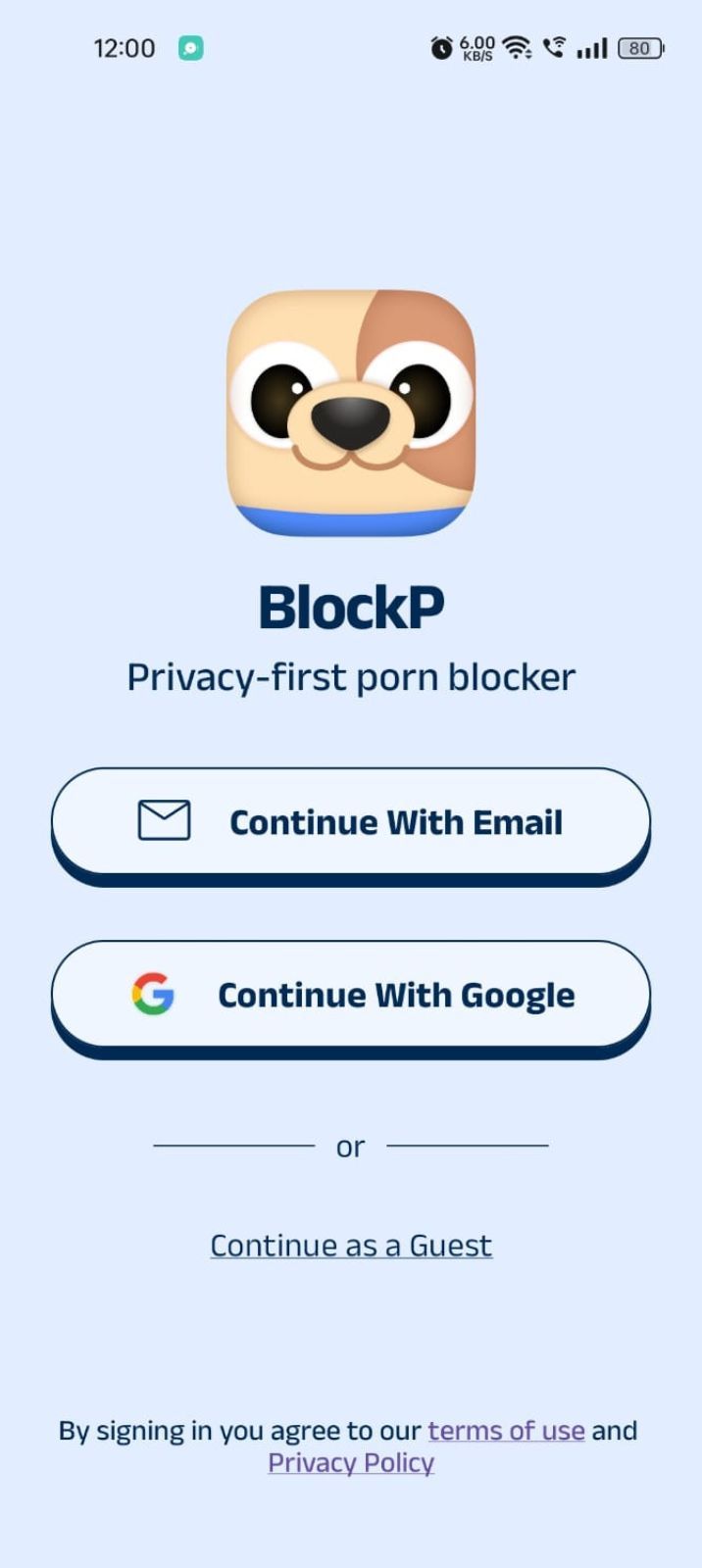
- Open the BlockP app.
- Sign up using Email or Google.
- Or tap Continue as a Guest to get started without creating an account.
Step 3: Give Necessary Permissions
1. Accessibility - Lets the Android adult content blocker see what you are watching on your screen. Here is how to let BlockP use it:
- Click on the Accessibility permission toggle.
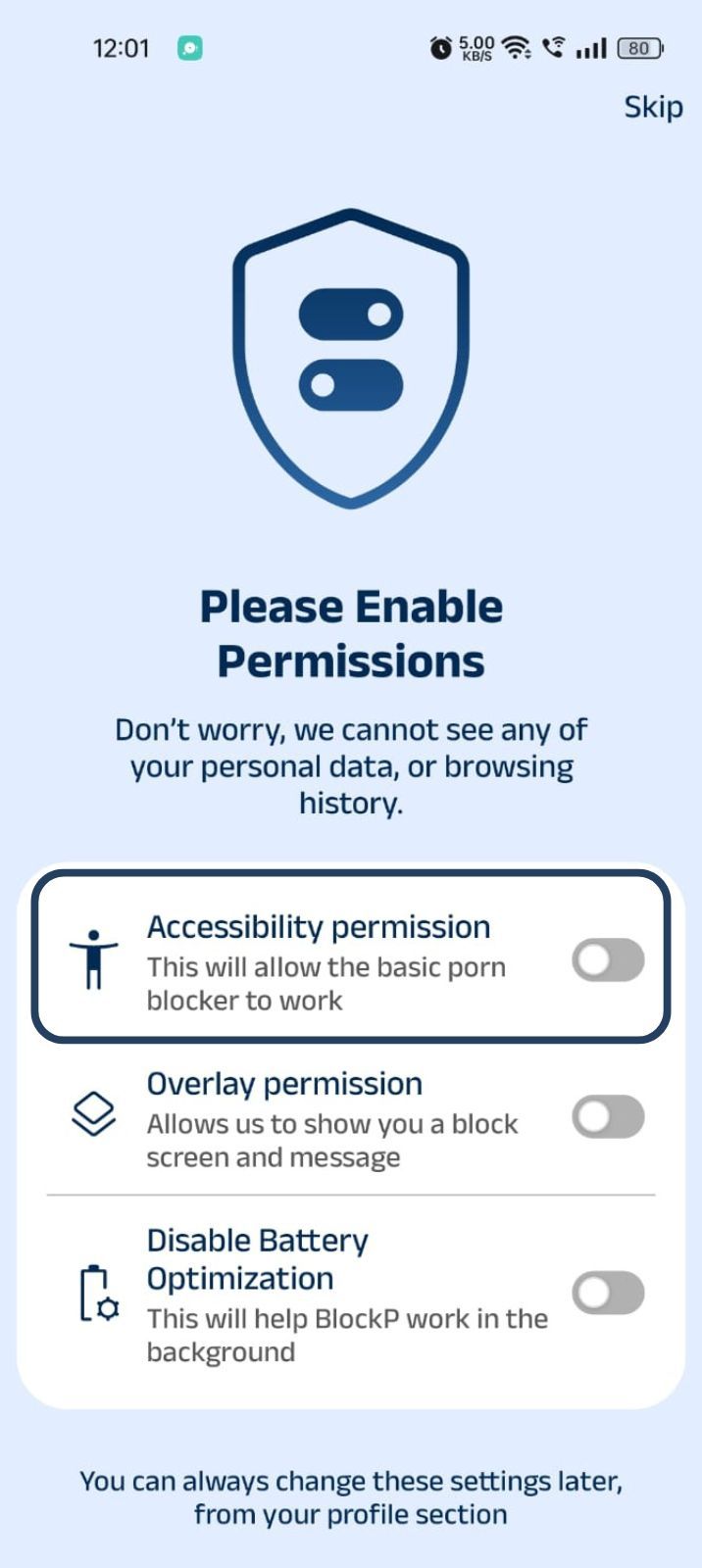
- Then click on "Let BlockP Access Accessibility Services"
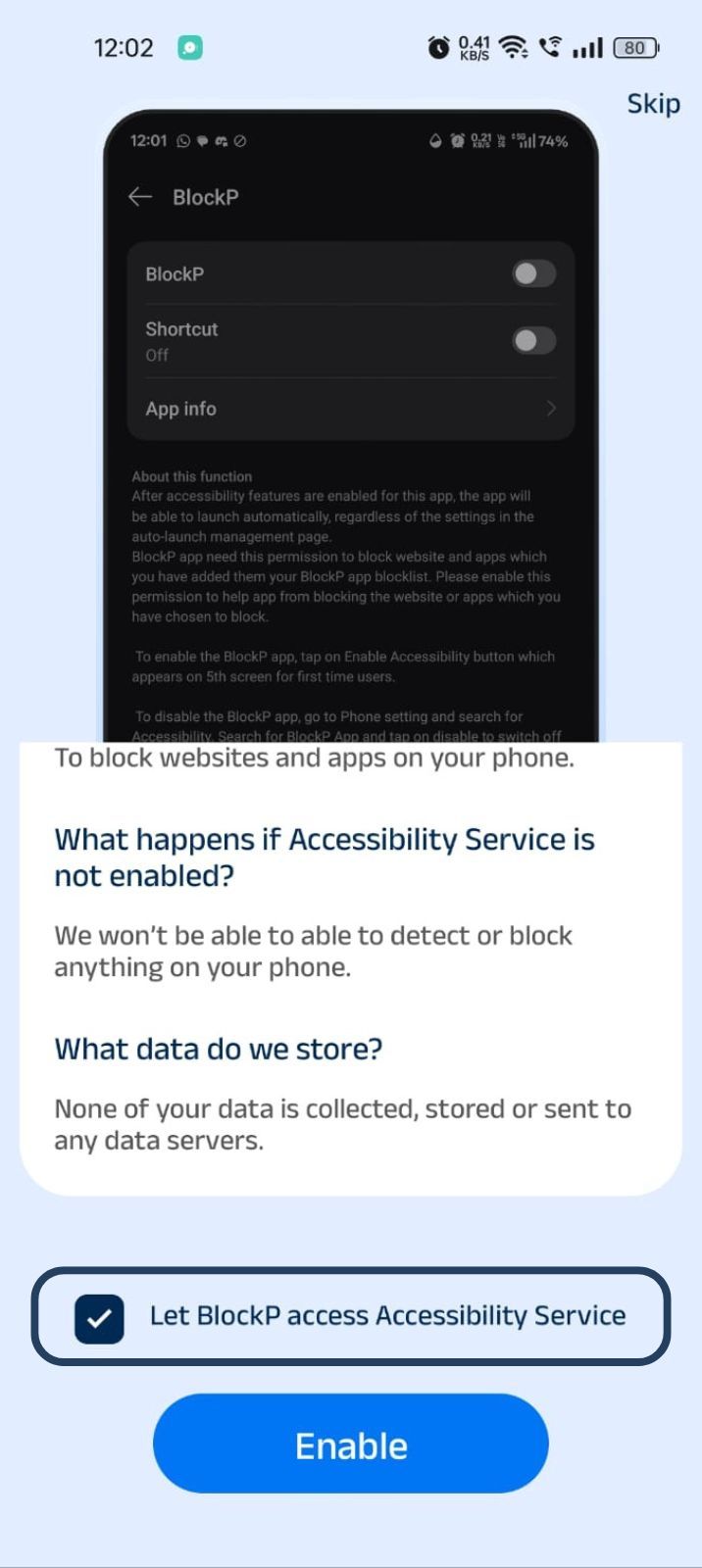
- Next, click on the Enable button
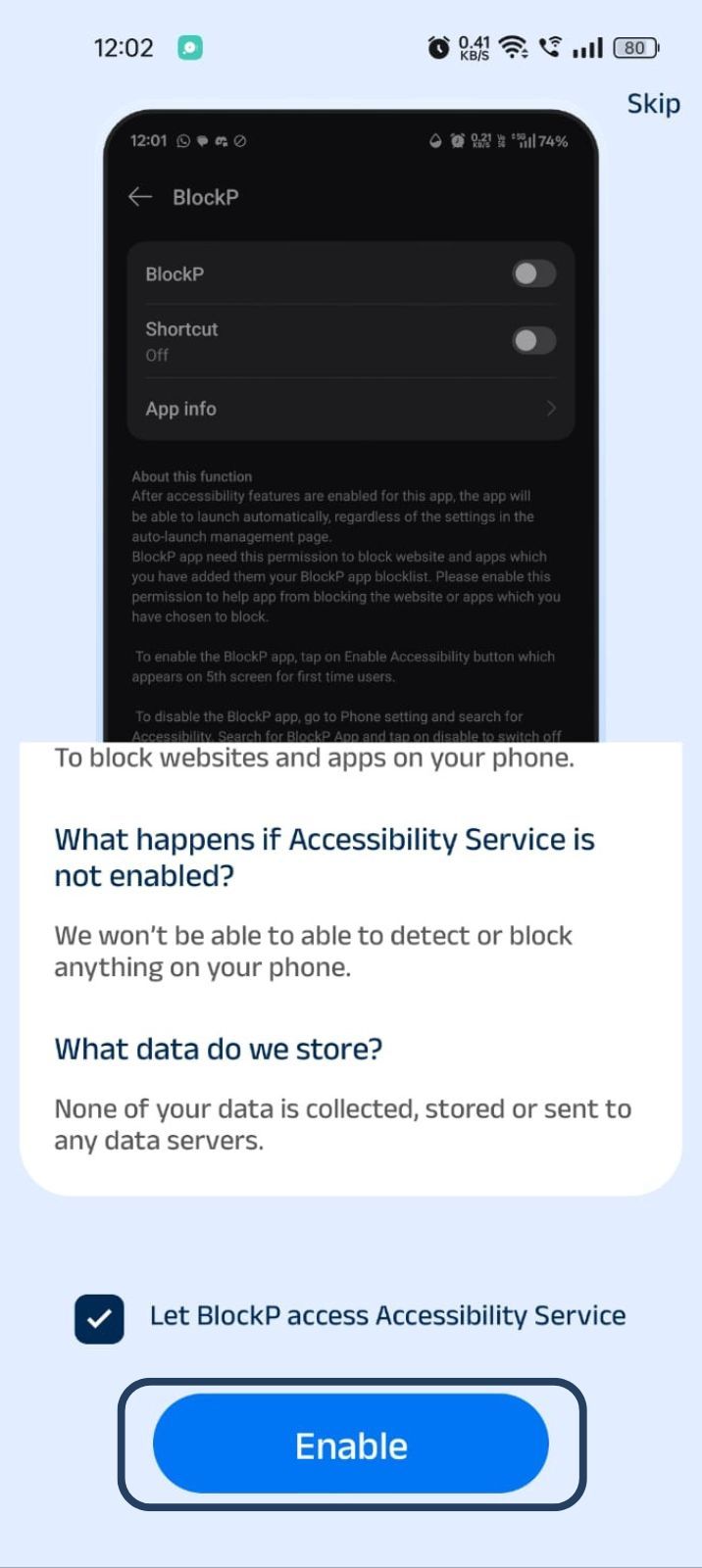
- Next, click on the downloaded apps button.
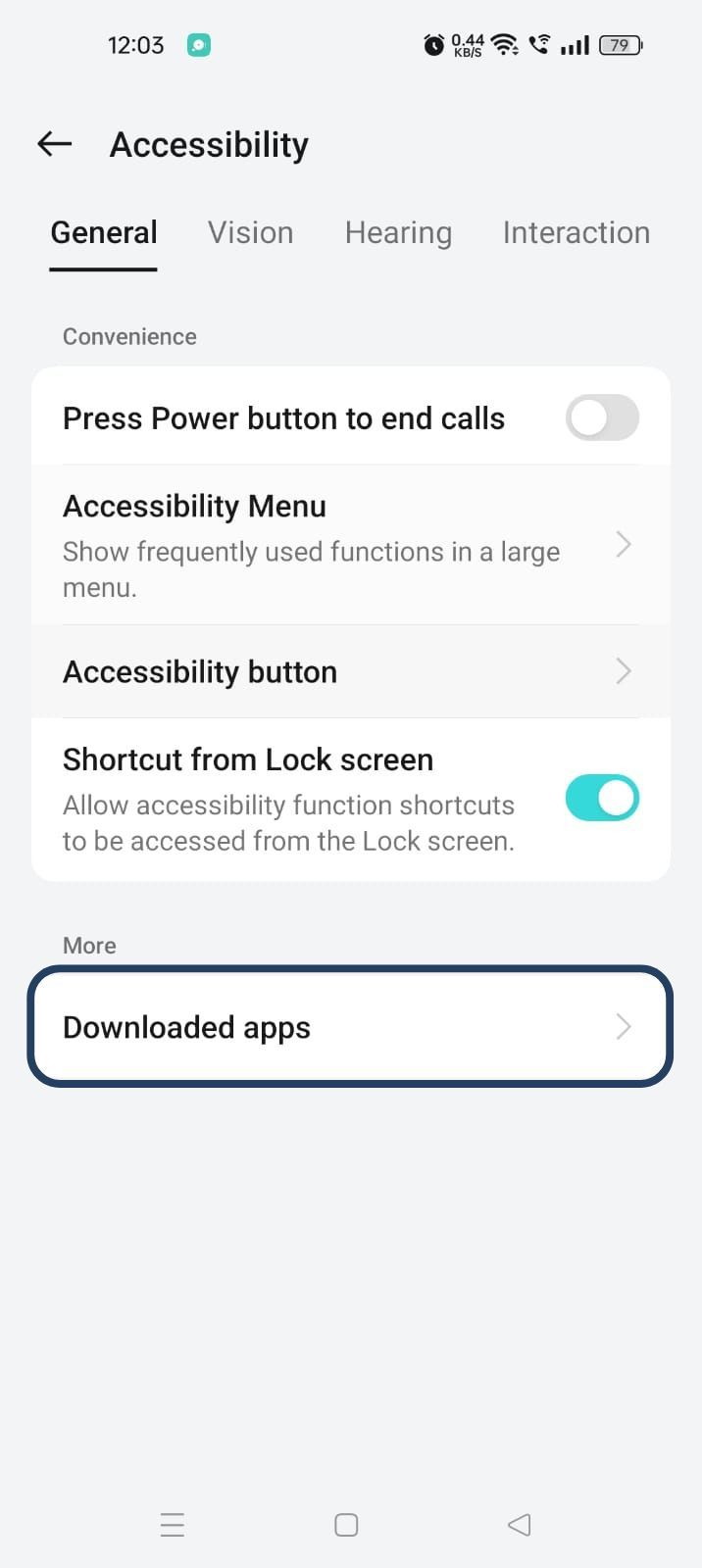
- Now, you will find Blockp - click on BlockP.
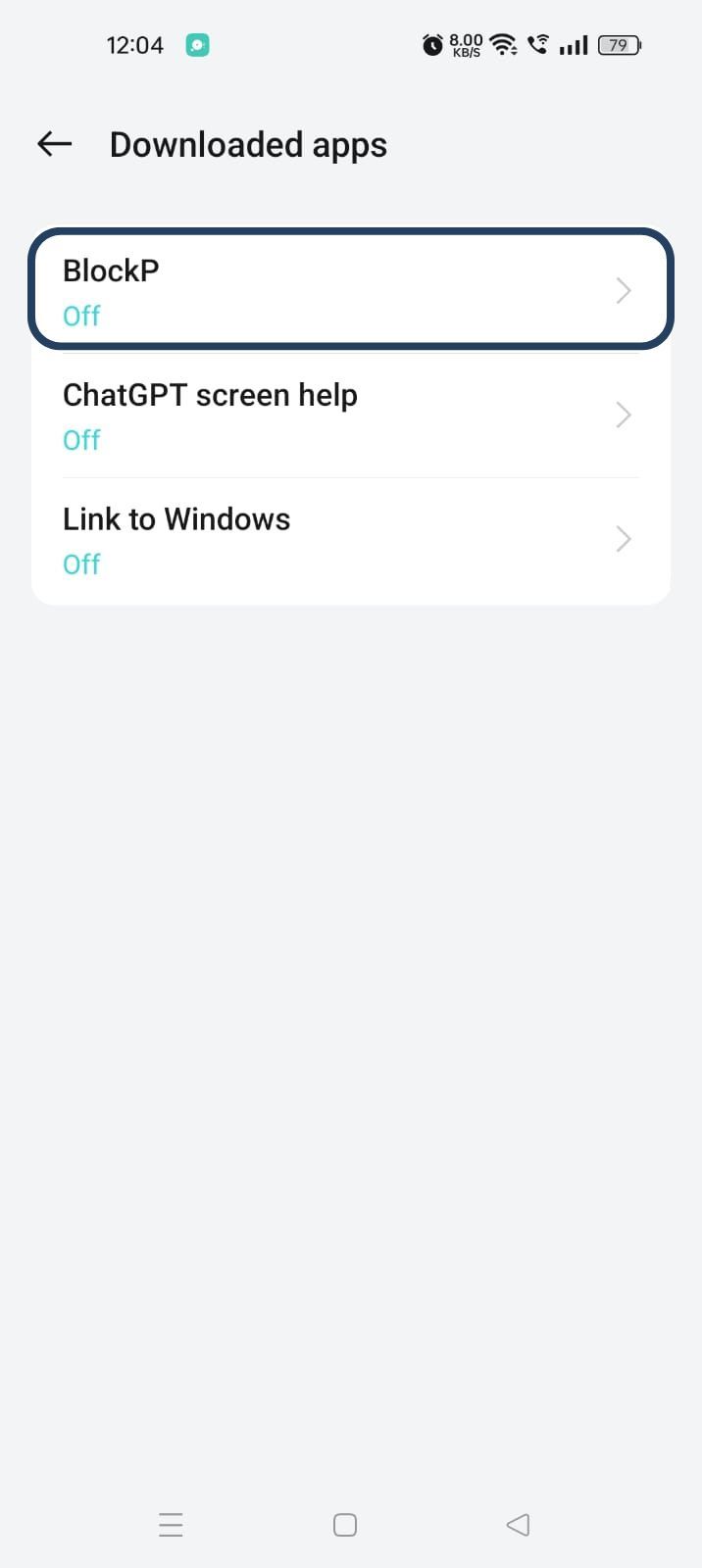
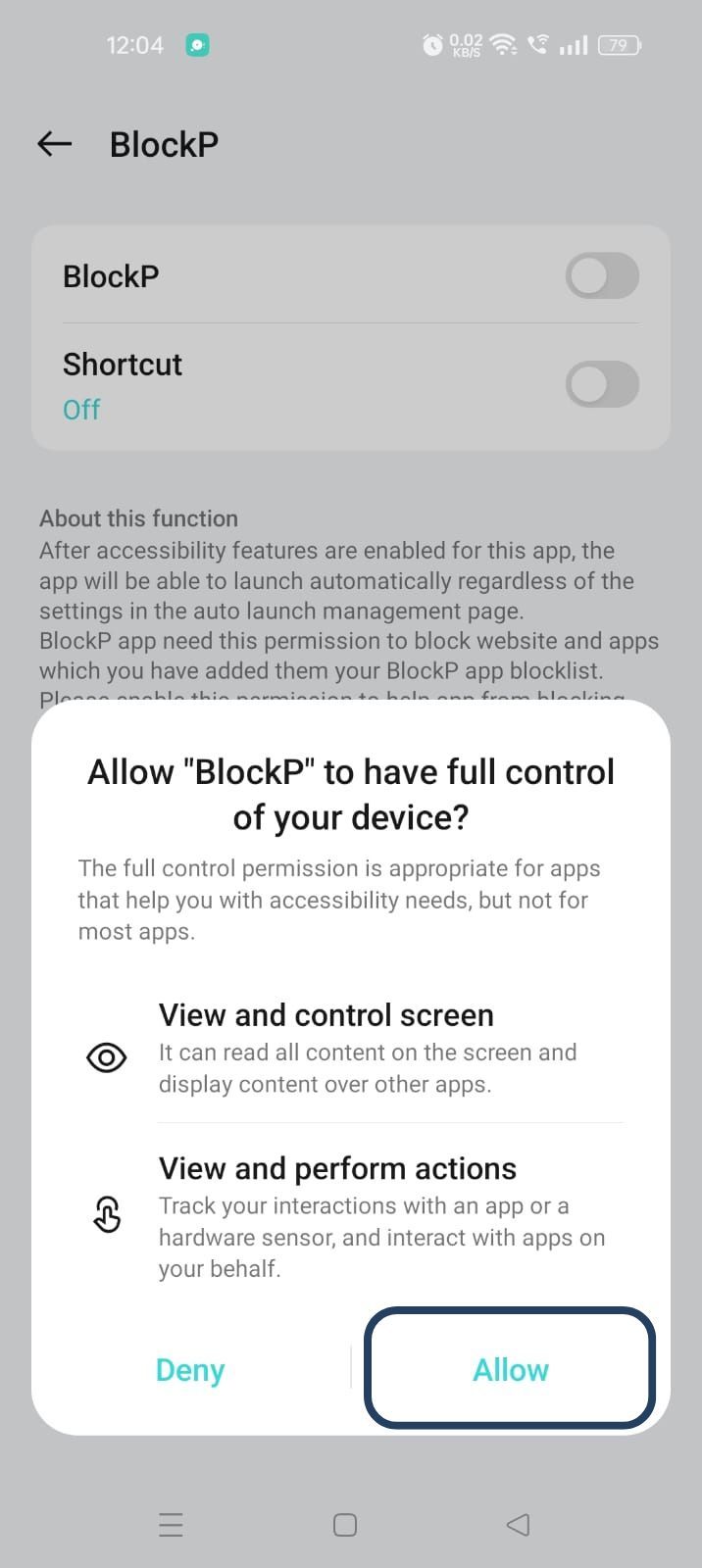
- The new screen will show a toggle in front of BlockP - enable the toggle and then click on the Allow button to complete the accessibility permission.
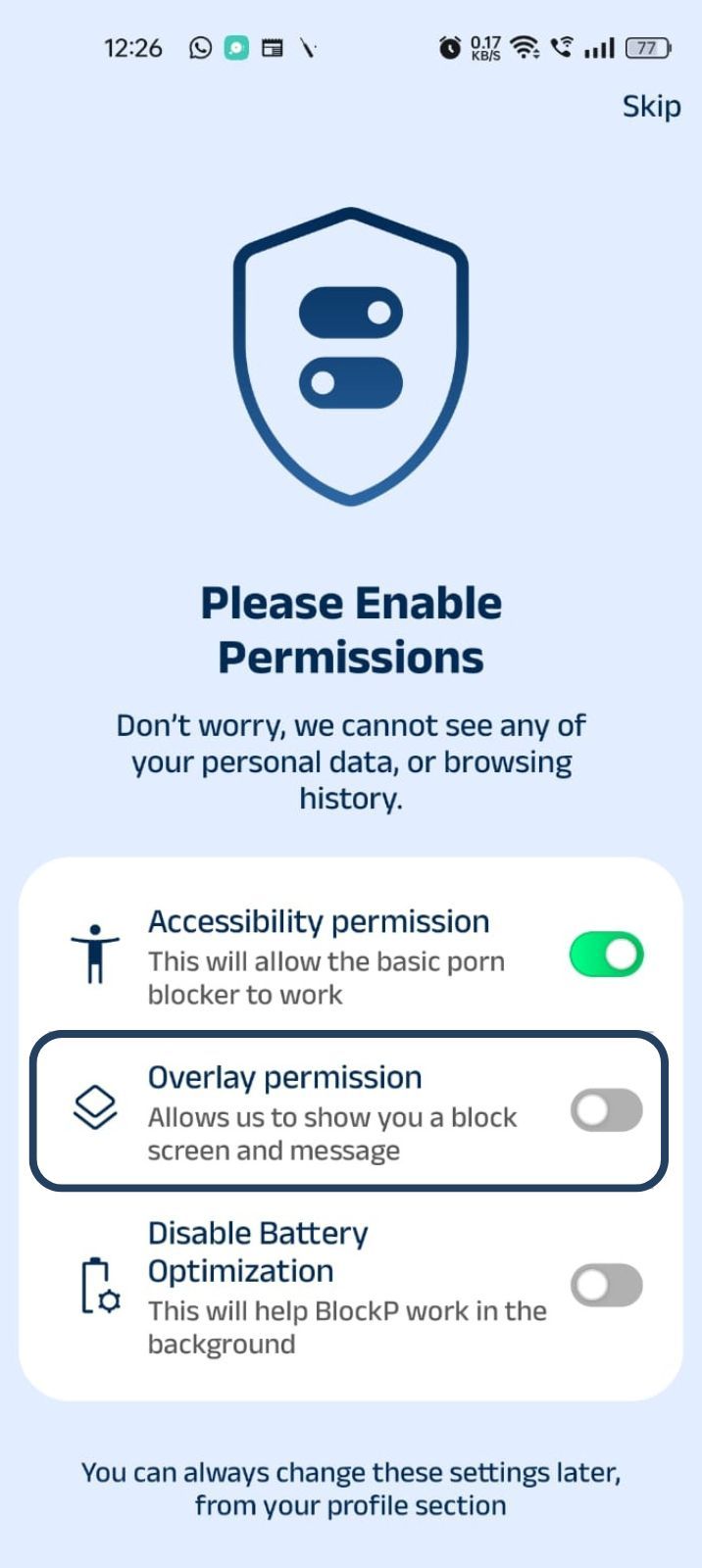
2. Overlay - lets BlockP show you a blocked screen and message when you try to access adult content.
- Click on Overlay permission toggle.
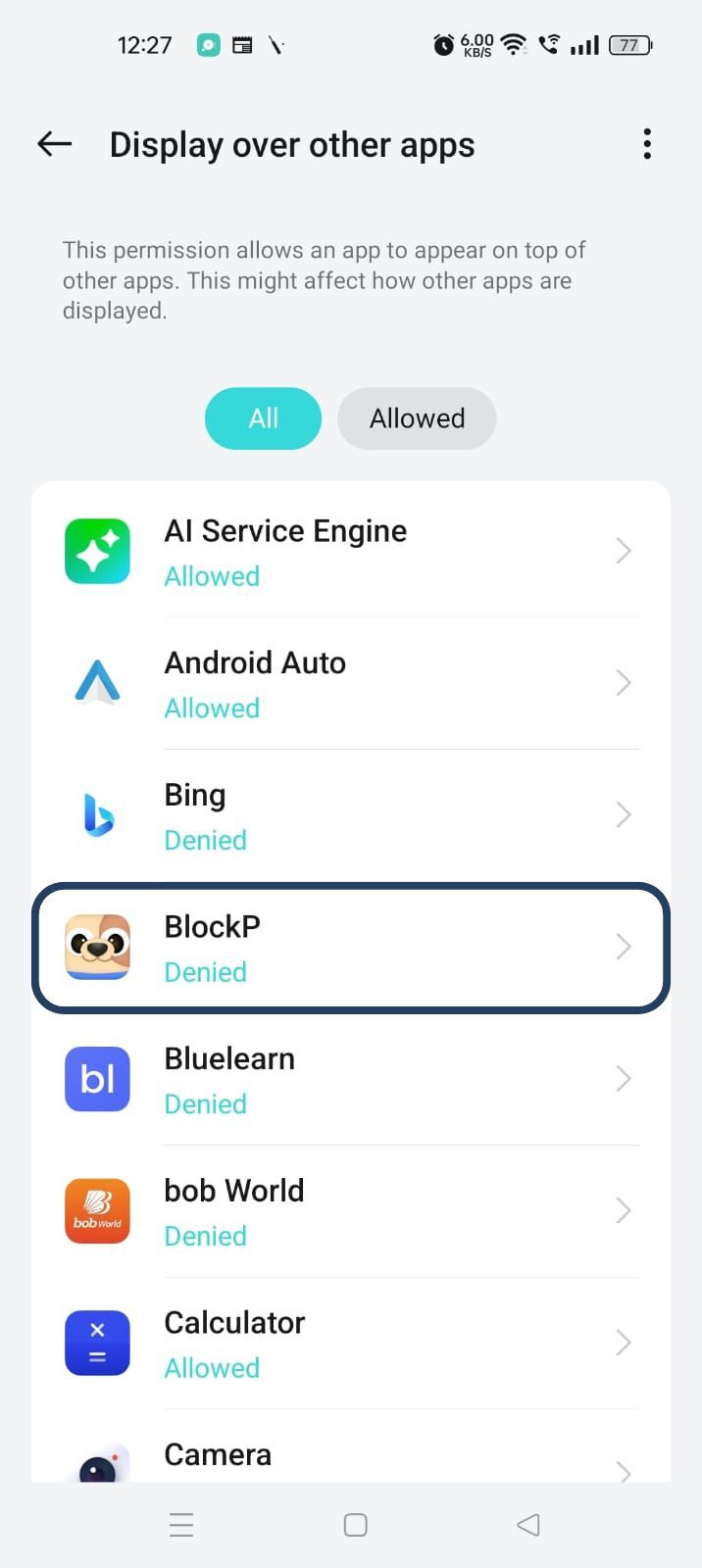
- You will get a menu with a list of apps titled - Display over other apps. Find BlockP in this list and click on it.
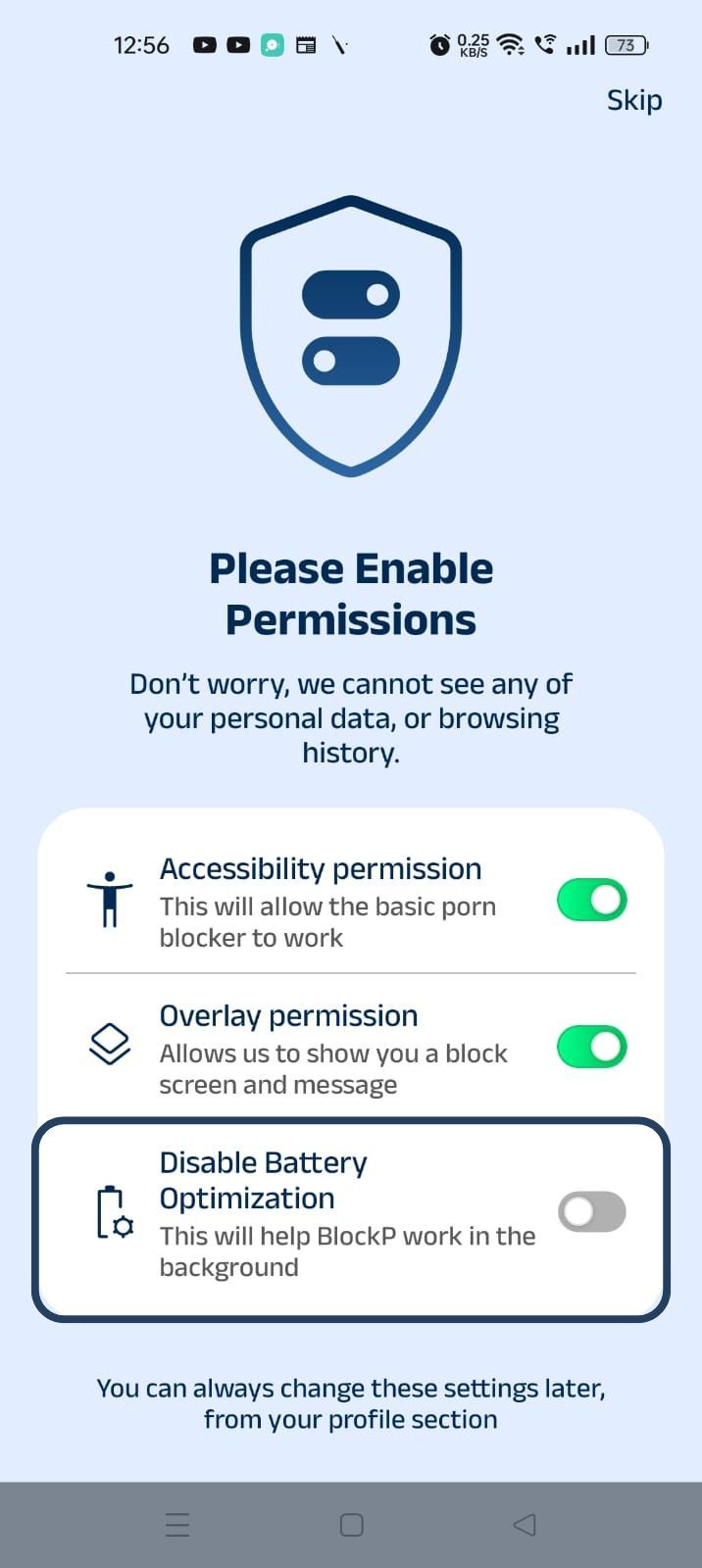
3. Disable battery optimization - so that BlockP can keep working in the background to filter adult content.
- Click on the Disable battery optimization toggle
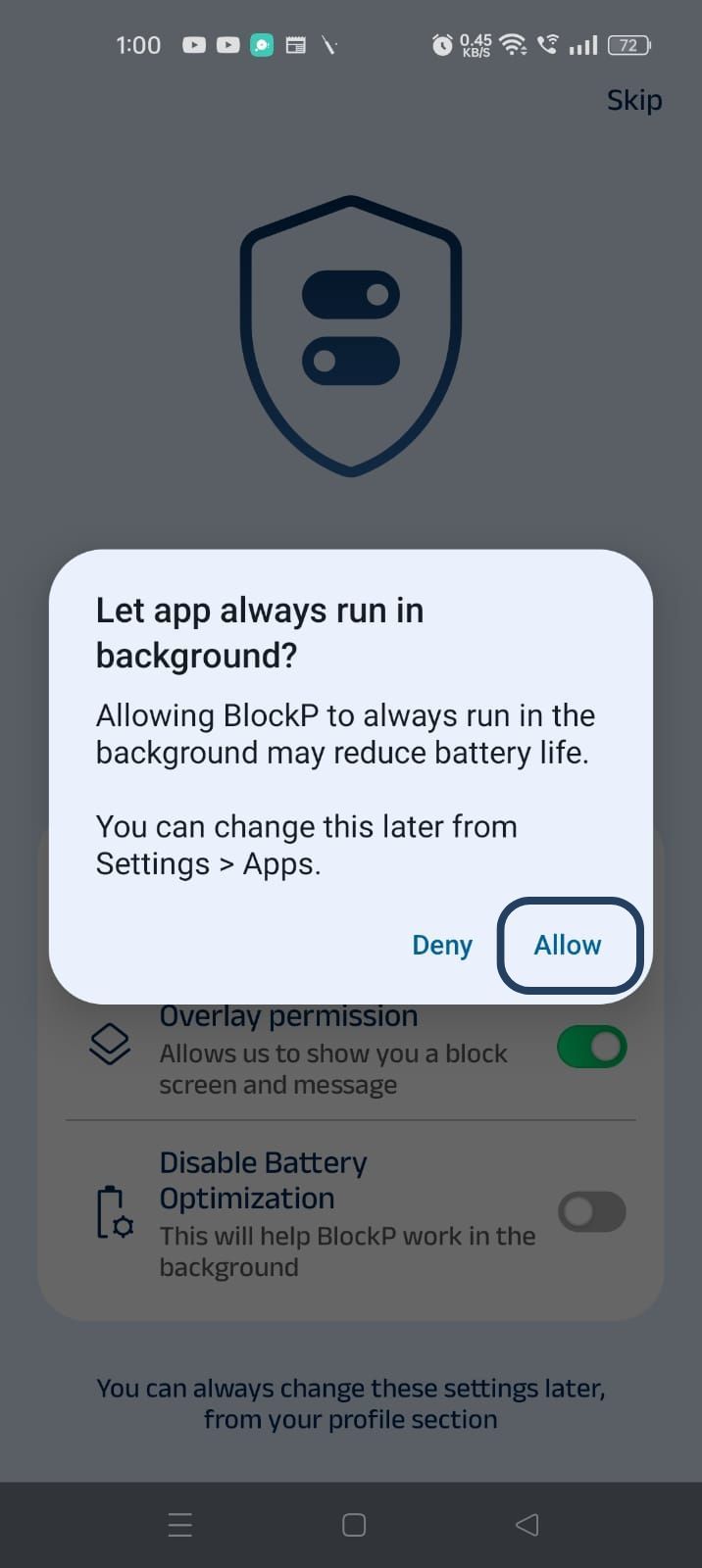
- When prompted, tap Allow to let BlockP run in the background. This helps BlockP stay active and block content without interruption.
Step 4: Go to Advanced Settings
Click on "Advanced settings" (the icon at the top right corner of the BlockP home screen).
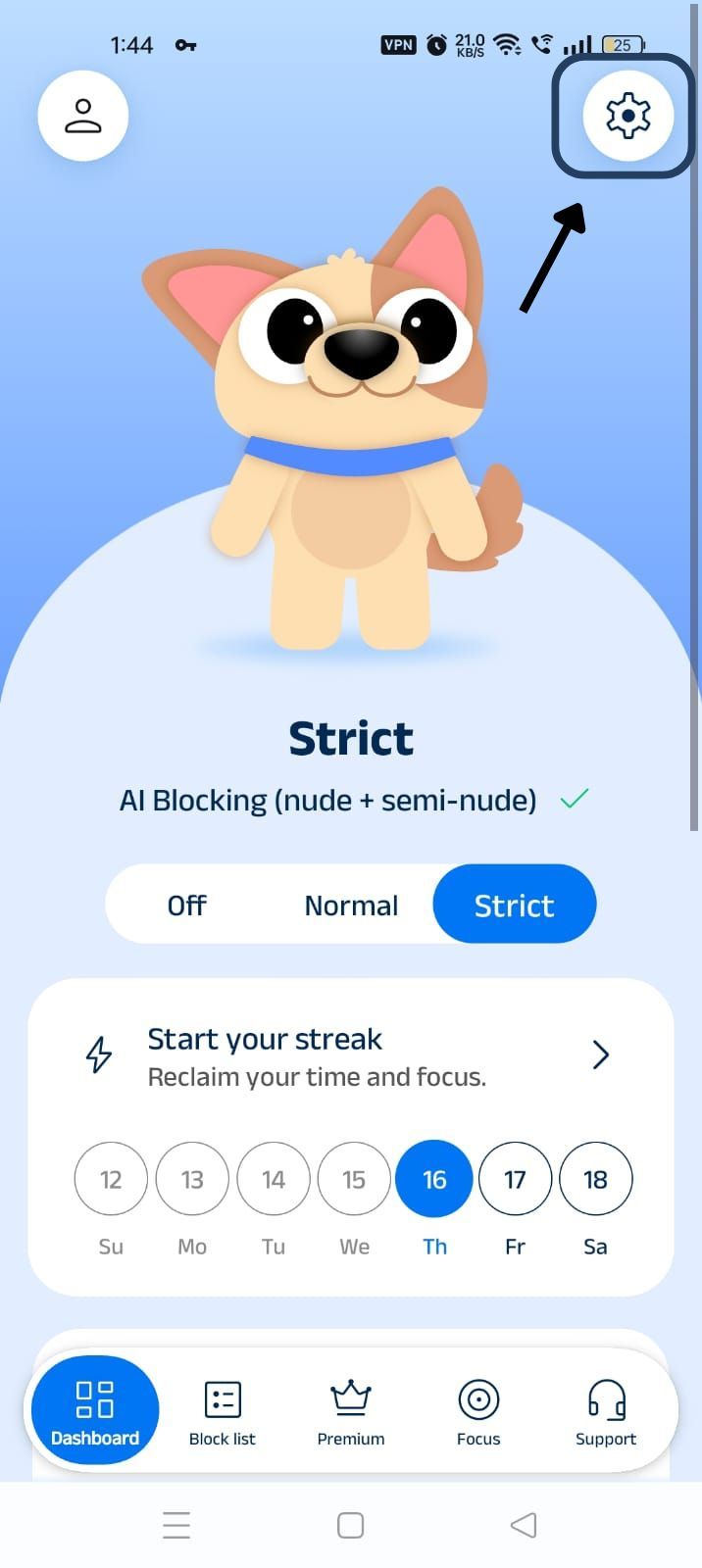
Step 5: Find Social Media Blocking Section and Block YouTube Shorts
Scroll down the General Settings section and find the Social Media Blocking subsection. This section lists options related to social media apps like Instagram, Facebook, Snapchat, X, and so on.
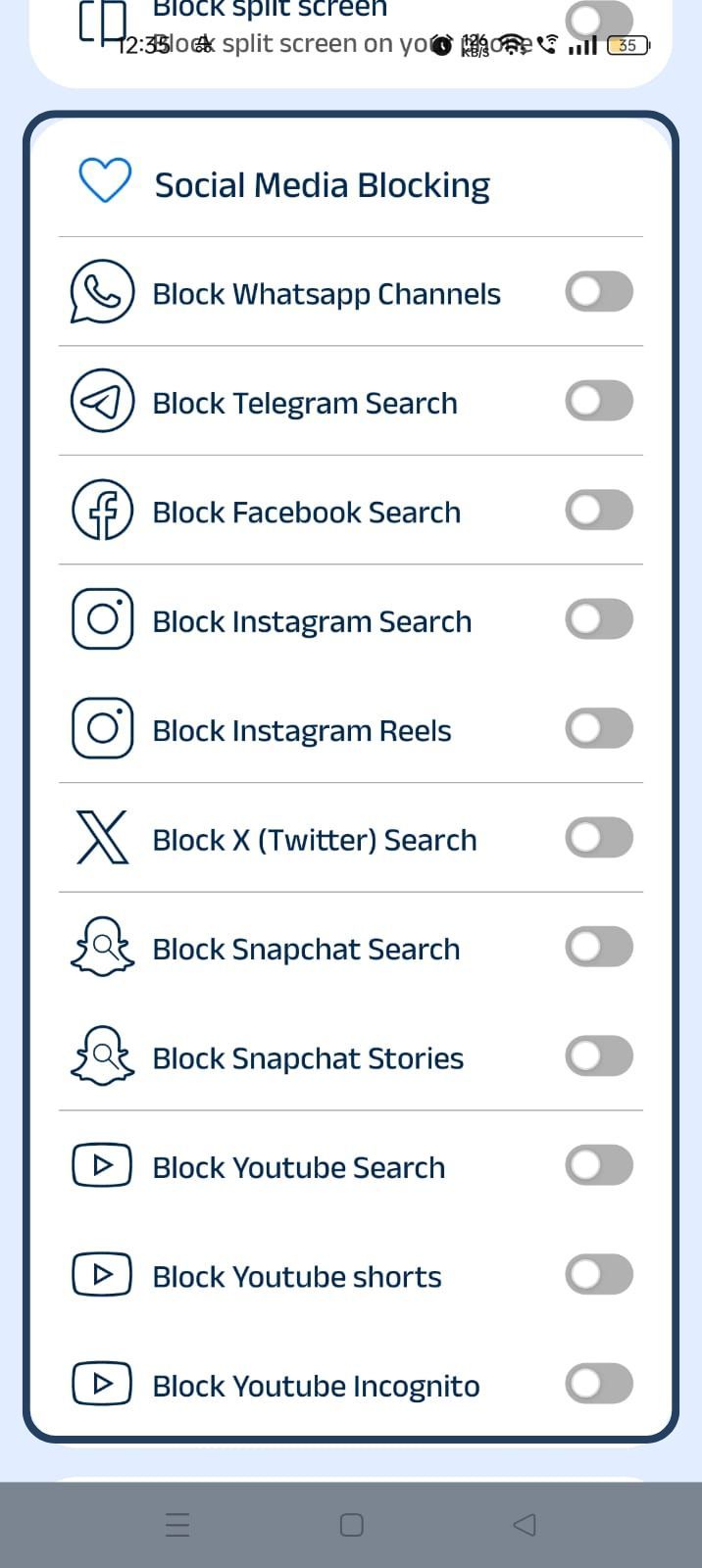
Step 6: Block YouTube Search
In the social media blocking section, find the Block YouTube Search option and slide the toggle to activate it.
How YouTube Search Can Become a Distraction
The YouTube search is an entry point. As soon as you type in a topic or a keyword, YouTube's recommendation algorithm takes charge. It decides what to show next based on what keeps you hooked onto the platform - even if it is not necessarily what you were looking for.
Creators on YouTube often post outrageous and attention-grabbing material because the recommendation system rewards them for such content that creates curiosity in the viewer. So, once the search starts loading, you will get more and more such content even if it is irrelevant.
A study has also found that YouTube's recommendation system often leads the viewers towards problematic content. So, a completely innocent search can lead you to inappropriate and distracting content.
Benefits of Blocking YouTube Search with BlockP
When you block the YouTube search option, it reduces the incidents of accidental detours. You can still watch the videos from channels you have subscribed to, but you will not get lost in open-ended browsing.
YouTube's content filtering has limitations, and mislabeled content often slips through the app filters. When you have enabled the block YouTube search option, your exposure to such inappropriate content is reduced as your viewing is limited to channels you know.
General YouTube features like content from your subscribed creators stays fully accessible. So, your YouTube consumption becomes more focused and mindful.
How BlockP Blocks YouTube Search on Android
Most traditional content blockers and productivity apps work with two extreme settings. Either the full app stays open or the full app stays blocked.
BlockP’s approach to block YouTube search is more layered because it recognizes that while the search feature is distracting, the user may still want to use other YouTube features that are useful to them.
BlockP uses the accessibility permissions to know when you try to use the YouTube search feature and blocks it before it can load. Instead it shows you a custom screen with a motivational message from which you can go back to your home screen.
This MO ensures that BlockP's protection kicks in only for the specific feature, and other YouTube sections remain free for use.
Why Choose BlockP?
Most content restriction or productivity apps end up blocking all features of YouTube. This kind of blunt approach is frustrating for people who are using YouTube for work or to follow content that is useful to them.
What BlockP does is it blocks only one specific feature, YouTube search, while keeping all others fully accessible. So, only the distracting feature is blocked, and the use of necessary features becomes more intentional.
Frequently Asked Questions
1. How do I block YouTube Search on Android?
BlockP’s YouTube content blocker settings let you block YouTube search options.
2. Can BlockP block YouTube Search without blocking the entire YouTube app?
Yes.
3. Can BlockP help reduce exposure to adult content on YouTube?
BlockP’s AI-powered content filters can block YouTube inappropriate content and adult content.
4. Does YouTube Search Blocking hide inappropriate and suggestive videos?
When you block YouTube search, you will not be able to use the search option on YouTube. If you want to hide or block YouTube adult content, you have to enable BlockP’s AI-powered filters and semi-nude content filters.
5. Will blocking YouTube Search affect other YouTube features?
No.
6. Does this feature work alongside BlockP's AI Content Filter?
Yes.
7. Can I enable or disable YouTube Search Blocking anytime?
Yes. It is a simple toggle setting.
8. Does YouTube Search Blocking work on all Android devices?
If the Android device has options for granting accessibility permissions, then BlockP can use it for managing YouTube content blocker options.
9. Can parents use this feature to help reduce exposure to inappropriate content?
Yes. The BlockP YouTube blocker works at the device level, so even if the child logs in from another YouTube account, the blocking still works. Parents can also lock the settings with a password so that the children cannot disable the YouTube search blocking impulsively.
10. Is YouTube Search Blocking included in the free version of BlockP?
YouTube search blocking is available only on the paid version of BlockP. But you have the option for a monthly or yearly subscription along with a free trial.