How to Enable Focus Mode on BlockP Extension
Learn how to use Focus Mode in the BlockP Chrome Extension to block distracting websites for a set time. Start a focus session, beat distractions, and get more done.
Get Started with BlockPIf you want to block distracting websites on Chrome when you are trying to work or study, you are not overreacting at all.
Because the distractions, even the tiny ones, come at a cost, and when you track them over days and weeks and months, they add up.
- According to researcher Gloria Mark, the attention span of Americans has dropped to an alarming 47 seconds! Which means we are spending less than a minute on a single screen before switching to something else.
- Workers are interrupted every 2 minutes during their core work hours, 275 times per day! And each time we get distracted from our tasks, it takes us 23 minutes to refocus.
- Apart from the work interruptions, 41% of adult Americans admit that they check social media multiple times in a day. Such disruption can go unnoticed when it happens during a hectic workday.
This digital distraction that eats into your cognitive resources is exactly the practical problem that BlockP Focus Mode helps you to solve.
How to Set Up and Start Focus Mode in BlockP (Step by Step)
Step 1: Install the BlockP Chrome Extension
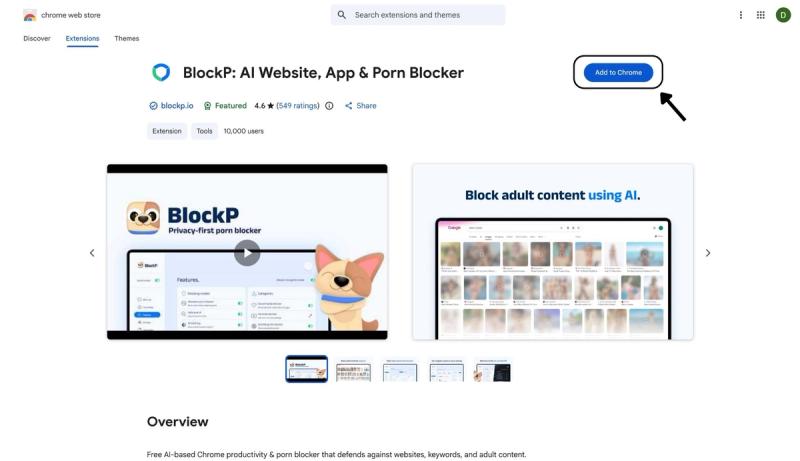
- Go to the Chrome Web Store and search for “BlockP,” or visit the BlockP Chrome Extension page directly.
- Select “BlockP: AI Website, App & Porn Blocker”
- Click “Add to Chrome.”
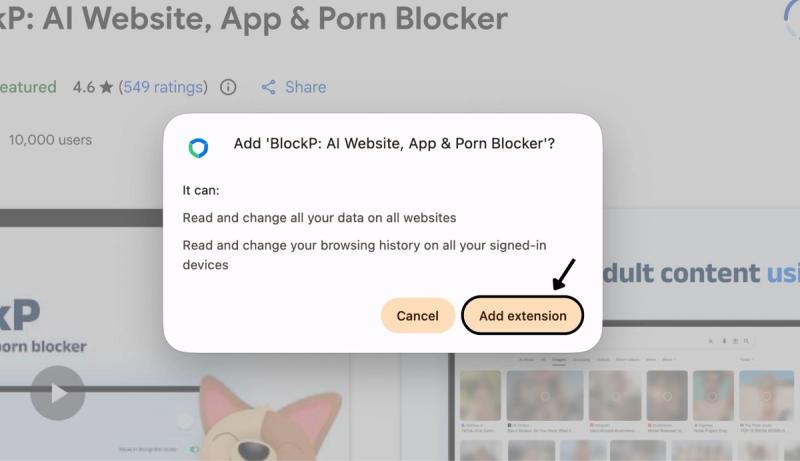
Step 2: Add Extension
Click on ‘Add extension’ in the pop-up.
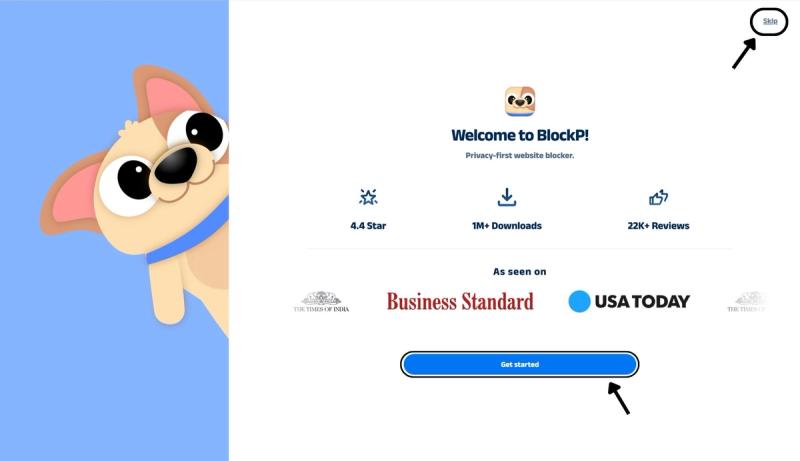
Step 3: Get Started with BlockP
- A new web page will open – click on the “Get started” button at the bottom of the page.
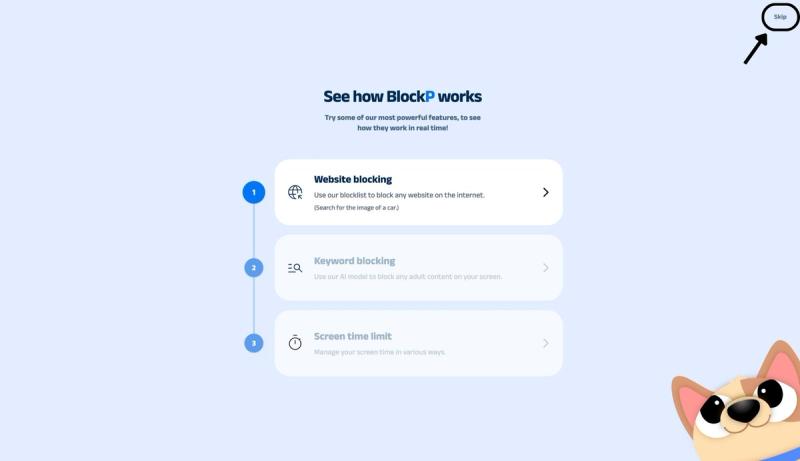
- If you don’t want to answer the questions, click “Skip” in the top-right corner. You’ll then be taken to the login or sign-up screen to continue using the extension.
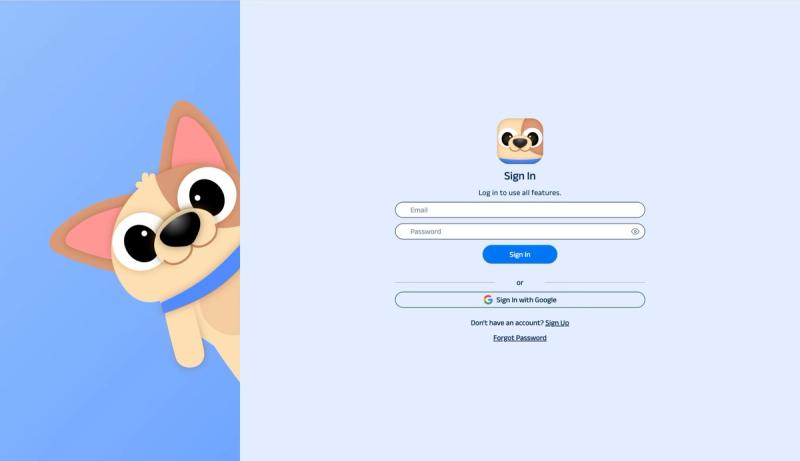
Step 4: Sign In or Sign Up on BlockP Extension
- Enter your email and password, then click “Sign In.” You can also click “Sign In with Google” to use your Google account.
- If you don’t have a BlockP account, click “Sign Up” to create one.
- After signing in, you’ll be automatically redirected to “See How BlockP works” Screen
Step 5: See How BlockP Works
After signing in or creating an account, you’ll see the “See how BlockP works” screen.
- You can explore the interactive guide to learn how features such as Website Blocking, Keyword Blocking, and Screen Time Limits work.
- If you already know how BlockP works or want to skip the guide, click “Skip” in the top-right corner.
After exploring how BlockP works or clicking the “Skip” button, you’ll be redirected to the extension dashboard, where you can access and manage features.
Step 6: Go to the Focus Mode Option
Click on the Focus Mode option (you can find it below the BlockP dashboard and Blocklist option on the left side of the BlockP extension page).

Step 7: Customize the Blocked Websites List
In the Focus Mode settings, you will find the option of Blocked Websites. Click on the Add to blocklist button below it to create a list of websites that you want to block when you enter focus mode.

Step 8: Set the Timer
Click on the timer and set the duration of your focus mode.

Step 9: Start Focus Mode
Click on the "Enter focus mode" button.
BlockP will display the message "You are in focus mode" along with the countdown timer.

What Is Focus Mode in BlockP?
BlockP focus mode is the setting that temporarily locks distracting websites during a particular session (or time period) of your choice.
BlockP Focus Mode Chrome extension is not an all-time block. It is designed for moments when you are about to sit down for a work session and you need to protect your focus.
You can choose to temporarily block websites on Chrome, and the website blocker with timer keeps them locked until the chosen focus session timer runs out.
How Focus Mode Works
The BlockP focus mode Chrome extension has two parts - your custom list of blocked websites and a countdown timer.
Step #1: Block Distracting Websites on Chrome - Add any website you want to block during the focus session to the blocked websites list.
Step #2: Set the timer - use the timer in the BlockP dashboard to set a focus time period.
Step #3: Hit the Enter focus mode button.
Until the Focus mode timer runs out, BlockP will block the websites on your blocked list.
If you try to access the blocked websites, BlockP prevents them from loading and redirects you to its custom page with the BlockP focus mode timer. You can also see the tiny focus mode countdown timer in the top left corner of your browser.
You can edit the websites to be blocked and fix the timer duration based on your requirement for each focus session.
Focus Mode vs Block List: What's the Difference?
The Focus Mode is a session-based temporary blocking that restricts the websites on the blocked list only during the specific focus session. You can decide the websites to be blocked and the duration of the focus session every time you want to enter a session.
When the timer ends, access to the websites is restored automatically.
The block list, on the other hand, blocks the websites and keywords on its list all the time. The keywords and websites stay blocked whether you are in a focus session or not across your browser.
Focus Mode vs Block List
The block list is a permanent boundary for the content you are trying to quit. Focus mode is a temporary boundary for content that you want to consume responsibly and intentionally.
For example, you may add an adult website to the block list and use focus mode to shut out social media during a study session.
Benefits of Using BlockP's Focus Mode
- BlockP’s Focus Mode Chrome extension eliminates the digital temptations and saves the cost of disruptions and protects your focus.
- If we are working for 8 hours, we won’t be working with intense focus for all those hours. BlockP’s focus mode is like a Pomodoro website blocker that lets you create time pockets of intense focus whenever you need.
- When parents use the focus mode to block distracting websites on Chrome, it helps the children to stay focused on studies and also to learn healthier digital habits.
- If you are looking for a productivity-focused content blocker, then having a website blocker with timer lets you focus without feeling like you are being controlled.
Why Choose BlockP's Focus Mode?
| Extension | Session-based focus timer | Adult content / AI filtering | Free tier | Platform |
|---|---|---|---|---|
| BlockP | Yes, customizable timer | Yes - keyword, Safe Search, and AI-based image/text detection | Yes, full Focus Mode included | Chrome, Android |
| StayFocusd | Partial - daily time allowance per site, plus a one-way nuclear option | No | Yes | Chrome |
| LeechBlock NG | Yes - schedules and daily time budgets across up to 30 block sets | No | Yes, fully free | Chrome, Firefox |
| BlockSite | Yes, scheduled focus sessions | Limited | Capped at 3 sites on free plan | Chrome, mobile |
| Freedom | Yes, scheduled sessions across devices | No | Limited free sessions | Chrome, Mac, Windows, iOS, Android |
| Cold Turkey | Yes, with a "Frozen Turkey" lock that cannot be undone | No | Free basic version; paid Pro tier | Windows, Mac (desktop app, not a Chrome extension) |
Frequently Asked Questions
How do I use Focus Mode on Chrome?
Set up the list of blocked websites and timer to enter focus mode on the BlockP dashboard.
How do I add websites to block during Focus Mode?
Go to the BlockP dashboard > Focus mode section.
Under the Focus mode timer, you will find the button "View block list" - click it.
BlockP now opens the blocked websites page - In it click on the "Add more" button.
Add the website you want to block in the pop-up and click Add website.
Can I set how long a focus session lasts?
Yes
Can I exit Focus Mode early?
No.
What is the difference between Focus Mode and the Block List?
The blocked keywords and websites on the blocklist are blocked all the time. The websites blocked during focus mode are blocked only during the focus session.
Can I use Focus Mode for studying or work sessions?
Yes.
Does Focus Mode block the whole internet or only selected sites?
Only selected websites.
Does Focus Mode work with AI blocking and social media blocking?
Yes.
Will Focus Mode slow down Chrome?
No.
Is Focus Mode included in the free BlockP Chrome extension?
Yes.