

This feature makes sure that all settings, customizations, and blacklists are updated across all your devices on which BlockP is present and logged into. When you make changes on one device, such as adding a new website or keyword to the blacklist or setting a password, those changes sync with all other devices connected to your account.
To enable Auto Sync on BlockP App, Follow the below steps
Step 1: Download the BlockP App from google play store
Step 2: Open the BlockP app and give all the permissions
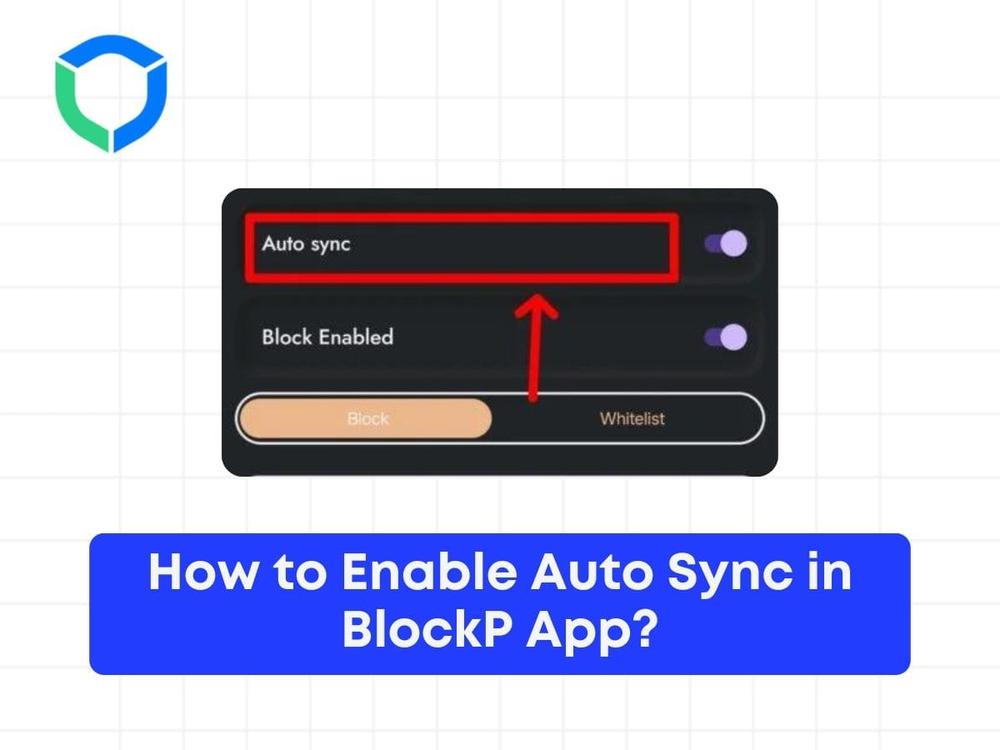
Step 3: Open the features tab as mentioned in below screenshot
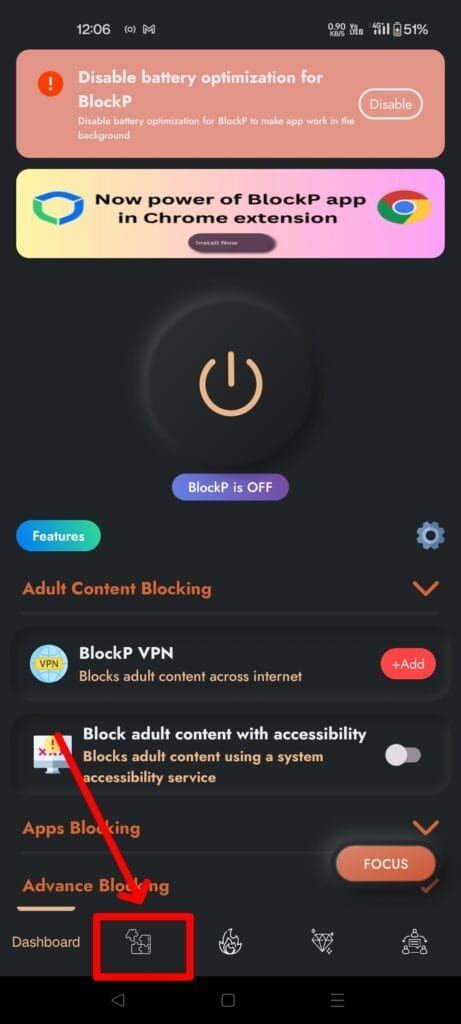
Step 4: Look for Auto Sync Feature at the Top and enable it
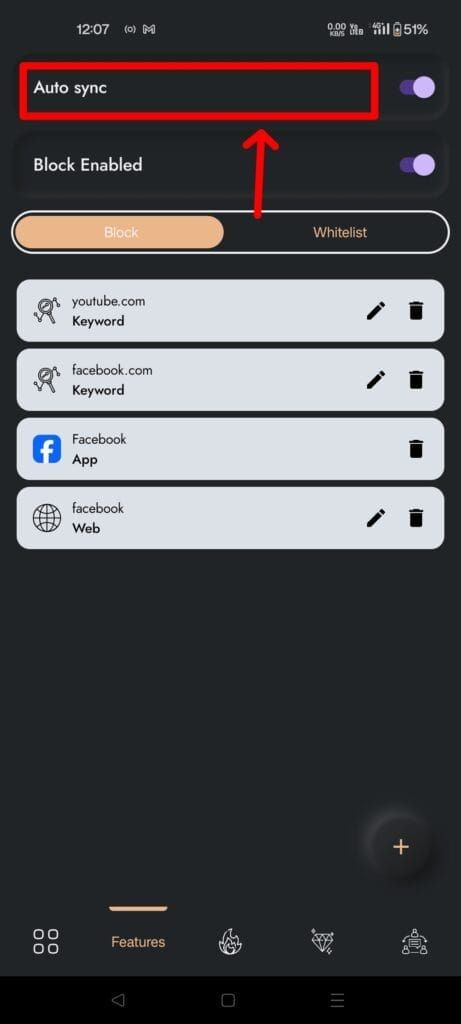
Step 5: Once you enabled it, All your Blocklist and whitelist will be synced with your account and you can access it across multiple BlockP platform
Struggling with Adult Content Addiction?
Download BlockP on your device, and block adult content instantly.
Written By:

BlockP Editorial Team is a group of researchers, behavioral health experts, and digital wellness specialists dedicated to helping people overcome adult content addiction and build healthier online habits. Our content is grounded in scientific research, expert insights, and real-world recovery experiences. Every article is carefully reviewed to ensure accuracy, practicality, and trustworthiness, empowering readers with evidence-based strategies for lasting change.