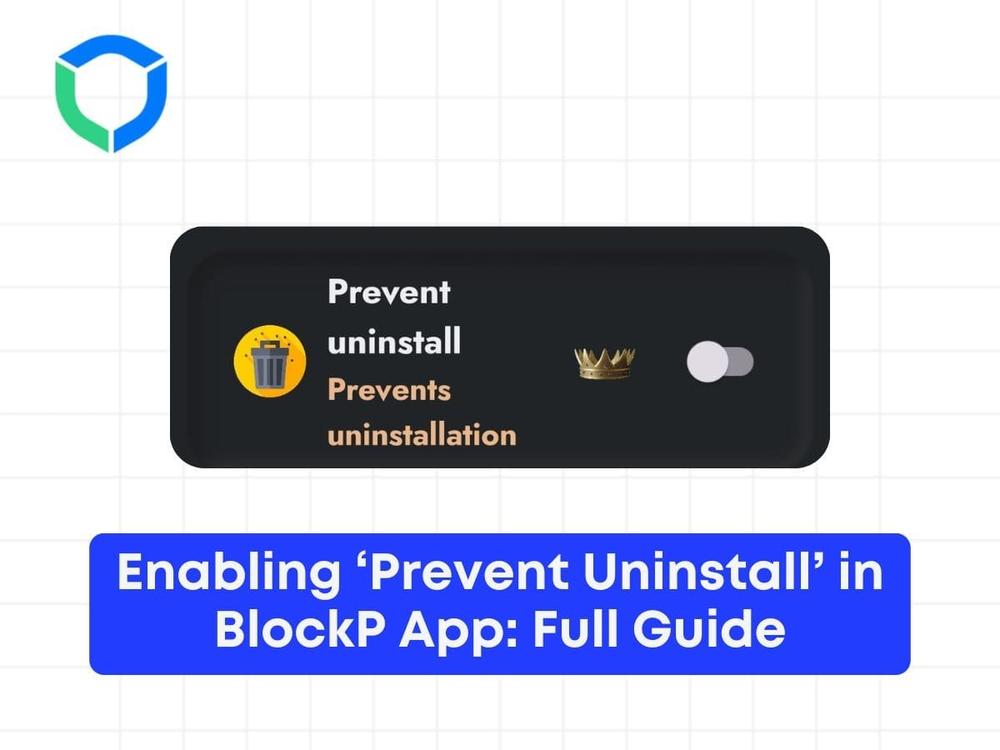


Prevent uninstall is a feature in BlockP which will help you prevent the application from being uninstalled. The application requires a special permission called device admin, which will help us detect the removal of the BlockP application from your phone. Along with password protection feature, Prevent uninstall works like a charm and prevent you from relapsing.
Step 1: Go to the BlockP App and go to the Advance Blocking

Step 2: Enable the ‘Prevent Uninstall’ Option
- Description: Prevent uninstall means that you cannot uninstall this application. Enable the ‘Prevent uninstall’ option.

Step 3: Activate the Device Admin permission
Action: Once you try to enable this feature, the following interface can be seen:

Step 5: Attempt to Uninstall an Application
- Action: Once enabled, if you try to uninstall any application, the following will be displayed:
- Result: The app couldn’t be uninstalled because ‘Prevent uninstall’ is enabled.
Step 5: Methods of Preventing Uninstall
- Description: There are different ways you wouldn’t be able to uninstall the application.
- Example: Device Admin
Action: Go to the device admin.
Result: The same display will be shown since ‘Prevent uninstall’ is enabled:- Action: Go to the device admin.
Result: The same display will be shown since ‘Prevent uninstall’ is enabled:
Step 6: Block Apps in Settings
- Action: Go to the main screen and click on ‘Add’ in the ‘Block setting section.’
- Action: Remove ‘apps’ from the list shown.
Result: Your screen will look like the following:
Step 7: Access App Management
- Action: Go to ‘Apps.’
- Action: Click on ‘App management.’
- Action: Click on BlockP.
Result: The following will be displayed:
This is how we prevent uninstall using the ‘Prevent uninstall’ feature. By following these steps, you ensure the application remains installed and protected from being uninstalled through various methods.
Struggling with Adult Content Addiction?
Download BlockP on your device, and block adult content instantly.

Written By:

BlockP Editorial Team is a group of researchers, behavioral health experts, and digital wellness specialists dedicated to helping people overcome adult content addiction and build healthier online habits. Our content is grounded in scientific research, expert insights, and real-world recovery experiences. Every article is carefully reviewed to ensure accuracy, practicality, and trustworthiness, empowering readers with evidence-based strategies for lasting change.