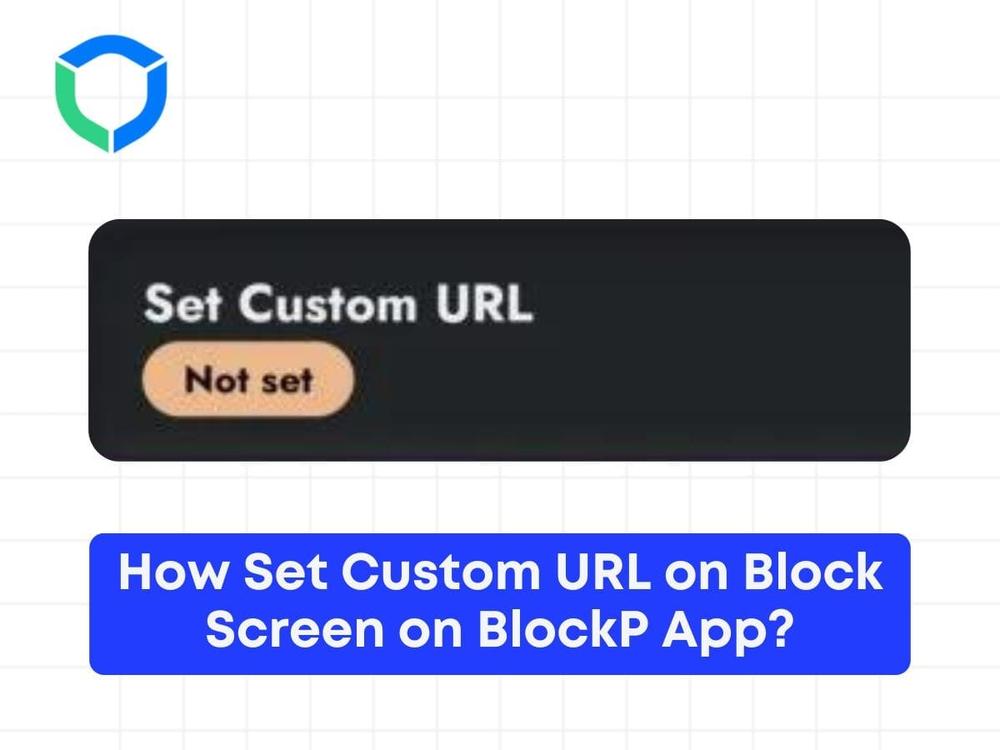


When you try to access porn or any other content you have added to the blacklist, a display message appears showing that the website is blocked and it gets redirected to a custom website address. You can choose the website to be redirected to by setting a custom URL in the BlockP app.
To set a custom URL, follow the steps below.
Step 1: Click on the custom blocking in the dashboard

Step 2: In the dashboard section, scroll down to the bottom where you can find the option “Set Custom URL” and type in the website address you wish to be redirected to.

Step 3: Save the settings and make sure that BlockP is enabled.

Step 4: Check to see if it works. When you try to open a blocked website, you will be able to see the blocker display message which then gets redirected to your customized website URL.
Struggling with Adult Content Addiction?
Download BlockP on your device, and block adult content instantly.

Written By:

BlockP Editorial Team is a group of researchers, behavioral health experts, and digital wellness specialists dedicated to helping people overcome adult content addiction and build healthier online habits. Our content is grounded in scientific research, expert insights, and real-world recovery experiences. Every article is carefully reviewed to ensure accuracy, practicality, and trustworthiness, empowering readers with evidence-based strategies for lasting change.