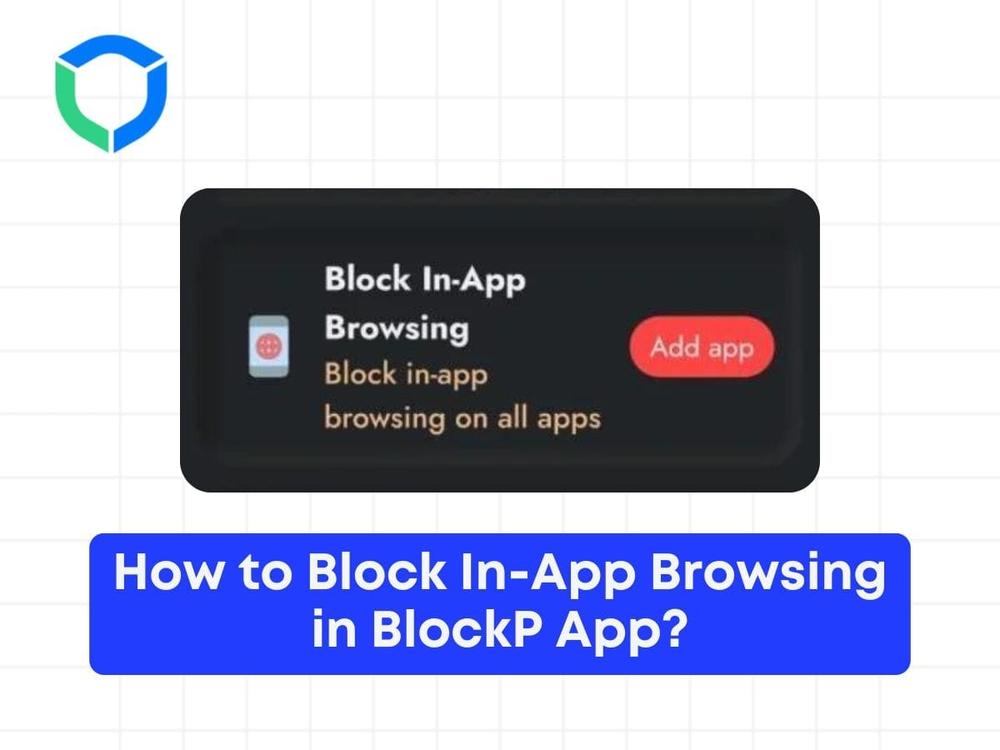


Here’s the step-by-step guide on how to block in-app browsing:
Step 1: Go to “Advance Blocking”

Tap on ‘Add app’:
- Tap on the ‘Add app’ button to enable the ‘Block In-App Browsing’ option.

2. Select apps to block:
- After tapping ‘Add app’, you’ll see a list of apps available on your device.
- Choose the apps you want to block from using their in-app browsers.
3. Example: Blocking Instagram:
- Let’s take Instagram as an example. Select Instagram from the list of apps.

4. Confirmation message:
- Once you select Instagram, you’ll receive a confirmation message that Instagram has been added to the ‘Block In-App Browsing’ list.
5. Testing the block:
- Open Instagram on your device.
- Navigate to a website link within Instagram, for example, a link in someone’s bio.
6. Result:
- When you click on the link, you’ll see that the website cannot be opened in the Instagram app because it’s included in the ‘Block In-App Browsing’ list.
Note: Ensure you have the app settings configured to block in-app browsers for the desired apps effectively.
Struggling with Adult Content Addiction?
Download BlockP on your device, and block adult content instantly.

Written By:

BlockP Editorial Team is a group of researchers, behavioral health experts, and digital wellness specialists dedicated to helping people overcome adult content addiction and build healthier online habits. Our content is grounded in scientific research, expert insights, and real-world recovery experiences. Every article is carefully reviewed to ensure accuracy, practicality, and trustworthiness, empowering readers with evidence-based strategies for lasting change.