

Have you deleted Instagram only to reinstall it within days to read a message? A better approach than that is to learn how to block Instagram on Android by restricting only what makes Instagram usage tempting.
Irrespective of what makes you open the Instagram app, what keeps you scrolling is usually Reels and Search. Unlike them, DMs and posts from people you know serve a purpose. So, restricting the first two and keeping the rest helps you stay out of relentless Instagram usage without deleting the app.
This guide explains how to block Instagram with four methods: a Digital Wellbeing timer, Focus Mode, Instagram’s daily limit, and BlockP. Each section lists the steps, the weak points, and how helpful they are.
Key Takeaways
- Knowing how to block Instagram on Android starts with defining the problem (usage, focus hours, or Reels).
- Digital Wellbeing can block Instagram on Android once the daily time has expired and then reset the allowance at midnight.
- Focus Mode will pause Instagram and its notifications on a schedule, but you can easily lift the pause on demand.
- Instagram's own daily limit is just a reminder of usage rather than a full block, so you can click dismiss and keep scrolling.
- BlockP blocks Reels and Search separately and also together, so DMs, stories, and posts from people you follow stay available.
- Android’s built-in tools treat Instagram as a single unit, so they can’t remove Reels while leaving DMs open.
Why Block Instagram?
Blocking Instagram becomes necessary when the app stops being a means to stay connected to people and starts consuming your productive hours and sleep. The impact of Instagram’s scrolling cannot be underestimated because a study of 323 college students by the International Journal of Indian Psychology showed that 59.1% were prone to Instagram addiction and 4.0% were definite addicts on the Test for Instagram Addiction.
Here are some common issues that push people to restrict Instagram usage.
- Random search and autoplay of Reels can consume your time beyond why you opened the app.
- With no boundary to stop you, late-night scrolling becomes addictive and interferes with your bedtime.
- When you keep checking Instagram Reels, it can interrupt your work or study time.
Simply deleting the Instagram app will hide important updates and conversations for you, making it harder to reach family and friends.
People searching for how to block Instagram app on Android often need an option that can address a particular issue without completely uninstalling the app. The four methods discussed below will help you decide which suits your needs.
Method 1. Block Instagram Using Android Digital Wellbeing
With a Digital Wellbeing app, you can block Instagram by setting a timer, and the app pauses when the set time is reached. Since it’s built into most Android phones, no download is needed.
The steps below cover how to block Instagram on Android phone models that include Digital Wellbeing. The menu names vary by manufacturer.
- Open Settings -> Digital Wellbeing
- Go to App Timer and select Instagram
- Then, set a timer for Instagram usage and save
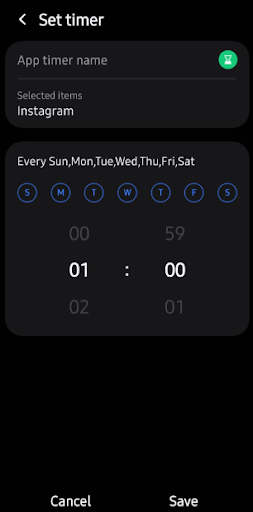
Once you have used Instagram for the set time, Android pauses Instagram for the rest of the day. The timer resets at midnight, and deleting it restores access earlier [Google Android Help].
Digital Wellbeing is a free way to block Instagram on Android, and you can change or delete the timer at any time if needed.
Method 2. Block Instagram Using Focus Mode
Focus Mode shows how to block Instagram on Android for a set period of time rather than all day. This is great for blocking out time in brief bursts during meetings, study sessions, and deep work.
- Open Settings, then Digital Wellbeing & parental controls, then Focus mode.
- Select Instagram from the list of apps.
- Tap Turn on now, or Set a schedule to set a time for Instagram control
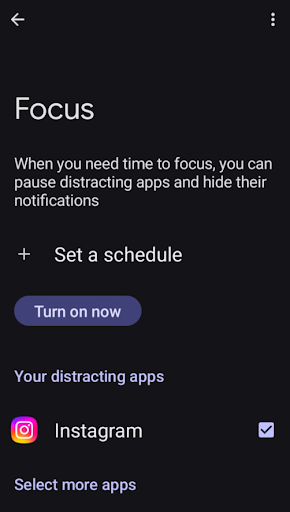
When active, Android will pause Instagram and its notifications. As the pause is so easily lifted, Focus Mode is actually better to block Instagram on Android during set hours than for breaking a daily habit.
Method 3. Set a Daily Time Limit on Instagram
You can set a reminder using the Android app of Instagram, but not fully block it. The setting is free and needs no extra permissions.
How to block instagram app on Android in 2 steps
- Open Instagram, go to your profile, and tap the menu in the upper-right corner.
- Under Time Management, set a daily limit.
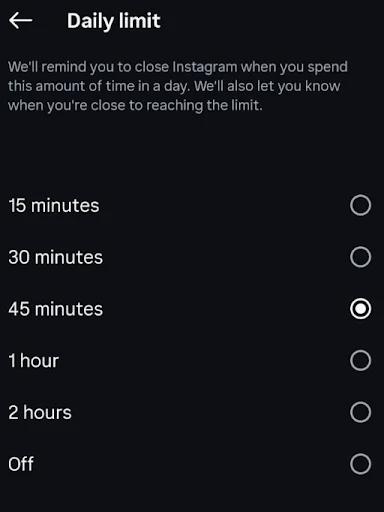
Inside the app, you can also add sleep mode from the same folder. Nevertheless, when the reminder appears, you can dismiss it and continue. It may not fully block Instagram on Android, but only show a reminder that you are overusing it.
Method 4. Block Instagram Using BlockP App Blocker
BlockP changes how you block Instagram on Android by blocking specific features rather than the app. It blocks Reels and Search (the two biggest sources of distraction) but leaves DMs, Stories, and posts from people you follow completely accessible.
How to block Instagram on Android with BlockP
- Download the BlockP app from the Play Store and register using your email address or Gmail account.
- You need to add the following three access permissions.
- Enable Accessibility: tap the toggle, tap ‘Allow BlockP to access Accessibility Services’, and tap Enable. Then, go to Downloaded apps, select BlockP, toggle it on, and tap Allow.
- Enable Overlay: toggle it, then select BlockP under Display over other apps.
- Disable battery optimization: toggle it, then tap Allow.
- From the BlockP dashboard, go to Advanced settings.
- Under Social Media Blocking, switch on Instagram Reels and Block Instagram Search.
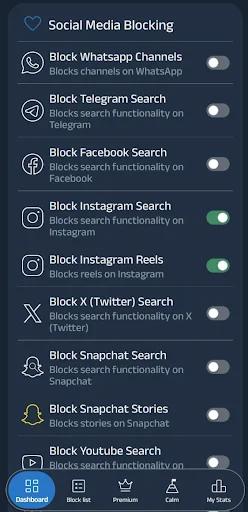
Accessibility permission lets BlockP detect when you open Reels or Search. It then closes that screen and shows a custom message in its place.
Other benefits of using BlockP
- You can keep Search open and block only Reels, or vice versa, instead of blocking both.
- Keep Reels and Search closed during work or study and keep DMs open for any urgent messages.
- Other social media apps (Facebook, X), adult sites and content, etc., can also be blocked using BlockP.
- An accountability partner or password protection can help you not make rash changes to your blocks.
- Paid plans include AI Blocking and Custom Redirects on unlimited devices as well.
If you struggle to stay off Instagram, you can combine BlockP with the Digital Wellbeing timer to block Instagram on Android from two directions: total time and the feeds behind it.
Which Is the Best Method to Block Instagram on Android?
Before you decide how to block Instagram on Android, check what matters most to you and match it with the right blocking method based on the comparison table below.
| Method | What it does | Strictness | DMs available | Cost |
|---|---|---|---|---|
| Digital Wellbeing timer | Pauses Instagram after a daily allowance | Medium; timer can be edited | Until the limit is reached | Free |
| Focus Mode | Pauses Instagram and notifications on a schedule | Medium; Take a break lifts it | No, while active | Free |
| Instagram daily limit | Sends a reminder at the chosen time | Low; reminder can be dismissed | Yes | Free |
| BlockP | Blocks Reels and Search only | High for those feeds; password lock available | Yes | Paid; free trial |
How to block Instagram based on need:
- Need a firm daily cap - choose the Digital Wellbeing timer.
- For limited-time blocking - Focus Mode.
- Need usage awareness and a daily limit - Instagram’s own limit
- Reels and Search cause most of the distraction - BlockP fits the best.
FAQs on How to Block Instagram on Android Without Deleting It
Can I block Instagram on Android without uninstalling it?
Yes. You can block Instagram on Android via BlockP, Digital Wellbeing, and Focus Mode, but the app is still on your device and your account is active.
How do I permanently block Instagram on my Android phone?
No block is truly permanent if you can undo it, but you can make it much harder to remove. For example, use BlockP’s password lock or an accountability partner, so you can’t change the settings on impulse.
Can I block Instagram Reels without blocking Instagram?
Yes, with BlockP you can block Reels and Search while DMs, stories, and posts can stay active. No built-in tool on Android can do this.
Can I block Instagram on Android for free?
Blocking Instagram for free with built-in tools is possible, but not often effective. Using a tool like BlockP can block Reels and Search.

Written By:

BlockP Editorial Team is a group of researchers, behavioral health experts, and digital wellness specialists dedicated to helping people overcome adult content addiction and build healthier online habits. Our content is grounded in scientific research, expert insights, and real-world recovery experiences. Every article is carefully reviewed to ensure accuracy, practicality, and trustworthiness, empowering readers with evidence-based strategies for lasting change.