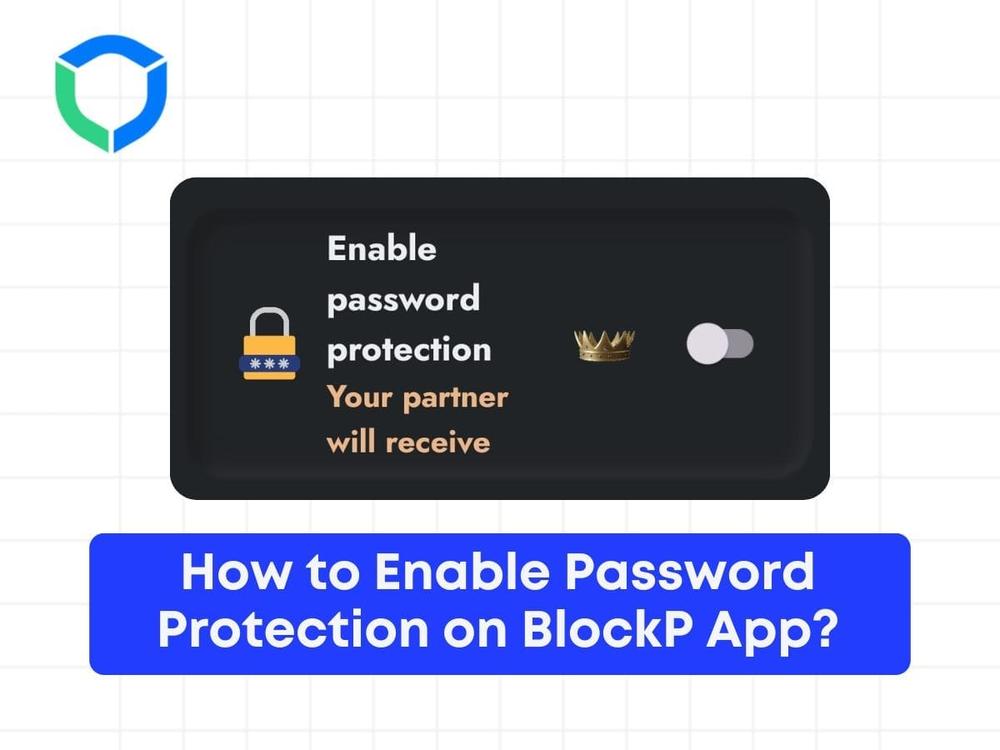


Password protection will help you act as accountability partner in your journey. All you have do is add your partner email and any changes in the app will be routed through your partner and your partner can accept or decline your request.
here are the step by step guide to use password protection in the BlockP app.
Step 1: Go to the app and click on Advance blocking

Step 2: Navigate to Accountability Partner:
Click on the ‘Add’ button located in the ‘Accountability Partner’ section.

Step 3: Choose Password Protection:
You’ll be presented with two options for enabling password protection. Select ‘Enable password protection.’
Note: You need to subscribe to access this feature.


Step 5: Verify with OTP: A One-Time Password (OTP) will be sent to the email provided. Enter the OTP to proceed.

Step 6: Activate Password Protection: Once OTP verification is complete, the ‘Enable password protection’ feature will be activated.

Disable Password Protection (When Needed): To turn off password protection:
Step 1: Enter your PIN for verification.
Step 2: You’ll receive an OTP via email.
Step 3: Enter the OTP to confirm and disable the feature.
Once you submit your OTP, the feature can be disabled.
Struggling with Adult Content Addiction?
Download BlockP on your device, and block adult content instantly.

Written By:

BlockP Editorial Team is a group of researchers, behavioral health experts, and digital wellness specialists dedicated to helping people overcome adult content addiction and build healthier online habits. Our content is grounded in scientific research, expert insights, and real-world recovery experiences. Every article is carefully reviewed to ensure accuracy, practicality, and trustworthiness, empowering readers with evidence-based strategies for lasting change.