

A five-minute Instagram check between meetings rarely stays five minutes. Instagram is used by around 47% of people in the US, according to the Pew Research Center, and is known to consume people’s productive time through distraction.
Even though most professionals already know the habit costs time, stopping it is harder, as checking the app from a work computer is easy.
To avoid this, blocking Instagram from your computer is more straightforward than relying on willpower. BlockP is a popular blocker that closes Instagram on your computer and stops you from giving in to urges.
This guide covers how to block Instagram on computer with the BlockP Chrome extension, the Windows software, and the macOS software. It also outlines the cost of heavy use and answers common setup questions. Each method lists the steps first, then explains what the block covers.
Key Takeaways
- When you use Instagram on a computer excessively, it can hinder your work productivity.
- If you want to know how to block Instagram on computer, start by choosing the right tool.
- A Chrome extension of BlockP is good if your work on your PC involves using the browser more than other tools.
- The Windows software of BlockP can help prevent the Instagram app feature on your desktop by blocking it.
- The BlockP Mac software helps block Instagram Reels with its dedicated Mac software.
- With BlockP’s password protection and uninstall prevention available in all versions, you can stay committed to blocking Instagram on your computer.
Effects of Excessive Instagram Usage
The effects of using Instagram over a limit have to be realized before one gets to the point of asking ‘how can I block Instagram on my computer’. Here are the main effects one should be wary of.
- Even a quick check on Instagram pulls your attention away from what you were doing. Getting back into the task often takes longer.
- Reels play automatically and never really give you a place to stop, so one video turns into five.
- Friends and competitors usually post their best moments. It’s easy to start comparing yourself to them and feel unwanted pressure.
- When you get an alert or a message, you want to check and reply. That usually turns into scrolling. If you leave Instagram open in a tab on your laptop, the temptation is always right there.
- You open Instagram when work ends and scroll endlessly; it interferes with your rest and makes it harder to focus the next morning.
Together, using Instagram relentlessly can hurt your focus, waste your time, and mess with your rest. Though each one might seem small, when they compound over a long time, they can steal your productive hours.
Benefits of Blocking Instagram on Your Computer
Once you choose to block Instagram, you can gain the following benefits.
- Once time spent on Instagram is restored, you will find more time for completing important tasks due to fewer distractions.
- You can schedule breaks and genuinely relax instead of stopping every time a notification pings.
- Fewer digital interruptions mean you can stay on one task for longer and concentrate better.
- A set block on Instagram creates a clear boundary around your social media use. So you are not fed an overwhelming amount of information. This can help you gain more clarity on important things.
- The time you save at work can go toward offline activities and personal goals, creating a good work-life balance for you.
When you are searching ‘how do I block Instagram on my computer’, a blocker only removes the easy path to act on an urge. So you have to use it wisely to help yourself avoid getting addicted to incessant Instagram usage.
Block Instagram on Computer Using the BlockP Chrome Extension
BlockP’s Chrome extension blocks Instagram once the Social Media Blocker switch is on. The block applies only to the browser where the extension is installed.
Follow these steps in order:
- Install the BlockP extension for Chrome.
- Sign in with an email address or Gmail account.
- Open the dashboard and select Features.
- Under categories, enable Social Media Blocker.
- Open Instagram in a new tab to test the block.
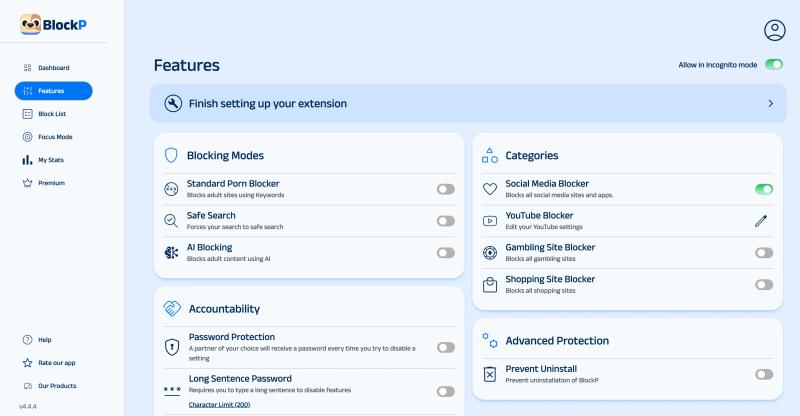
As part of testing how it works, once the toggle is on, check if you are still able to open Instagram.

For most desk workers, the journey of how to block Instagram on computer begins with the browser, as Instagram is often opened in a tab near all other important tabs. Hence, the extension covers the most common route first.
On an important note, if you are using a managed work laptop, then IT policy often allows only an extension. This makes extensions the only viable option for blocking Instagram on a work PC.
In case you need more coverage and are wondering, ‘How can I block Instagram on my computer on all browsers? ', you can try BlockP’s Windows and Mac versions. They are as easy to install and use as this extension.
Block Instagram on Windows Using the BlockP Windows Software
BlockP’s Windows software blocks Instagram as part of its Social Media Blocker feature. Since the software runs on the desktop, it is not tied to a single browser and works beyond it.
How to block Instagram on PC using BlockP
- Download BlockP for Windows from the official website.
- Run the installer and follow the on-screen prompts.
- Open BlockP and sign in with an email address or Gmail account.
- Go to Features, then open Categories.
- Turn on Social Media Blocker.
If you are someone who switches browsers during the day, then for you, how to block Instagram on computer access depends on covering every browser, not only Chrome. You can get more out of desktop software.
Windows users who work in Chrome can also use the extension described above while still using desktop software. When the extension handles Chrome, the software can handle the remaining browsers or apps.
Block Instagram on Mac Using the BlockP macOS Software
BlockP’s macOS software blocks Instagram Reels with different block settings in its Features tab. The rest of Instagram stays available, so features such as DMs keep working.
Follow these steps in order:
- Download BlockP and open it from Applications.
- Create an account and give the access BlockP requests when prompted.
- Go to the Features tab and look under categories.
- Switch on Instagram Reels.
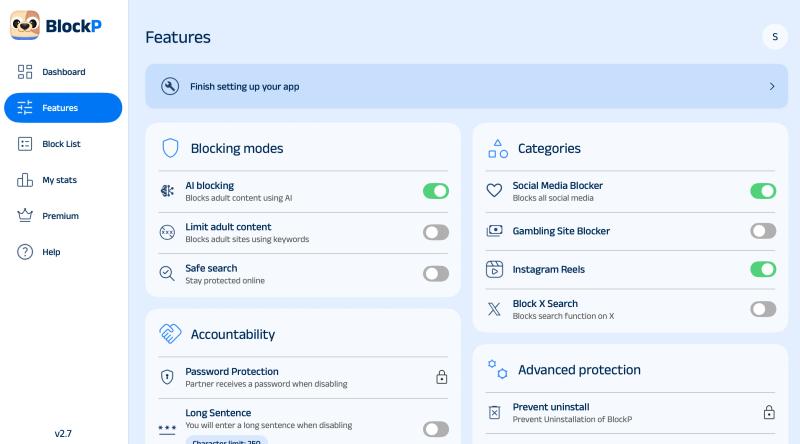
If a clip plays, check the permissions given to BlockP. At times, any revoked access stops the block from working.
For most users, Reels are the most distracting part of Instagram. Therefore, the Mac option targets Reels rather than the full app. Social media managers who still need DMs benefit most from this setup.
The answer to how to block Instagram on computer differs by platform. The Chrome toggle restricts Instagram, while the Mac option restricts Reels. It’s better if you can choose based on how much of Instagram you and your work require.
| Method | What it blocks | Coverage | Best for |
|---|---|---|---|
| Chrome extension | Instagram (Social Media Blocker) | Chrome only | Browser-based work |
| Windows software | Instagram (Social Media Blocker) | Desktop, several browsers | Multi-browser use |
| macOS software | Instagram Reels | Mac desktop and browsers | Work that needs DMs |
FAQs
How can I block Instagram on my computer permanently?
No setting is permanent. However, BlockP adds password protection, which makes impulsive removal of the block harder.
How do I block Instagram on my computer without an extension?
Install the BlockP Windows or macOS software. Both run as desktop applications, so you don't need a browser extension.
Can I block Instagram on my PC for free?
Yes. BlockP offers a free version alongside paid Premium plans to help block Instagram on a browser or PC.
Can I block Instagram during work hours only?
Yes. Use BlockP’s toggle to turn the block on during work hours and off afterward.
Take Control of Your Screen Time
Excessive Instagram use interferes with productivity and also your rest. You ought to set healthier digital boundaries for yourself depending on which part of Instagram consumes most of your time. For anyone researching how to block Instagram from computer access, BlockP is a comprehensive choice because it is available for Windows, Mac OS, and as a Chrome extension. You can start with the Chrome extension to block Instagram immediately when you are working.

Written By:

BlockP Editorial Team is a group of researchers, behavioral health experts, and digital wellness specialists dedicated to helping people overcome adult content addiction and build healthier online habits. Our content is grounded in scientific research, expert insights, and real-world recovery experiences. Every article is carefully reviewed to ensure accuracy, practicality, and trustworthiness, empowering readers with evidence-based strategies for lasting change.