
Turn On Safe Search on Mac with BlockP macOS Software
Turn on Safe Search on Mac with BlockP. Filter explicit search results across browsers and keep everyday browsing safer for you and your family.
Get Started with BlockPExplicit content can appear on screen in all sorts of ways, not just by typing it into the search box. A Sky News survey found that 50% of teens had come across some form of violent or sexual content without having actually searched for it.
To prevent this, you need to take direct control of how the search is carried out. The best way to do that is to turn on Safe Search on Mac, and BlockP makes it easy for you to manage the process in a safe way.
How to Enable Safe Search in BlockP macOS Software
Learning how to turn on Safe Search on Mac with BlockP only takes two steps.
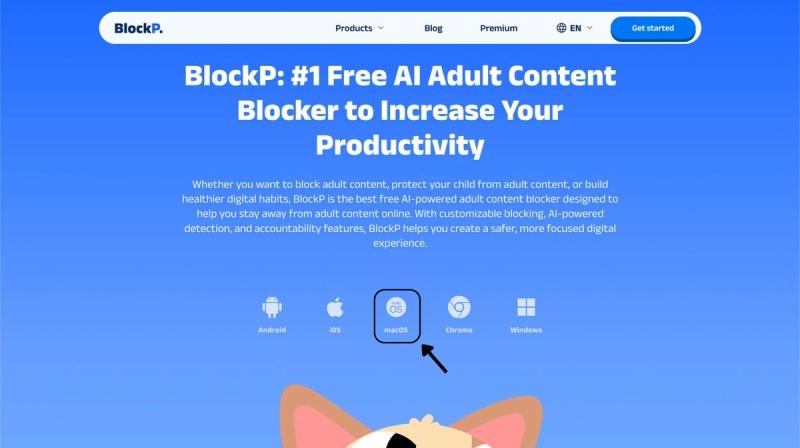
Step 1: Download BlockP
Go to the BlockP website and download the porn blocker software for Mac.
Step 2: Install and Open the App
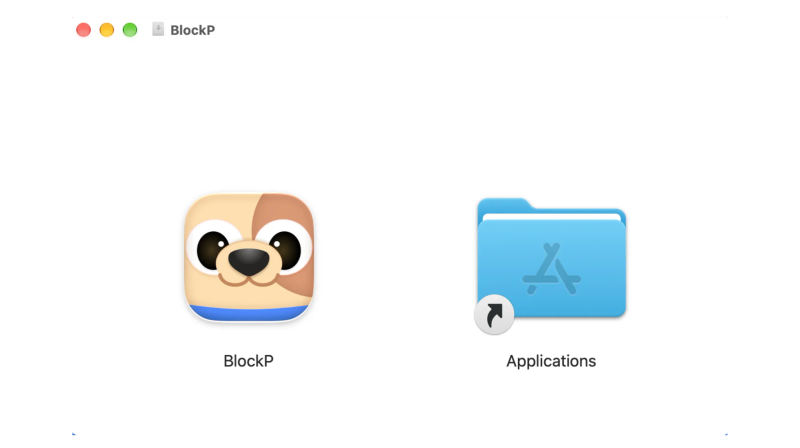
You can find the BlockP icon in the Downloads folder. Move it into Applications and open BlockP from there.
Step 3: Create Your Account
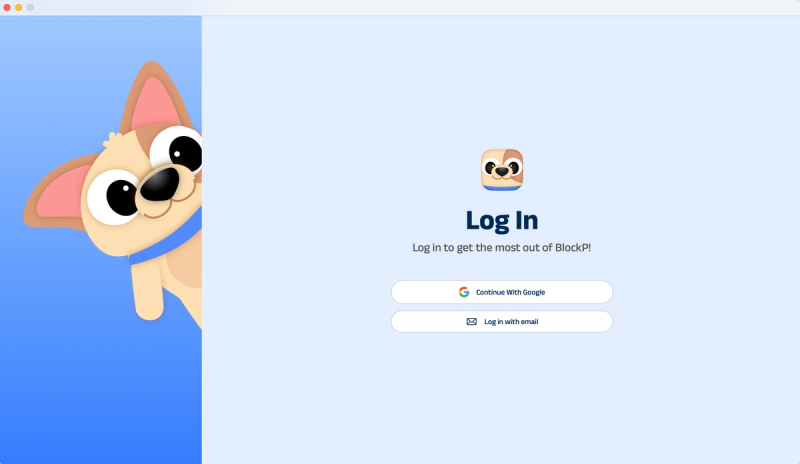
Sign up for BlockP using your email address or your Google account to get going.
Step 4: Give Necessary Permissions
BlockP will request four permissions on your Mac.
- Screen Detection
- Accessibility
- Blocking Permission
- Browser Access
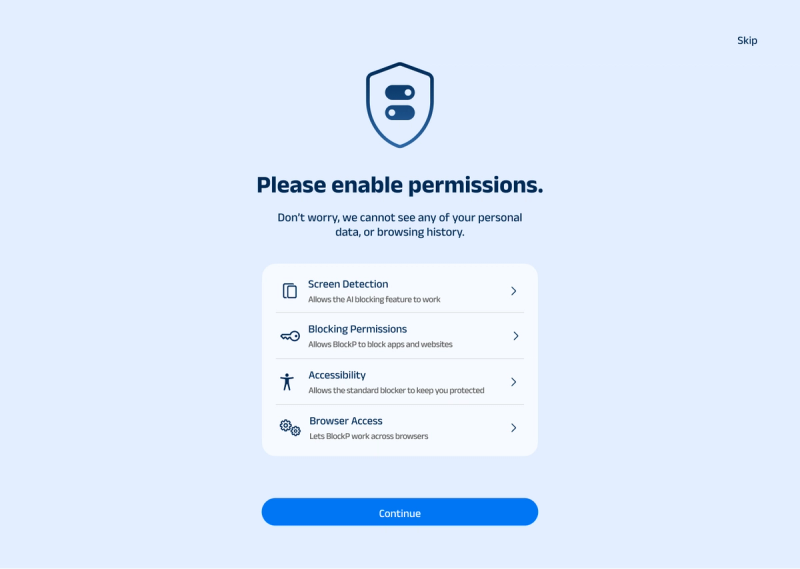
Click on each permission tab, and your Mac Settings page will open. Slide the toggle next to the BlockP icon to the on position. Do this for each of the permissions on the list.
Step 5: Activate Safe Search
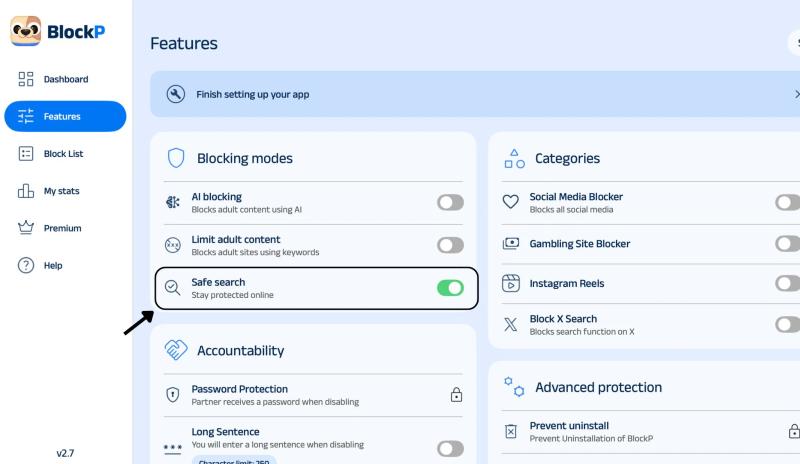
In the dashboard, click on the Features tab. Under the Blocking Modes section, you'll find Safe Search. You need to turn that on.
What Is Safe Search on Mac?
Safe Search is a way of applying a filter to a search engine, so it removes explicit images, links, and videos from search results. On a Mac, achieving this depends on the settings of the search engine or browser.
This filter only applies to search results. It has no effect on pages that are accessed directly. If someone types a URL in or uses a bookmark, the filter won't work. For that, you still need site-level blocking.
Anyone using the device can turn off the browser-level setting. So, in addition to knowing how to turn on Safe Search on Mac to prevent the display of explicit material, you also have to make sure that the guard isn't so easily turned off by anyone.
Benefits of Using Safe Search on Mac
- Fewer explicit images, links, and videos will appear in everyday searches.
- Parental control Safe Search Mac solutions are useful in the home situation where one computer is used by both parents and children.
- Once Safe Search on Mac is turned on, the settings stay the same on any shared family or office computers, so no one has to go and reconfigure them every time.
- Parents and staff have less to check in person, so their time and energy are saved.
- Kids who search for their homework and school projects won't end up on content that's not appropriate for them.
How Safe Search Works in BlockP
BlockP applies filtering on supported search engines, so fewer explicit results are seen on the search page.
If you search for a term that normally brings up adult results, the filtered page will show the safer results instead. Even if the filter fails to catch something, if you enable the AI detection, it can still hide the explicit images on the page.
BlockP is specifically for people who need to force Safe Search on Mac and prevent users from switching it off because you can add password protection. This means any changes made in the software need approval.
On Mac, you have to provide necessary permissions for BlockP, such as Accessibility, Screen Recording, and Full Disk Access. So take the time to read each request and grant it if you want full protection.
BlockP Safe Search vs Browser Safe Search Settings
Browser settings only work for one browser at a time. If you turn on safe search on Safari Mac on one account, then Chrome and Firefox will be left open to display adult content.
BlockP can apply the filter across search engines and can also come with a password feature. This works best irrespective of the browser you use and is suitable for shared computers.
Browser controls are free and don't require an install, so they are a good fit for one person who just wants a filter. For shared computers, safe search is available in the free plan from BlockP. You just have to download the software.
Why Choose BlockP macOS Software for Safe Search?
BlockP Safe Search can be used in conjunction with AI detection, website and keyword blocking, password protection, and accountability tools. There's a free version so you can try it out before committing to the Premium version. There are BlockP versions for Android, iOS, Windows, macOS, and Chrome, so you can apply the same restrictions across all your devices.
It only detects content on the device and doesn't collect browsing history, visited URLs, or screen content. The big plus is the accountability tools, which allow a trusted person to be in charge of turning off all the blocking.
Frequently Asked Questions
How do I turn on Safe Search on Mac using BlockP?
Open BlockP, go to the dashboard, click on the Features tab, find Safe Search under Blocking Modes, and switch it on to begin the filtering.
Is BlockP Safe Search free on Mac?
Safe Search is covered under the free version of BlockP.
Can I lock Safe Search so it can’t be turned off on Mac?
Yes. You can password-protect BlockP settings, so you have to approve changes like turning it off or uninstalling it.
What is the difference between Safe Search, AI blocking, and Limit Adult Content?
Safe Search on Mac is meant to filter and block explicit content from the search results. AI blocking is for real-time checking for adult content. Limit Adult Content is to block access to any known adult site.
Does Safe Search work in Safari, Chrome, and Firefox on Mac?
To get Safe Search on all browsers like Safari, Chrome, or Firefox, you have to use a tool like BlockP on your Mac.
Does Safe Search block every explicit search result?
Safe Search only filters explicit results in the browser’s search. It can't guarantee that all such results will be removed. Using it with AI blocking will give you a greater degree of coverage.