Social Media Blocker for Mac: How to Block Social Media with BlockP
Use BlockP's social media blocker for Mac to block Instagram, Facebook, X and other social sites in one click and stay focused while you work or study.
Get Started with BlockPYou sit down at your Mac to finish one task, and twenty minutes later you’re doomscrolling your social media feed. This is relatable to adults and teens alike. Only willpower may not be enough for many to fight against these platforms, and they need a good social media blocker for Mac.
The need to check social media isn't limited to wasting time. There are reports that suggest that using social media for over 3 hours a day can likely lead to anxiety or depression. BlockP can help block social media with very simple steps. It has the needed features to help one block and concentrate on work and to prevent addiction alike.
How to block social media on Mac with BlockP
It takes just two steps to learn how to block social media on Mac.
Step 1: Download BlockP
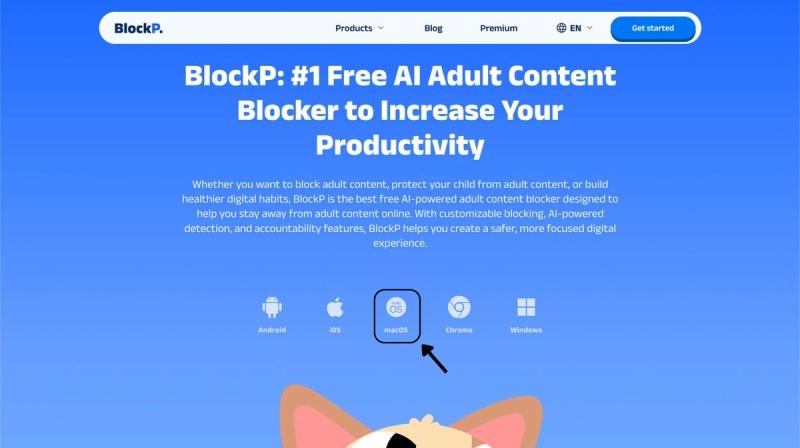
Go to the BlockP website and download the porn blocker software for Mac.
Step 2: Install and Open the App
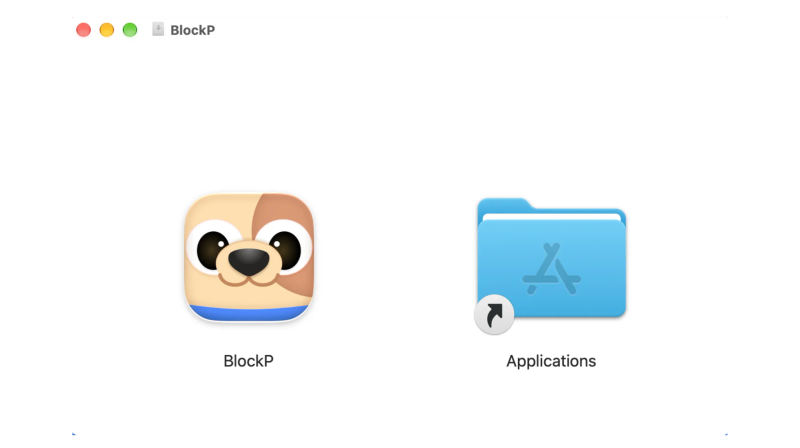
You can find the BlockP icon in the Downloads folder. Move it into Applications and open BlockP from there.
Step 3: Create Your Account
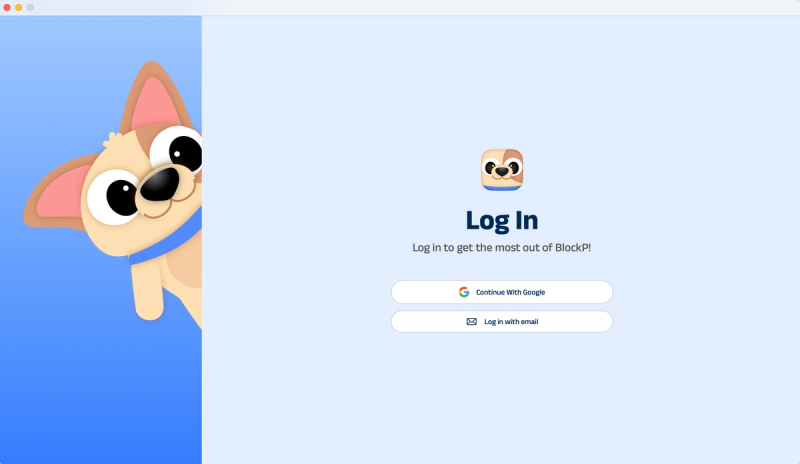
Sign up for BlockP using your email address or your Google account to get going.
Step 4: Give Necessary Permissions
BlockP will request four permissions on your Mac.
- Screen Detection
- Accessibility
- Blocking Permission
- Browser Access
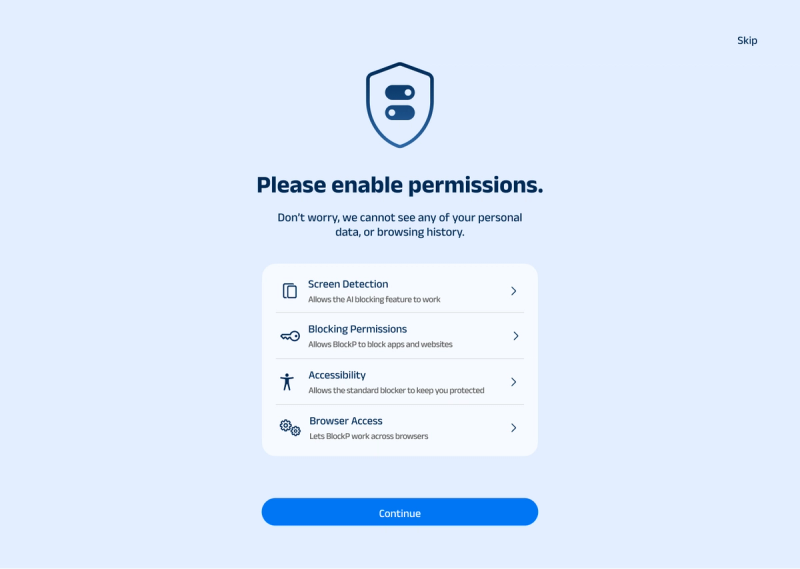
Click on each permission tab, and your Mac Settings page will open. Slide the toggle next to the BlockP icon to the on position. Do this for each of the permissions on the list.
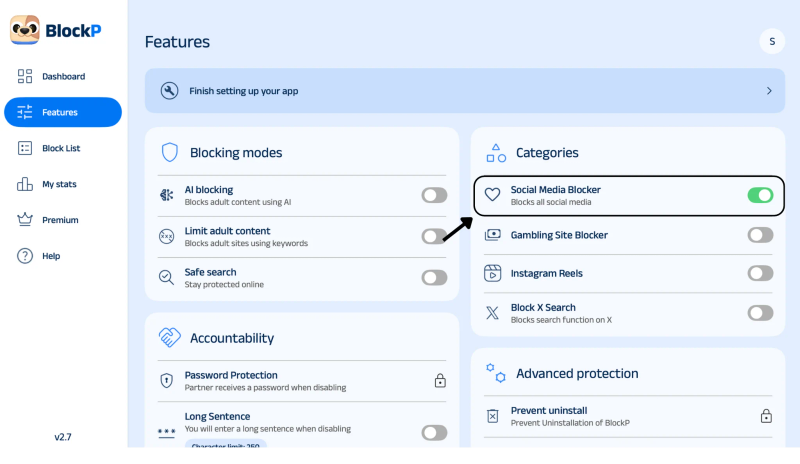
Step 5: Go to Features and Turn On Social Media Blocker
Click the Features tab in Dashboard. Under categories, you’ll see Social Media Blocker. Toggle it to turn it on.
What Is a Social Media Blocker?
An app to block social media on Mac is a way to limit your access to any social media platforms through websites, apps, or both. Some run on a schedule, while others stay on until someone turns them off.
On a Mac, people will typically access social media via a browser and occasionally via the native apps. A good blocker has to cover both of those. The majority of blockers allow you to select which sites and apps you want to block so you can block out the social media and still have your work apps available.
Benefits of Blocking Social Media
- When you block social media on Mac, you will have fewer interruptions during longer tasks.
- Less scrolling means you will find more time to finish your work.
- Scheduled blocks at night help you avoid doomscrolling and sleep well.
- With no constant notifications and comparisons, your mind can be peaceful.
- Regular blocking can build discipline and weaken your constant need to check.
- You can put reclaimed minutes toward hobbies, exercise, or family.
How the BlockP Social Media Blocker Works
The BlockP social media blocker helps restrict social media platforms on your Mac. You can block social media to cut distractions using BlockP instead of the tiring drill of logging out or installing social media as a ritual.
If a user has to stay away from a particular platform, say they stay away from Instagram, then BlockP can help block Instagram on Mac easily. Furthermore, you can add an accountability partner. This can offer extra commitment, which means you can track your streak or progress over time and stay motivated to keep going.
BlockP vs Screen Time: Which Is Better to Block Social Media on Mac?
There are two routes to handle a social media blocker for Mac:
- Built-in controls (Screen Time)
- Third-party software (BlockP)
Since Screen Time comes with macOS, it costs nothing. It works well for a household that wants basic limits inside Apple’s own settings. However, it restricts entire apps or sites on Mac, so you can’t use other features like Messages while blocking just social media.
BlockP, along with blocking social feeds, adds AI content detection, keyword blocking, and accountability tools. All this, with password protection and uninstall prevention, can make the setting harder to undo even in an impulsive moment.
A third-party social media blocker like BlockP is the right choice if a full range of blocking is needed. This is true especially for parents concerned about not just social media, but also explicit material. For someone who only needs a daily cap on app use, then Screen Time is enough.
Why Choose BlockP as Your Social Media Blocker for Mac?
BlockP combines social media blocking with adult-content filtering, so it works as the best option for comprehensive needs. A free version lets you enable and test the social media blocker for Mac before moving to Premium. The setup is also easy, as the blocker enabling is in the feature dashboard, along with other filters.
| Feature | BlockP | Freedom | Cold Turkey Blocker | StayFocusd |
|---|---|---|---|---|
| Cross-device | Android, iOS, Windows, macOS, Chrome | Mac, Windows, Android, iOS, Chrome | Mac and Windows only | Chrome only |
| Keyword blocking | Yes | Limited | Limited | Limited |
| Bypass | Password protection & uninstall prevention | Locked Mode | Very high strictness | Easy to bypass (browser-only) |
| Accountability partner | Yes | No | No | No |
| Price | Free tier + Premium at $3.33/mo | Free + starts at $8.99/mo | Free plan, Pro $39 one-time | Free |
| Best for | Blocking social media and explicit content, with accountability | Cross-device blocking | Strictest enforcement | Free, no-frills blocking |
Frequently Asked Questions
How do I turn on social media blocking in BlockP?
Navigate to the BlockP dashboard. From there, go to the Features tab and toggle the Social Media Blocker under the categories.
Is social media blocking free in BlockP on Mac?
You can block social media on Mac for free using BlockP
Can I block Instagram and Facebook with BlockP?
You can block Instagram and Facebook along with other social media using BlockP.
Does the blocker work in Safari, Chrome and other browsers?
If you use a blocker like BlockP, it can cover macOS applications and also offers browser-level blocking.
Can I limit social media without using Screen Time?
You can use a third-party tool like BlockP to block social media on Mac.
How do I stop myself from turning the blocker off?
You can use password protection that requires authorization to turn off or uninstall your blocker.