Instagram Reels Blocker for Mac: How to Block Reels with BlockP
Use BlockP's Instagram Reels blocker for Mac to hide Reels while keeping DMs and your feed, cut endless scrolling and get your focus back.
Get Started with BlockPYou open up Instagram to reply to a message, and 20 minutes later you're probably still just watching Reels. That's very much the case for a lot of people. A PubMed Central study actually found that 49% of users were habitual users of Instagram, spending around 10.47 hours per week on the app.
Deleting the app is the usual fix, but then you will end up losing the useful parts too. So, blocking the Reels works better. An Instagram Reels blocker hides the video feed and leaves your messages and regular feed. BlockP gives you this feature for macOS, and its setup takes just two steps.
How to Block Instagram Reels on Mac with BlockP (Step by Step)
Two steps to block instagrm reels on BlockP are:
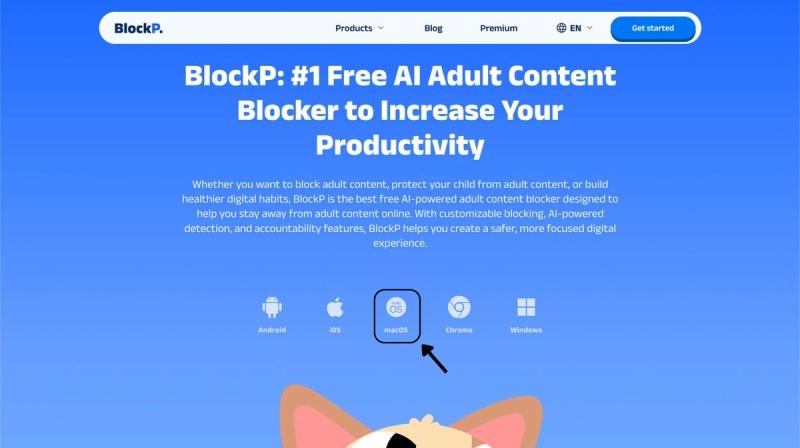
Step 1: Download BlockP
Go to the BlockP website and download the porn blocker software for Mac.
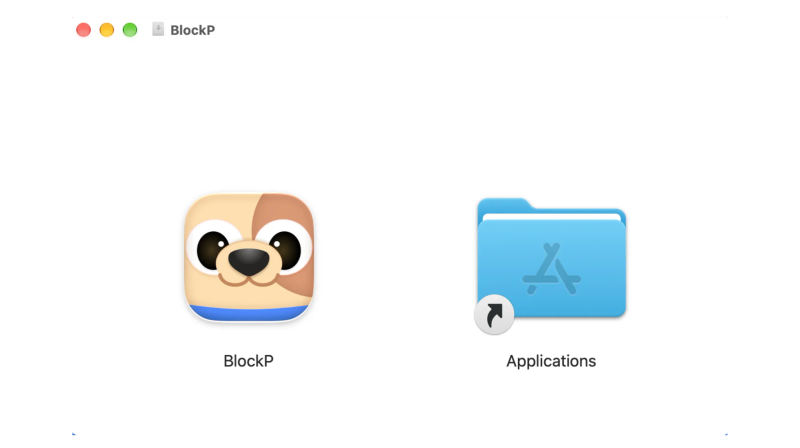
Step 2: Install and Open the App
You can find the BlockP icon in the Downloads folder. Move it into Applications and open BlockP from there.
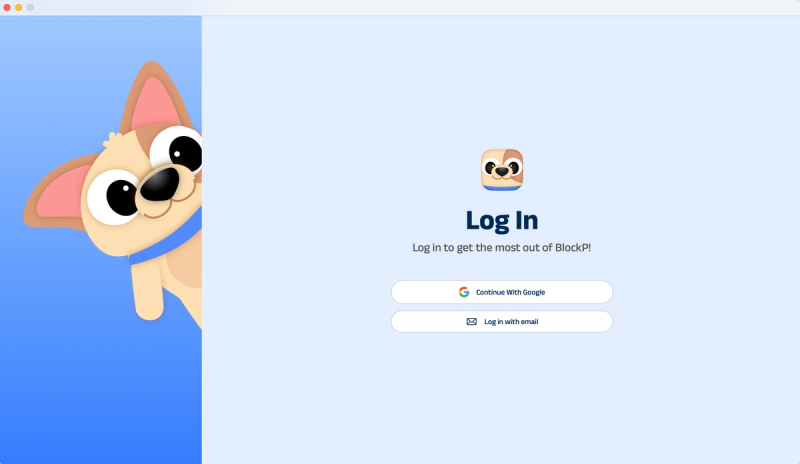
Step 3: Create Your Account
Sign up for BlockP using your email address or your Google account to get going.
Step 4: Give Necessary Permissions
BlockP will request four permissions on your Mac.
- Screen Detection
- Accessibility
- Blocking Permission
- Browser Access
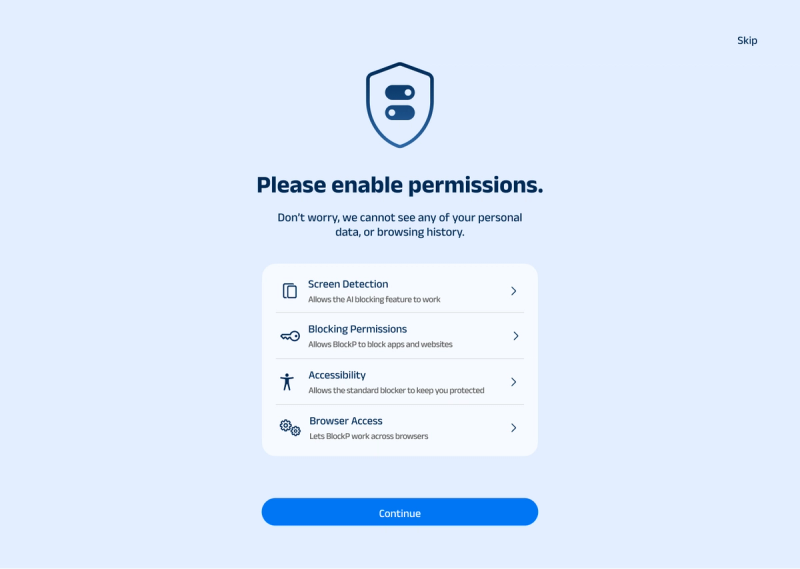
Click on each permission tab, and your Mac Settings page will open. Slide the toggle next to the BlockP icon to the on position. Do this for each of the permissions on the list.
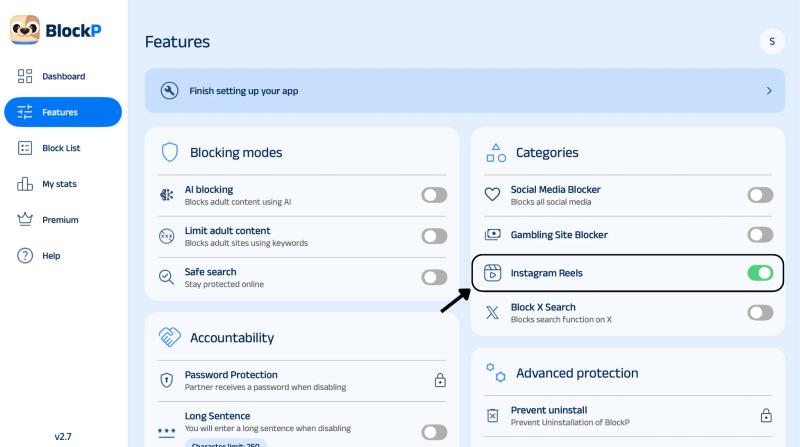
Step 5: Go to Features and Turn On Instagram Reels
In the dashboard, go to the Features tab and look under the categories. Instagram Reels will be one of the options. Switch it on to block Instagram Reels on Mac.
What Is an Instagram Reels Blocker for Mac?
An Instagram Reels blocker will turn off just the Reels part of the app (the most addictive part) and leave the rest of the app fully accessible to you. The Reels start playing automatically, and you just swipe to the next one, so it's very difficult to stop. The blocker makes that decision for you before you're tempted.
Suppose you're looking up how to block Reels on Instagram, the options available on a Mac fall into two categories: browser-based tools and tools that work across the whole system. Which one you go for is entirely down to the scope of your requirement.
Benefits of Blocking Instagram Reels on Mac
- Reduce your doom-scrolling sessions at work and become more productive.
- You can stop Instagram Reels scrolling whilst your messages and your regular feed continue to work.
- With less incentive to go and watch Reels when you can just open Instagram for a quick task (e.g., catching up, messaging, etc.).
- Fewer late-night scrolling sessions on your personal Mac means you can save your sleep and your peace.
- You don’t have to delete the app or log out of your account
- Reducing the urge to keep scrolling can help you invest in deep work.
How the BlockP Instagram Reels Blocker Works on Mac
The BlockP Instagram Reels Blocker is a macOS software that can block the Reels section of your feed once you switch it on in the Features tab. BlockP requires permission from macOS for accessibility, screen recording, etc. It will detect what's on your device but won't collect your browsing history, the URLs you visit, or what's on your screen.
Reels can remain blocked as long as the toggle is on, and you can turn it off from the same tab if you need to. To combat the urge to turn it off at work, you can use password protection, accountability, or uninstall prevention.
Block Instagram Reels vs Block Instagram Completely: Which Is Better?
Blocking all of Instagram makes perfect sense if you don't need it for work or anything else at all. Then it removes all the distraction at once. If, however, you still use it for work or to communicate with friends, then it makes no sense to sacrifice that because of the distraction Reels bring.
Blocking only Reels is the most logical step. If you want to disable Instagram Reels on Mac and keep other features active, then the best way to do that is to use an Instagram blocker like BlockP.
Look at how you used Instagram last week. If it's of any use to you in the course of your work, then just block the Reels. If it's not at all of use, then you can block the whole app.
Why Choose BlockP to Block Instagram Reels on Mac?
BlockP lets you block Instagram Reels on Mac by category, so the rest of Instagram still works. Where supported, password protection and uninstall prevention make it harder to turn the filter off even when you’re tempted.
| Feature | BlockP | Freedom | Cold Turkey | SelfControl |
|---|---|---|---|---|
| Blocks Instagram Reels only | Yes | No | No | No |
| Keeps DMs and regular feed usable | Yes | No | No | No |
| Blocks other sites or apps | Selected categories | Yes | Yes | Websites only |
| Accountability partner/streaks | Yes (streaks where supported) | No | No | No |
| Best for | Cutting Reels while keeping Instagram messaging | Blocking sites and apps across all your devices | Hard-to-bypass focus sessions | Simple website blocking on Mac |
Frequently Asked Questions
How do I block Instagram Reels on Mac?
Open BlockP, go to the Features tab, and switch on Instagram Reels.
Is the BlockP Instagram Reels blocker free on Mac?
BlockP has Reels blocking on Instagram in the free version, and there are other features in the paid plans.
Can I block Reels but still use Instagram DMs and my feed on Mac?
Yes, the Instagram Reels blocker only blocks the Reels (the short videos). Your messages and your feed are still completely unaffected.
Does the Reels blocker work in Safari, Chrome and other browsers on Mac?
BlockP has a browser add-on that can block Reels on all browsers.
What is the difference between the Instagram Reels blocker and the Social Media Blocker?
The Reels blocker only hides Reels. The Social Media Blocker blocks all the social apps completely.
How do I stop myself from turning off the Instagram Reels blocker?
Set a password and turn on uninstall protection. You can also ask a friend to keep the password.